

Signed PDF or Clock Contract Missing in Sign Jasmine?
· Jasmine Apps
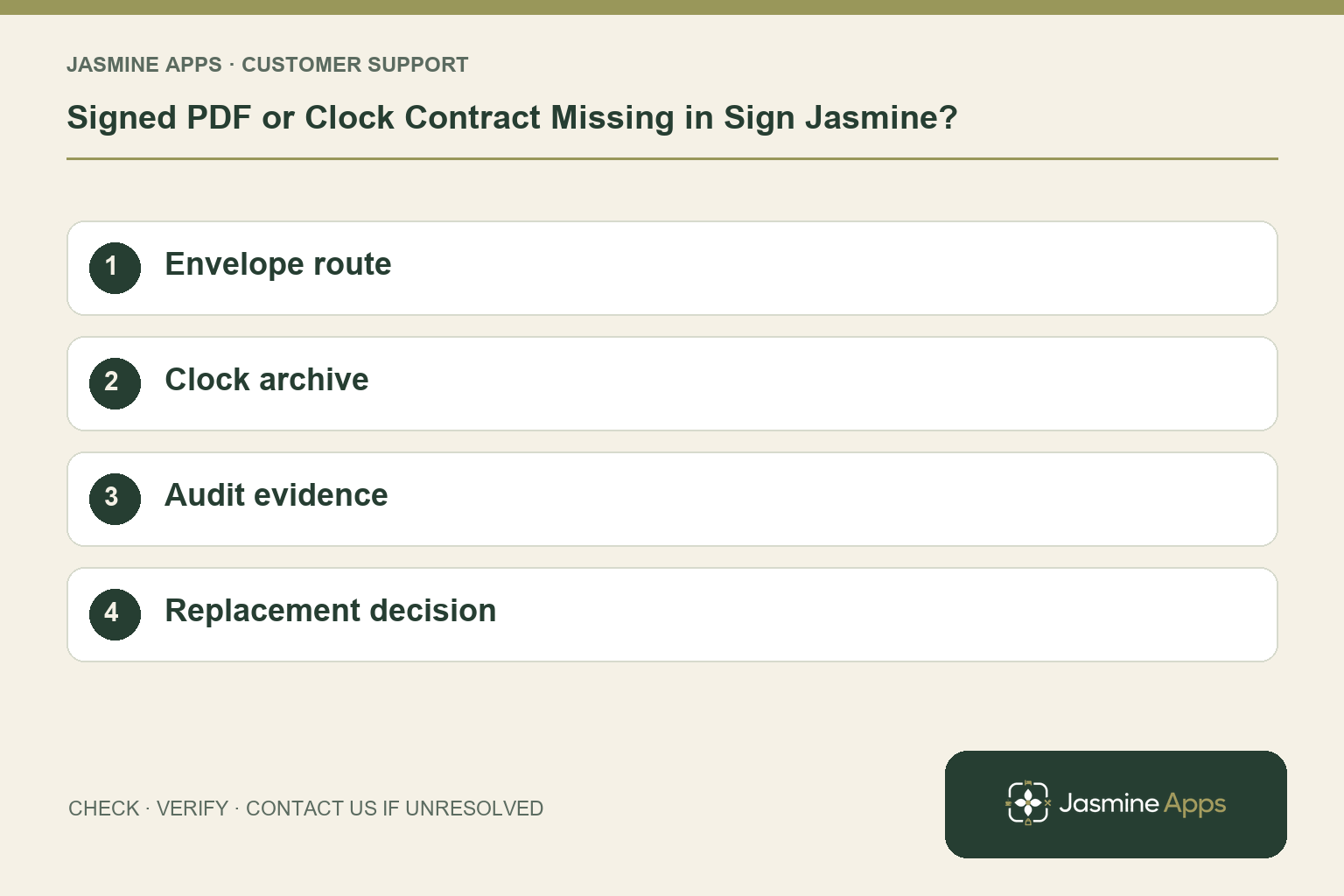
Customer support: Work through these checks in order. After each change, repeat the original action and check the result. If it remains unresolved, use Contact Us.
You need a signed agreement, but it is not where you expected. Sign Jasmine keeps uploaded envelopes and completed Clock Jasmine contracts in different routes. Its downloaded PDF also differs from the internal audit record, so start with what you are trying to find.
Quick answer: Search the correct document route: uploaded PDFs in Envelopes, completed Clock contracts in Clock Jasmine archive. Audit details stay inside Sign Jasmine.
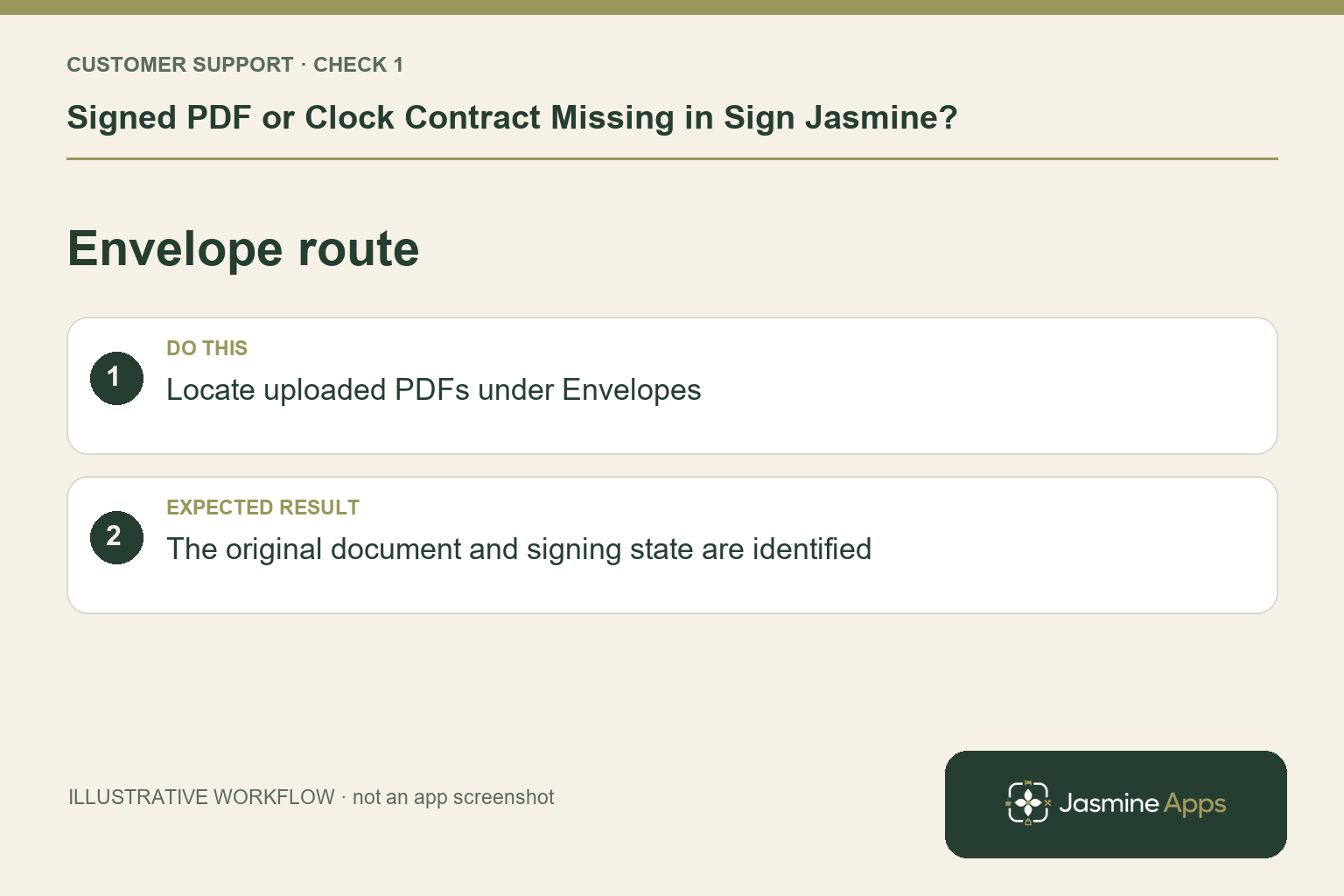
1. Where does an uploaded PDF belong?
A PDF sent through New envelope remains under Envelopes. It does not become a Clock Jasmine archive contract merely because it concerns an employee. Find the intended envelope and confirm its signing state before treating it as a completed document. Check the venue and title against the original request. A similarly named draft can be mistaken for the final agreement.
Check the result: The original document and signing state are identified.
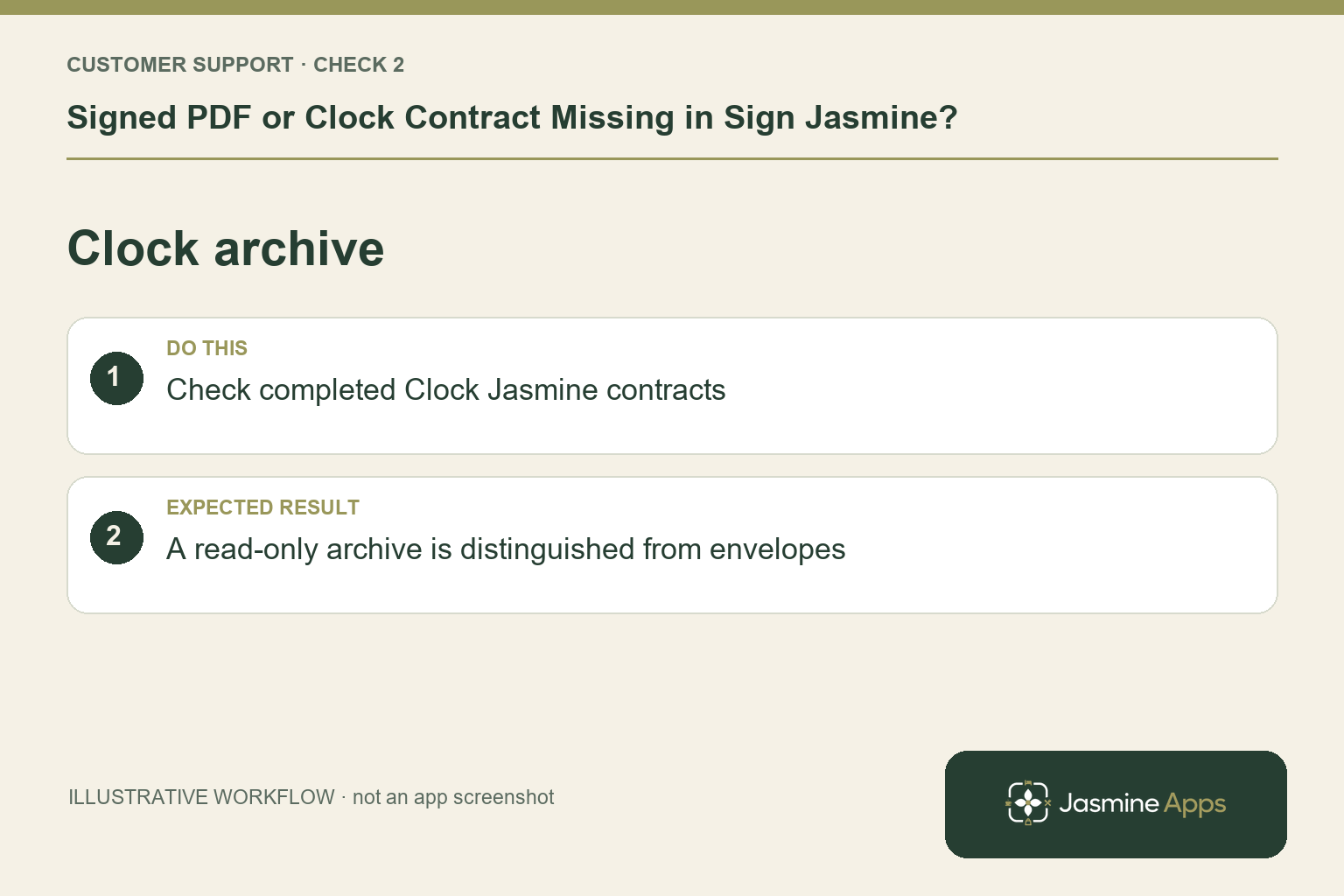
2. What belongs in the Clock Jasmine archive?
The archive is for contracts already signed in Clock Jasmine. The guide describes employee name, email and template name where available. No Clock Jasmine contracts for this venue yet can be a normal empty result when no eligible contract has finished. Check the original onboarding completion and venue. The archive is read-only: it does not send a new envelope or rewrite the signed contract.
Check the result: A read-only archive is distinguished from envelopes.
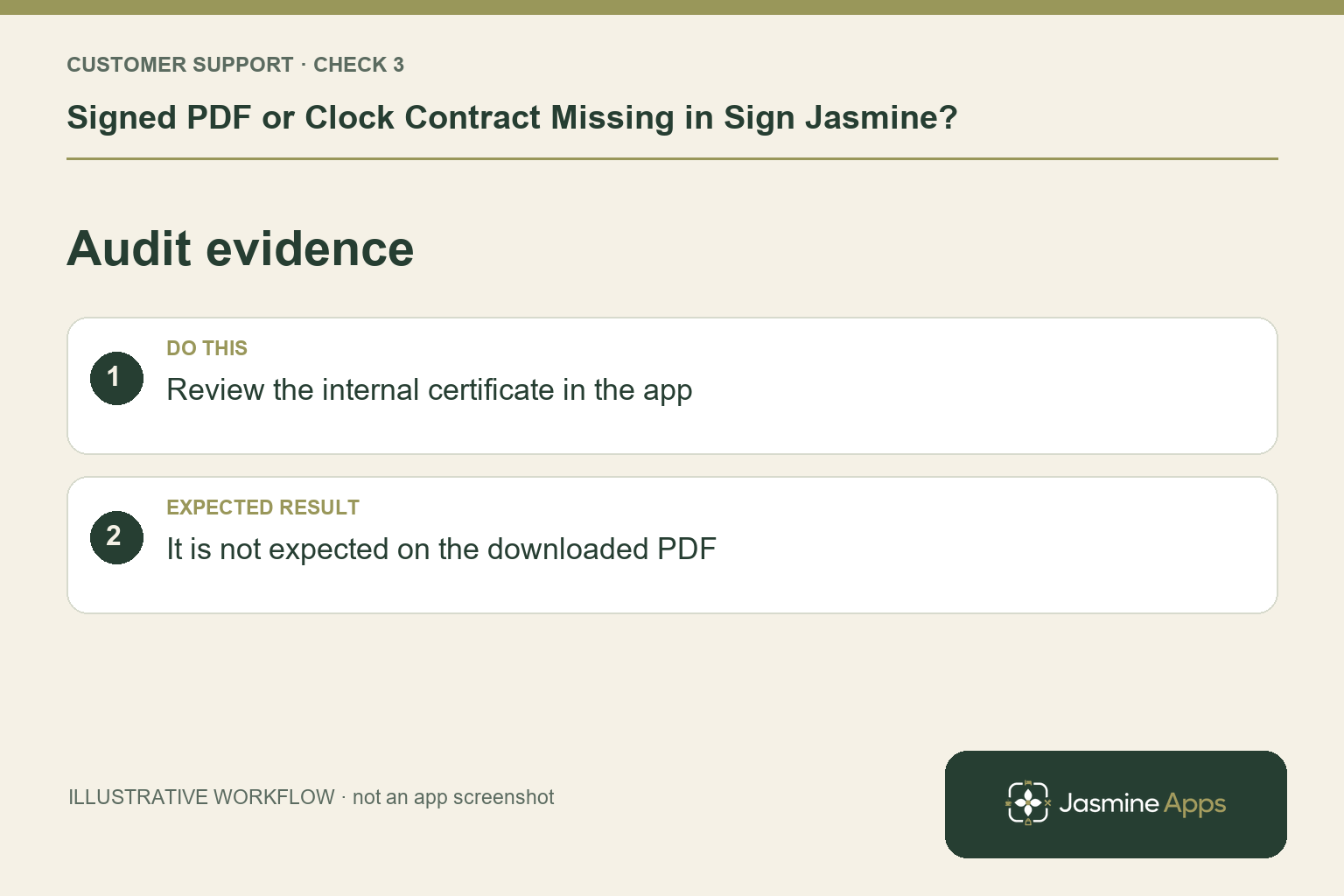
3. Why is the audit certificate absent from the download?
The published Sign Jasmine information says the internal certificate stays in the app rather than on the downloaded PDF. Authorised staff can review who signed, when and from which device there. A PDF without that certificate is not necessarily a failed download. Identify whether you need the signed document, internal audit evidence or both, and handle each through its supported access route.
Check the result: It is not expected on the downloaded PDF.
4. Should I re-send the agreement to make it appear?
Not as a first step. A new envelope creates another signing journey and does not import or repair an old archived contract. Preserve the original reference and determine whether it is unfinished, under another route or genuinely unavailable. The document owner should coordinate any replacement through the supported process. Never edit a completed file to make it look as though missing audit evidence was part of it.
Check the result: A new request is not treated as repair of an old record.
Example from the actual app
The actual New envelope form asks for the final PDF and a numbered recipient list before Continue to field placement. Rows distinguish Signer, Counter-signer and Viewer, with order controls. The Envelopes list separately filters Draft, Sent, In progress, Completed and Voided. Match the document’s real state to the action you intend before creating another request. For this article’s envelope route check, locate uploaded PDFs under Envelopes. Verify the original document and signing state are identified.
Before you contact us
| Check | What to do | Result to verify |
|---|---|---|
| Envelope route | Locate uploaded PDFs under Envelopes. | The original document and signing state are identified. |
| Clock archive | Check completed Clock Jasmine contracts. | A read-only archive is distinguished from envelopes. |
| Audit evidence | Review the internal certificate in the app. | It is not expected on the downloaded PDF. |
| Replacement decision | Preserve the original reference before resending. | A new request is not treated as repair of an old record. |
Record which check failed, the exact error wording and when it happened. Include the relevant venue and record reference, and say whether one device or several people are affected. If you changed a setting, identify that change and the retest outcome. This helps us investigate the actual failing stage instead of asking you to repeat the whole process.
Contact Us if the expected result still does not appear. Send only the information needed to investigate; keep passwords, active codes, payment details and unrelated customer records out of screenshots.
When to stop and ask for help
Give authorised support the venue, document title/reference and whether it originated in New envelope or Clock onboarding. Explain whether the problem concerns access, completion or the audit view. Keep contract text and employee information out of general screenshots.
Related support checks
- Sign Jasmine PDF Upload or Signature Box Not Working?
- Why Is the Next Signer Still Waiting in Sign Jasmine?
Illustrations explain the workflow and are not product screenshots. Any numerical example is labelled illustrative and is not a customer result. Product wording and documented setup checks reviewed on 13 October 2026; confirm the features available in your current installation.