

Sign Jasmine PDF Upload or Signature Box Not Working?
· Jasmine Apps
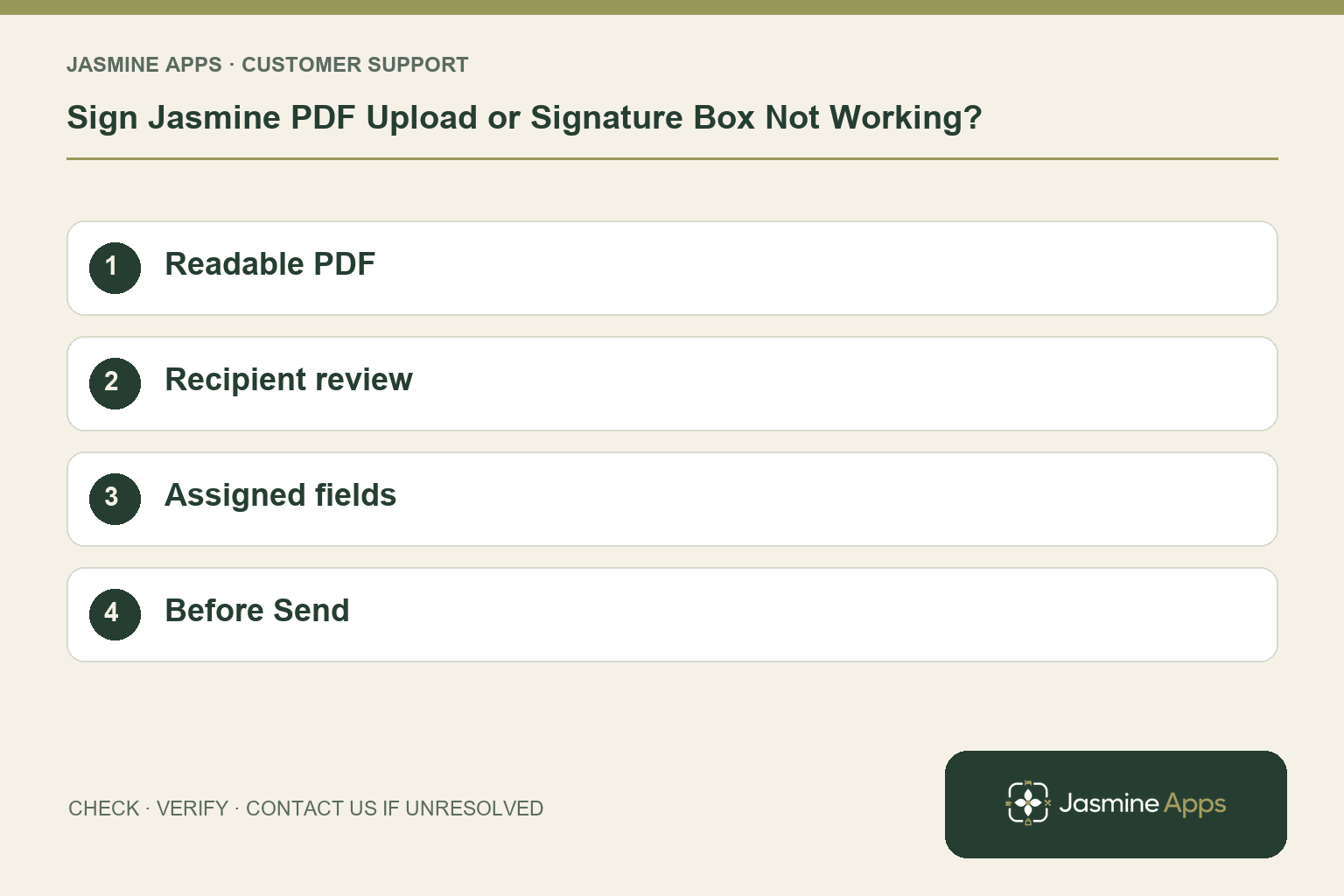
Customer support: Work through these checks in order. After each change, repeat the original action and check the result. If it remains unresolved, use Contact Us.
The document is ready, but Sign Jasmine will not accept it or the signature box is absent where the recipient expects it. File preparation and field placement are separate checks. Fix the draft before sending a signing request.
Quick answer: Use a readable PDF, check each recipient, and place the signature fields for the correct person before Send.
1. Can I upload a Word file?
The existing Sign Jasmine guide accepts a PDF, not a Word document. Export the final agreement to PDF using your approved document process, then open the exported file and check its pages. Confirm you have the intended version rather than an earlier draft. This is preparation advice, not a promise that every protected or unusual PDF configuration will be accepted without review.
Check the result: The file and pages are checked before upload.
2. Where should I check the recipients?
New envelope includes Title, Message to signers, the PDF and Recipients with Full name and Email. Check spelling and the intended signer/counter-signer order. Add me places the current user last as counter-signer in the documented workflow. Keep End of employment Agreement off unless it is the intended Clock Jasmine exit form. A label chosen casually can change the meaning of the workflow.
Check the result: Each signer is correctly identified.
3. Why might a signature field be missing?
After Continue to field placement, select Signature and place it on the page for the right person. Review every page and intended recipient before Send. A visually placed box is useful only if it belongs to the person expected to complete it. Use the supported field-placement screen to correct the draft. Do not assume staff can add a missing recipient field after the document has already been sent.
Check the result: The intended person can complete their boxes.
4. Can I send first and tidy the layout later?
The guide explicitly says Send emails the signers and cannot unsend that email. Finish the PDF and every signature box first. If an incorrect envelope is already sent, preserve its reference and ask the authorised owner or support for the supported remedy. Tell the affected recipient through your agreed process which version to use; do not leave two competing signing requests unexplained.
Check the result: The team avoids competing incorrect requests.
Example from the actual app
The actual New envelope form asks for the final PDF and a numbered recipient list before Continue to field placement. Rows distinguish Signer, Counter-signer and Viewer, with order controls. The Envelopes list separately filters Draft, Sent, In progress, Completed and Voided. Match the document’s real state to the action you intend before creating another request. For this article’s readable pdf check, export and open the approved final document. Verify the file and pages are checked before upload.
Before you contact us
| Check | What to do | Result to verify |
|---|---|---|
| Readable PDF | Export and open the approved final document. | The file and pages are checked before upload. |
| Recipient review | Verify names, emails and intended order. | Each signer is correctly identified. |
| Assigned fields | Review every page and recipient field. | The intended person can complete their boxes. |
| Before Send | Finish the draft before sending invitations. | The team avoids competing incorrect requests. |
Record which check failed, the exact error wording and when it happened. Include the relevant venue and record reference, and say whether one device or several people are affected. If you changed a setting, identify that change and the retest outcome. This helps us investigate the actual failing stage instead of asking you to repeat the whole process.
Contact Us if the expected result still does not appear. Send only the information needed to investigate; keep passwords, active codes, payment details and unrelated customer records out of screenshots.
When to stop and ask for help
Report the draft or envelope reference, failing step, file type and exact error. Supply a nonsensitive sample PDF if support needs reproduction. Real agreements and recipient details belong only in the authorised private support channel.
Related support checks
- Why Is the Next Signer Still Waiting in Sign Jasmine?
- Signed PDF or Clock Contract Missing in Sign Jasmine?
Illustrations explain the workflow and are not product screenshots. Any numerical example is labelled illustrative and is not a customer result. Product wording and documented setup checks reviewed on 13 October 2026; confirm the features available in your current installation.