

TutorialIn-app guide
Sign Jasmine: prepare a new envelope
· Jasmine Apps
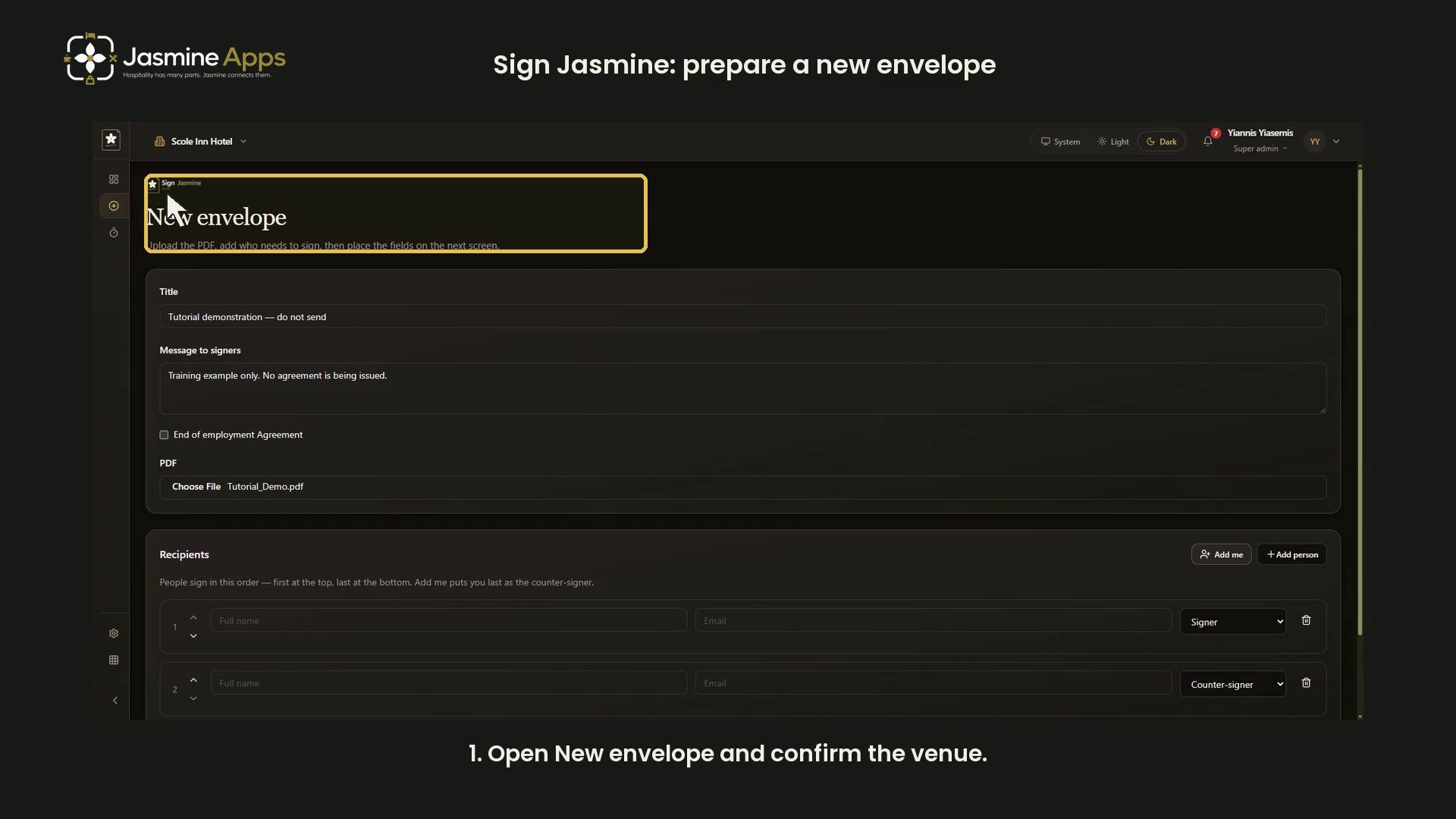
Sign Jasmine starts a document request with a new envelope. This dark-mode walkthrough covers the preparation screen: title, message, PDF, recipients, roles and signing order. It stops before field placement or sending.
Watch the walkthrough
Open a new envelope
Open Sign Jasmine, choose New envelope, and confirm the venue shown at the top. The page describes the sequence: choose the PDF, add the people who sign, then place fields on the next screen.
Name the document and choose the PDF
Enter a clear Title and Message to signers. The example is labelled “Tutorial demonstration — do not send” and uses a training PDF. Leave End of employment Agreement off for this generic demonstration.
Use the PDF file picker, then check the filename beside it. Confirm the actual document before continuing.
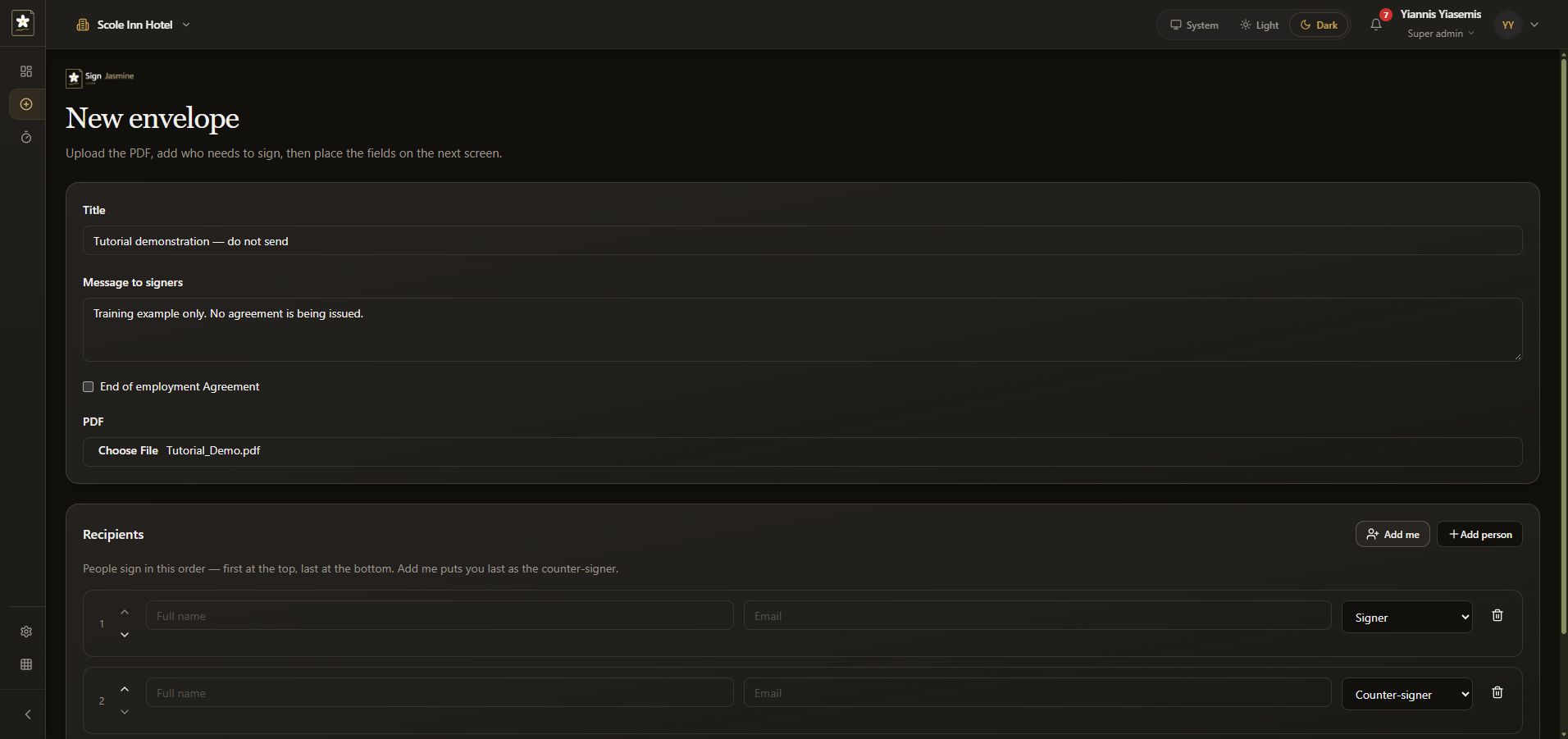
Prepare the recipients and their roles
Each recipient row has Full name, Email and a role selector. Check the intended person's details carefully before a real send. The demonstration leaves these fields blank.
The role selectors include Signer, Counter-signer and Viewer. The video shows a temporary Viewer row and an extra blank recipient to explain the controls. Add person adds another row; the remove control deletes that unsaved row.
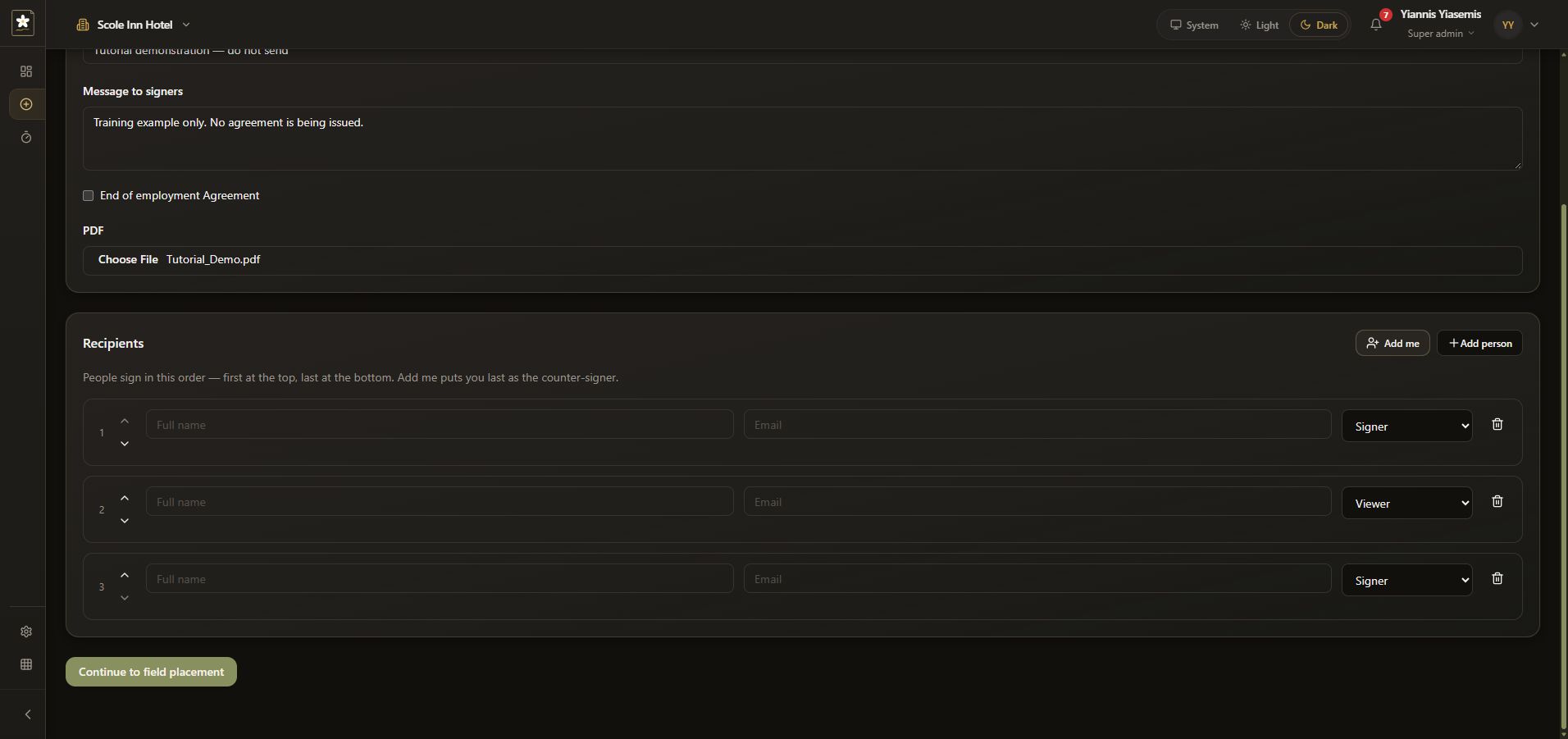
Check signing order before continuing
The page states that people sign from the top of the list to the bottom. Review the row order and the arrow controls. The demonstration restores two blank rows with Signer and Counter-signer roles.
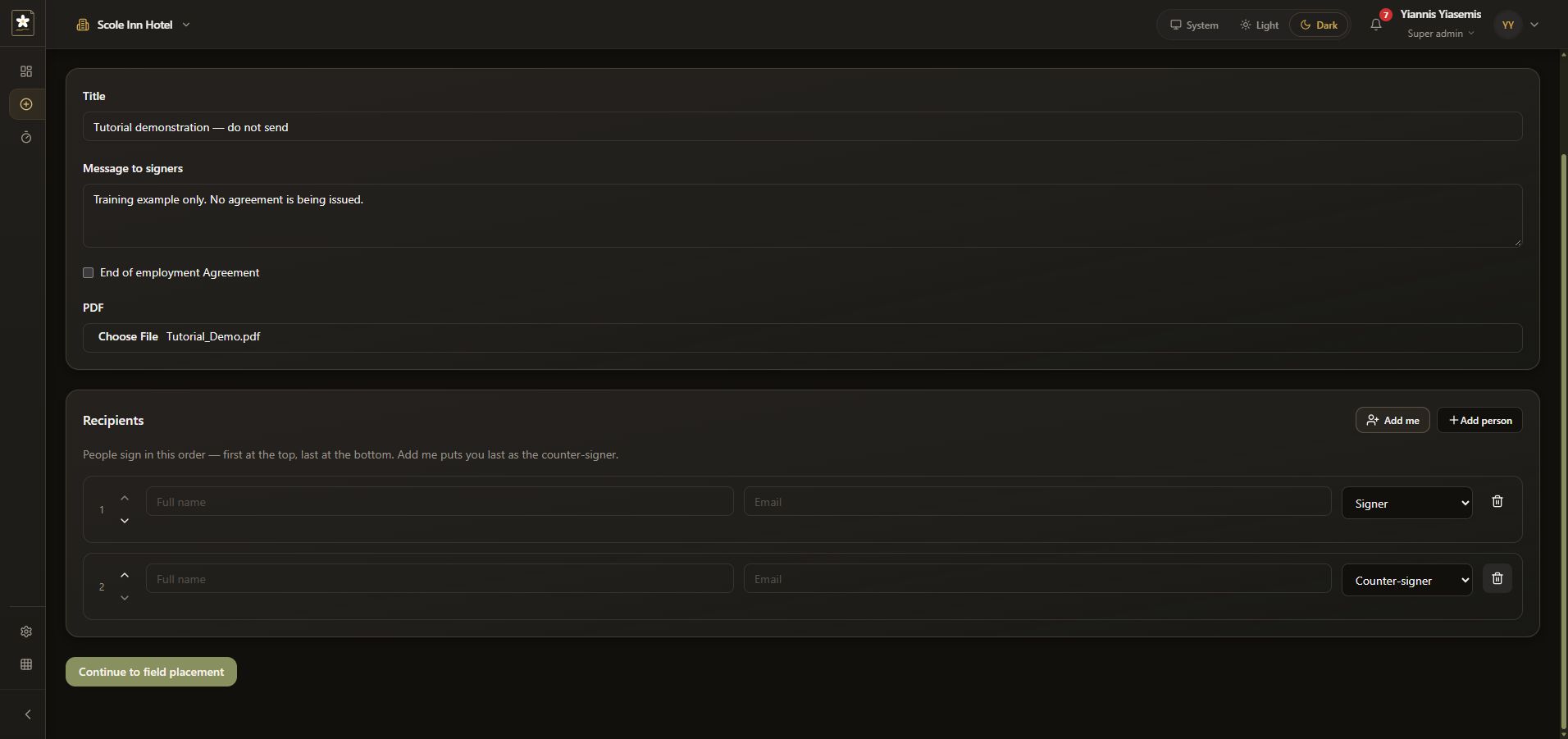
Continue to field placement is the next step once the required information is complete. This walkthrough does not press it, place fields or send email. The unsaved training form was reloaded after recording; no agreement was issued.
Visit the Sign Jasmine feature page.