

Jasmine Marketing Hub Social Post Not Publishing? Check the Setup
· Jasmine Apps
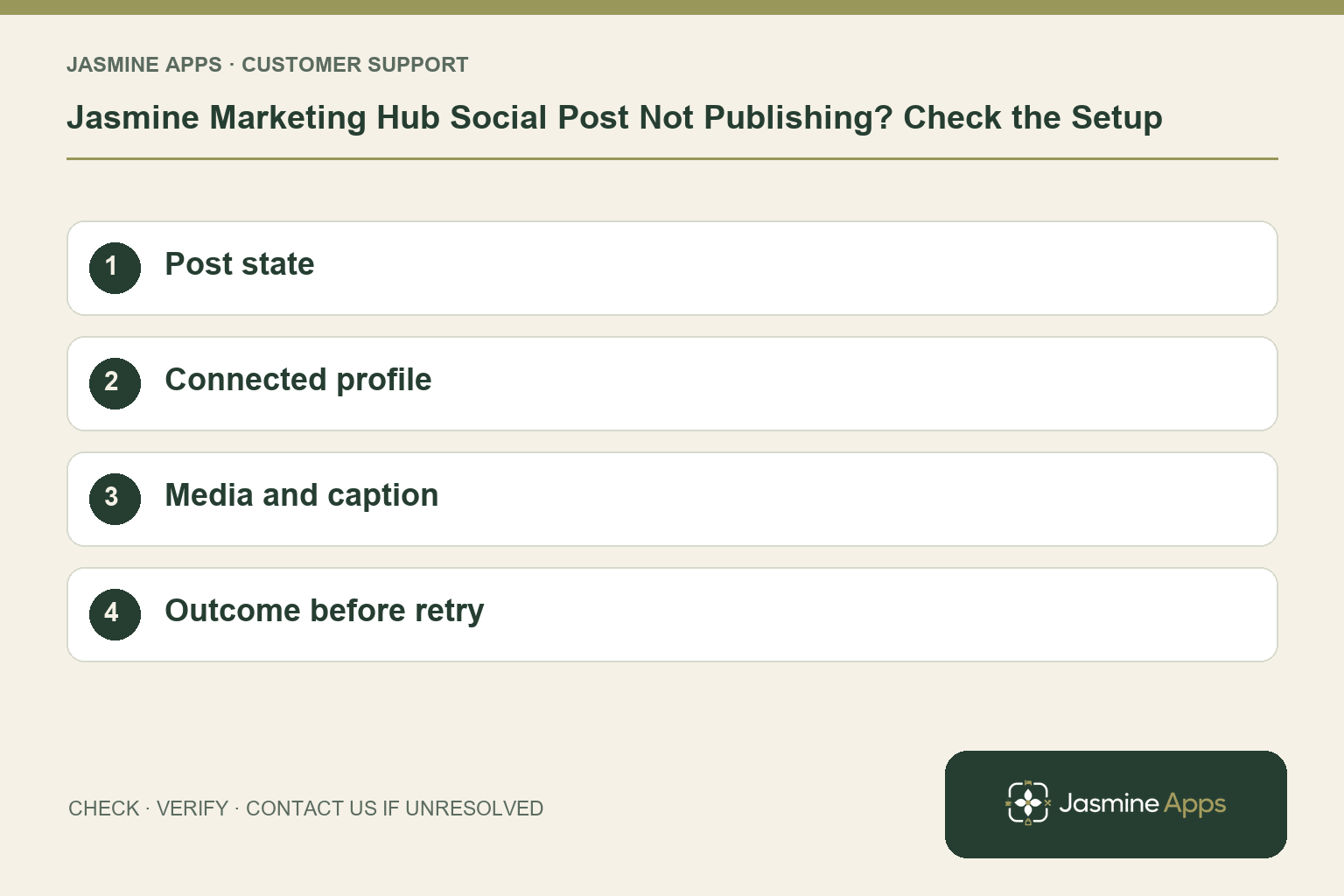
Customer support: Work through these checks in order. After each change, repeat the original action and check the result. If it remains unresolved, use Contact Us.
A social post has not appeared where you expected it. Jasmine Marketing Hub now has a calendar for draft, scheduled and published posts, connected venue profiles and campaign grouping. Start by identifying the post and its intended destination before retrying it.
Quick answer: Check whether the post is a draft or scheduled, confirm its planned timing and venue profile, then inspect the content and any visible error. Check the network itself before repeating a publishing action.
1. Is the post actually ready to publish?
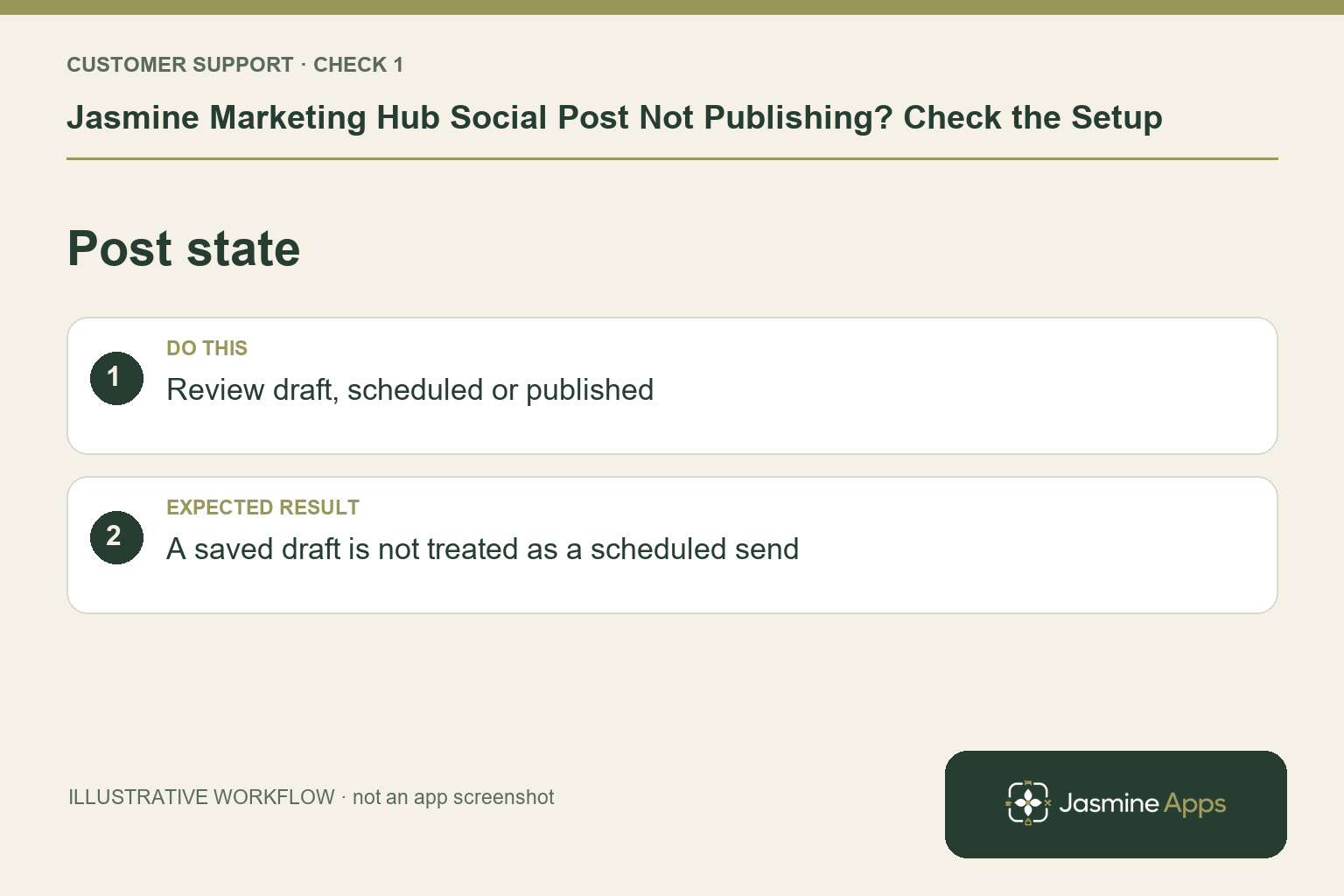
A draft saved in the calendar is not evidence that it was scheduled or published. Find the relevant post and review its current state, intended date and content. Confirm the timing with the colleague who prepared it, especially if several people work on the same campaign. Use the current app instructions for scheduling; do not infer that adding a date to a planning note creates a publishing instruction.
Check the result: A saved draft is not treated as a scheduled send.
2. Is the correct venue profile connected?
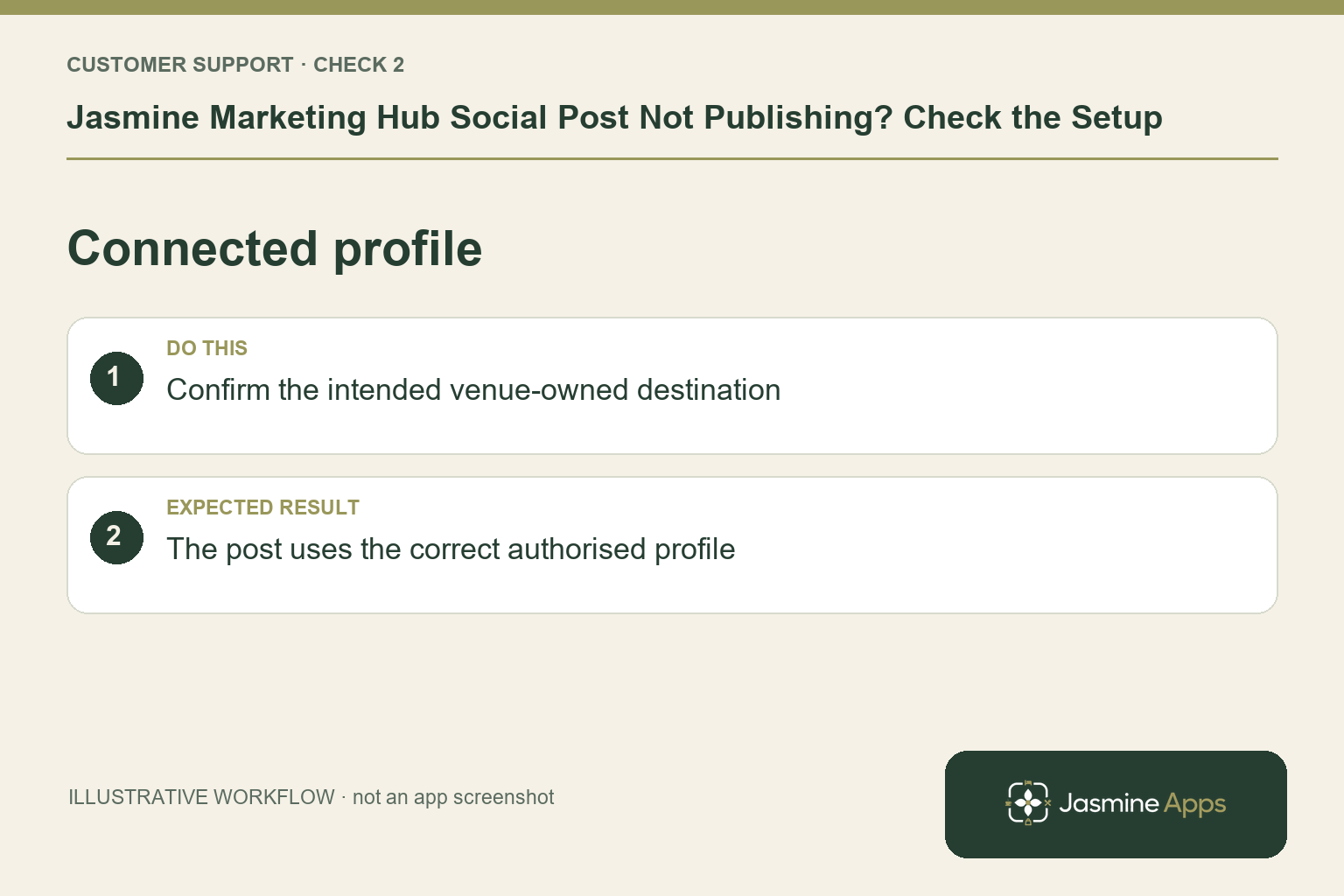
The product page describes connections to venue-owned Instagram, Facebook, Threads and other supported networks through the network’s authorised login. Check the destination profile and connection shown for this post. If access has changed, an authorised profile owner should follow the supported connection process. Confirm the profile name before publishing so an offer reaches the intended venue audience. Do not share passwords or access tokens in a support request.
Check the result: The post uses the correct authorised profile.
3. Could the caption or media be the problem?
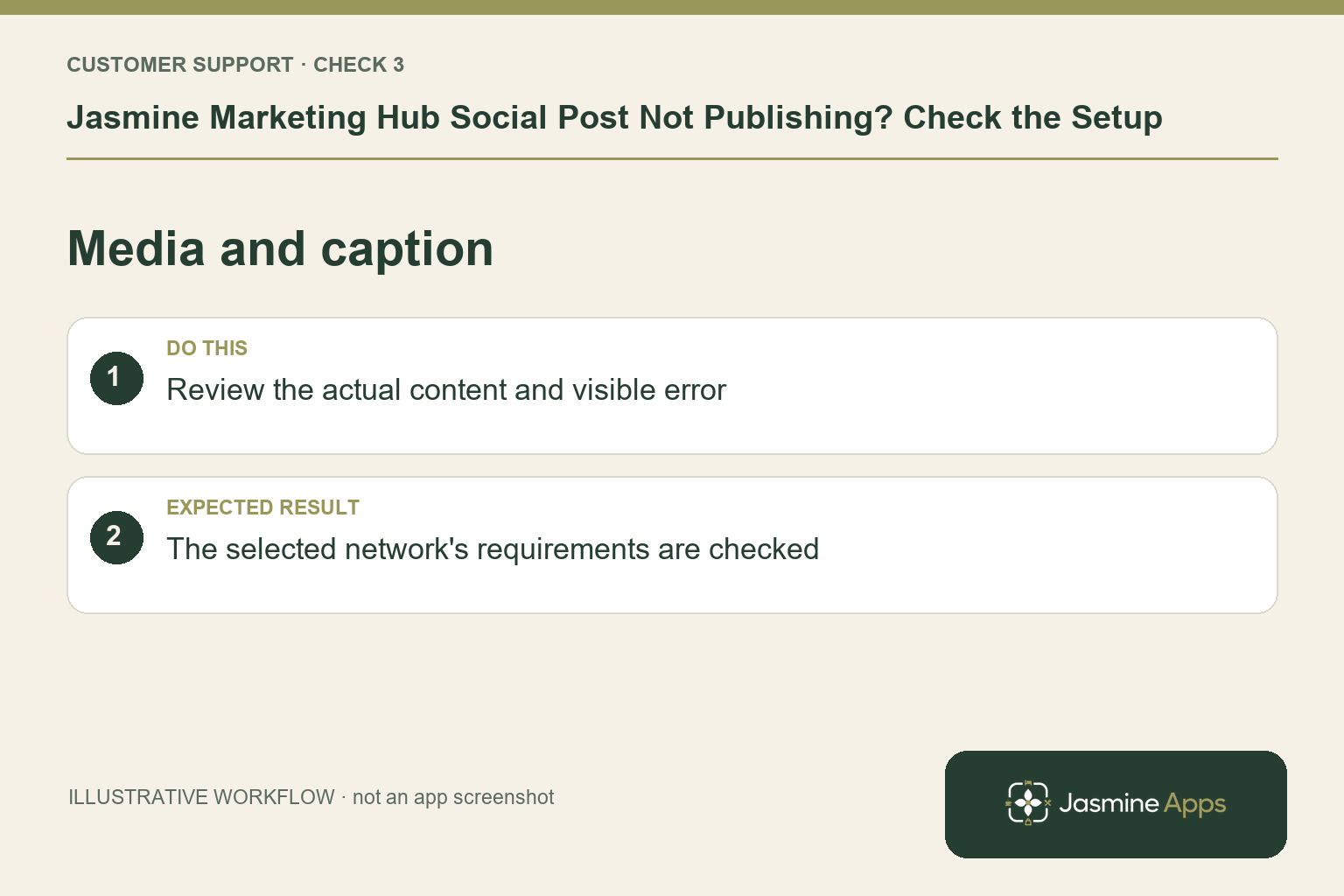
Review the actual image or video and caption attached to the post. Different networks can have different media requirements; use the current requirements for the selected destination and any visible app error rather than assuming one file works everywhere. Check that the offer dates, booking route and venue details remain correct before making an adjustment. Save the approved version and keep a note of the specific error for support.
Check the result: The selected network's requirements are checked.
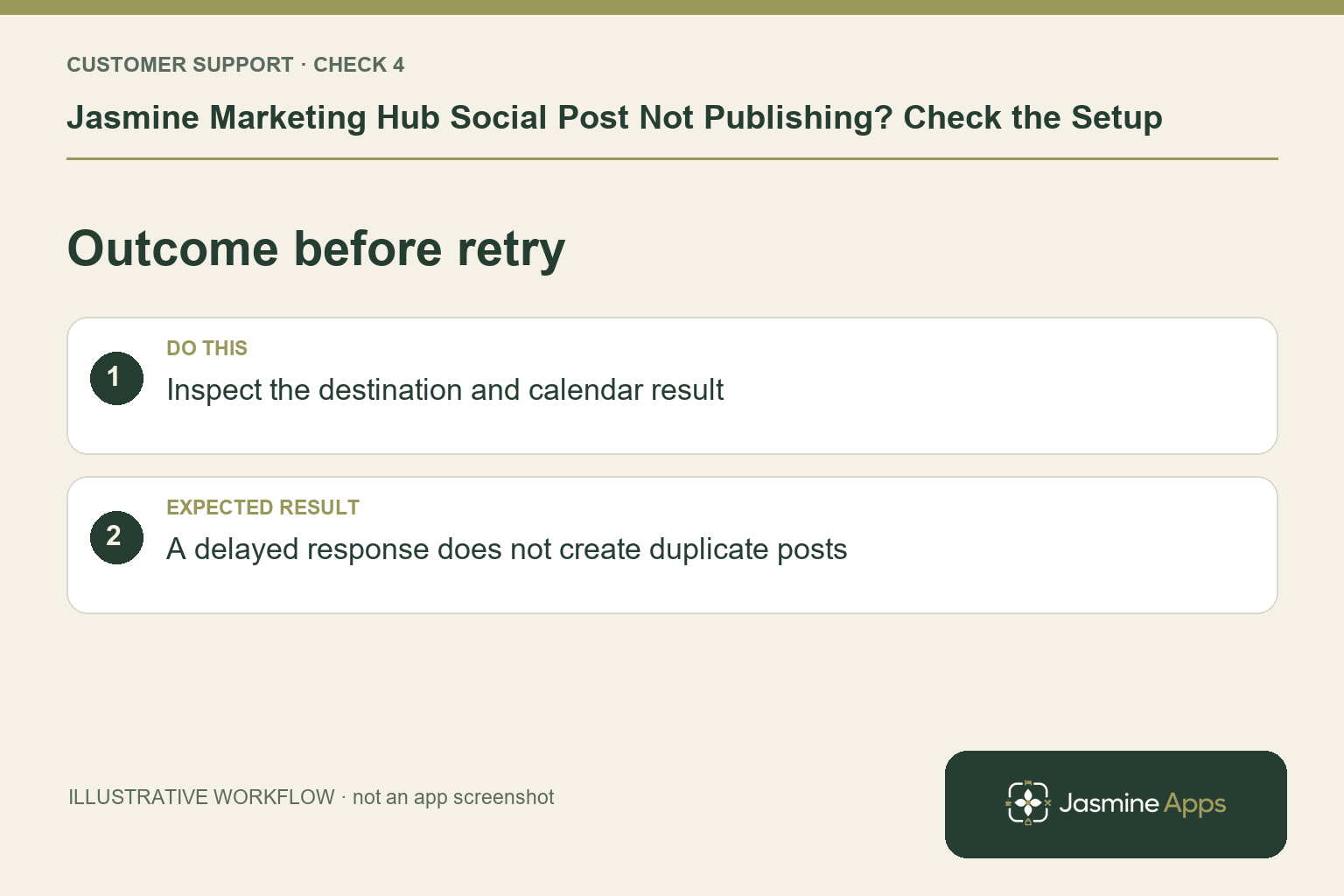
4. Should I retry immediately?
First inspect both the calendar status and the destination profile. A delayed status update can otherwise lead to two copies of the same promotion. If the post is already live, record the result before taking another publishing action. If it is not live, follow the current app recovery guidance and the displayed error. Campaign grouping organises related posts; the group name alone does not prove that every post has published. Subscriber totals do not measure social delivery or email opens.
Check the result: A delayed response does not create duplicate posts.
Example from the actual app
The actual calendar opens a Plan a post form with Time in Europe/London, Copy, Campaign and selected Social profiles. Save draft and Publish are distinct actions. Its description says publishing only goes to connected profiles, and unconnected networks are labelled as such. Check the intended connected destination and draft state before treating the post as a failed send.
Before you contact us
| Check | What to do | Result to verify |
|---|---|---|
| Post state | Review draft, scheduled or published. | A saved draft is not treated as a scheduled send. |
| Connected profile | Confirm the intended venue-owned destination. | The post uses the correct authorised profile. |
| Media and caption | Review the actual content and visible error. | The selected network's requirements are checked. |
| Outcome before retry | Inspect the destination and calendar result. | A delayed response does not create duplicate posts. |
Record which check failed, the exact error wording and when it happened. Include the relevant venue and record reference, and say whether one device or several people are affected. If you changed a setting, identify that change and the retest outcome. This helps us investigate the actual failing stage instead of asking you to repeat the whole process.
Contact Us if the expected result still does not appear. Send only the information needed to investigate; keep passwords, active codes, payment details and unrelated customer records out of screenshots.
When to stop and ask for help
If the post still fails, provide support with the post reference, selected network, intended time, current state and exact error through a private support route. Share only the information needed to investigate. Avoid repeated publishing attempts while the outcome is unclear.
Explore Jasmine Marketing Hub for the current calendar and profile-connection features.
Related support checks
Illustrations explain the workflow and are not product screenshots. Any numerical example is labelled illustrative and is not a customer result. Product wording and documented setup checks reviewed on 13 October 2026; confirm the features available in your current installation.