

Jasmine TV Welcome Screen Not Opening in a Hotel Room?
· Jasmine Apps
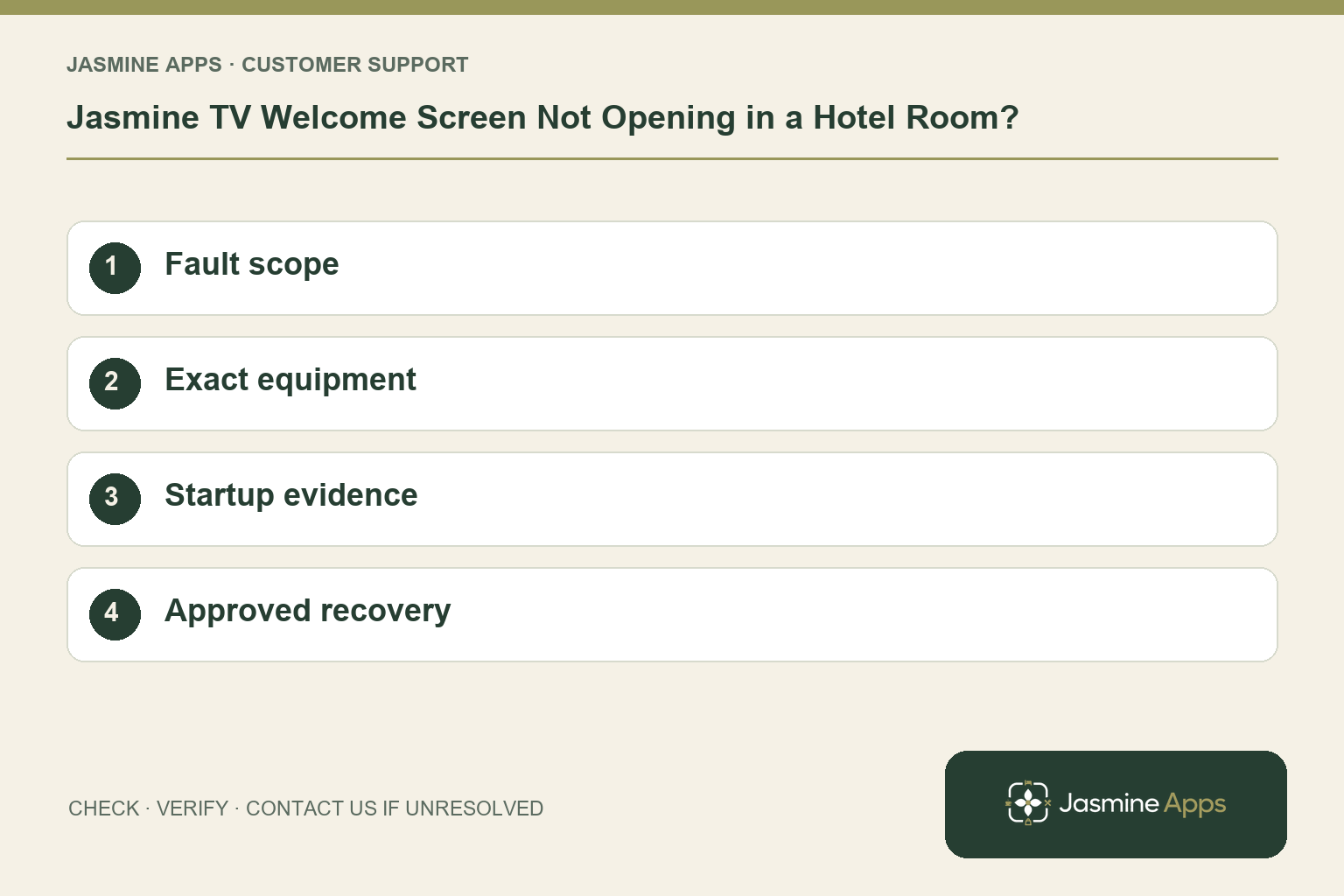
Customer support: Work through these checks in order. After each change, repeat the original action and check the result. If it remains unresolved, use Contact Us.
One bedroom opens the hotel welcome screen while another shows an ordinary TV menu. Jasmine TV troubleshooting starts with the room's actual hardware and installed configuration. Two screens from the same brand can have different operating systems and startup behaviour.
Quick answer: Compare the affected room with its verified setup: power, remote, input, network and exact supported device model. Avoid a factory reset as the first action.
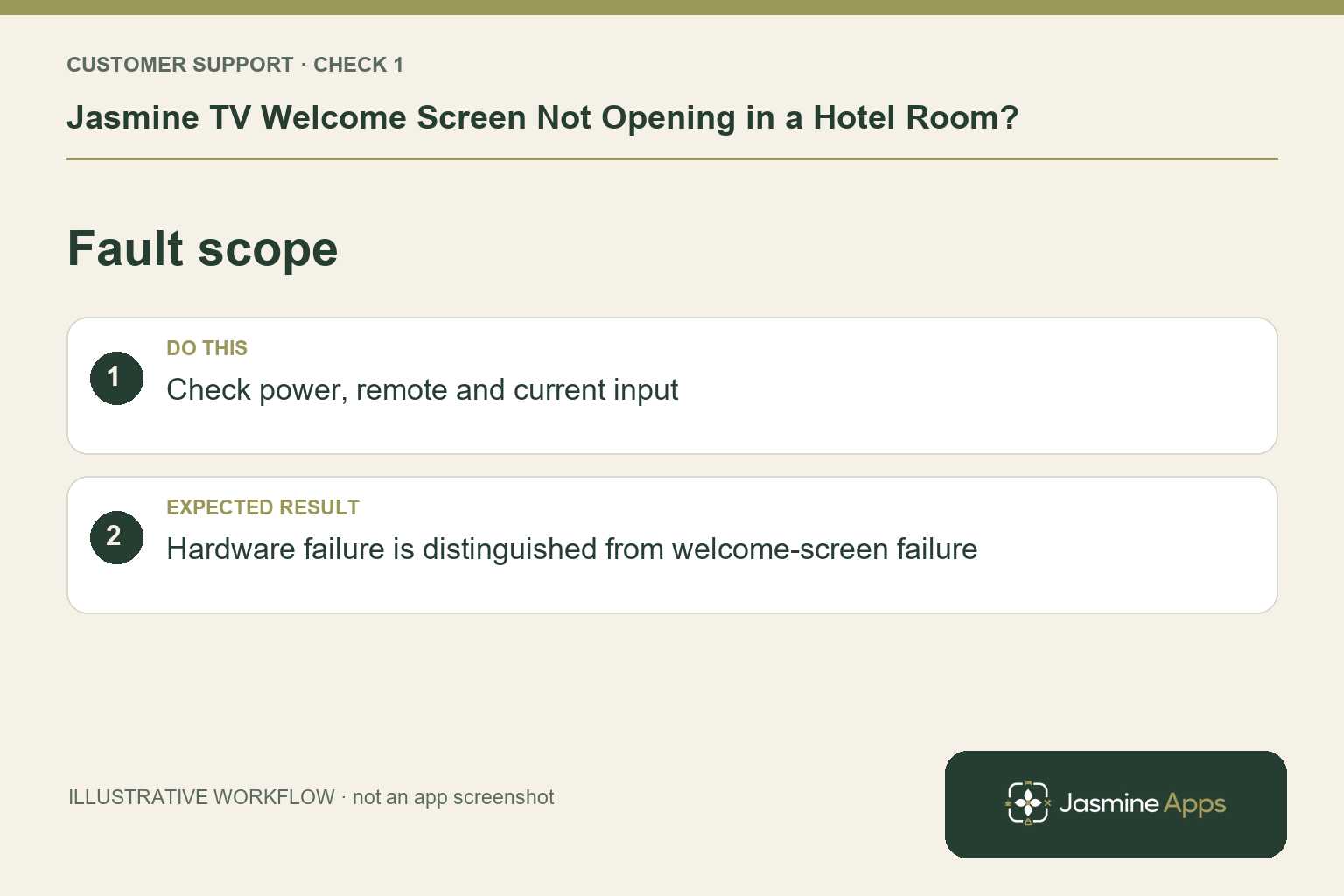
1. Is the whole TV failing or only the welcome screen?
Check whether the TV powers on and responds to the supplied remote. Identify the current screen or input. If normal television works but the hotel welcome screen does not appear, report that narrower symptom. If nothing works, follow the hotel's hardware support route. Do not open electrical equipment or change wiring beyond the staff procedure just to test an app problem.
Check the result: Hardware failure is distinguished from welcome-screen failure.
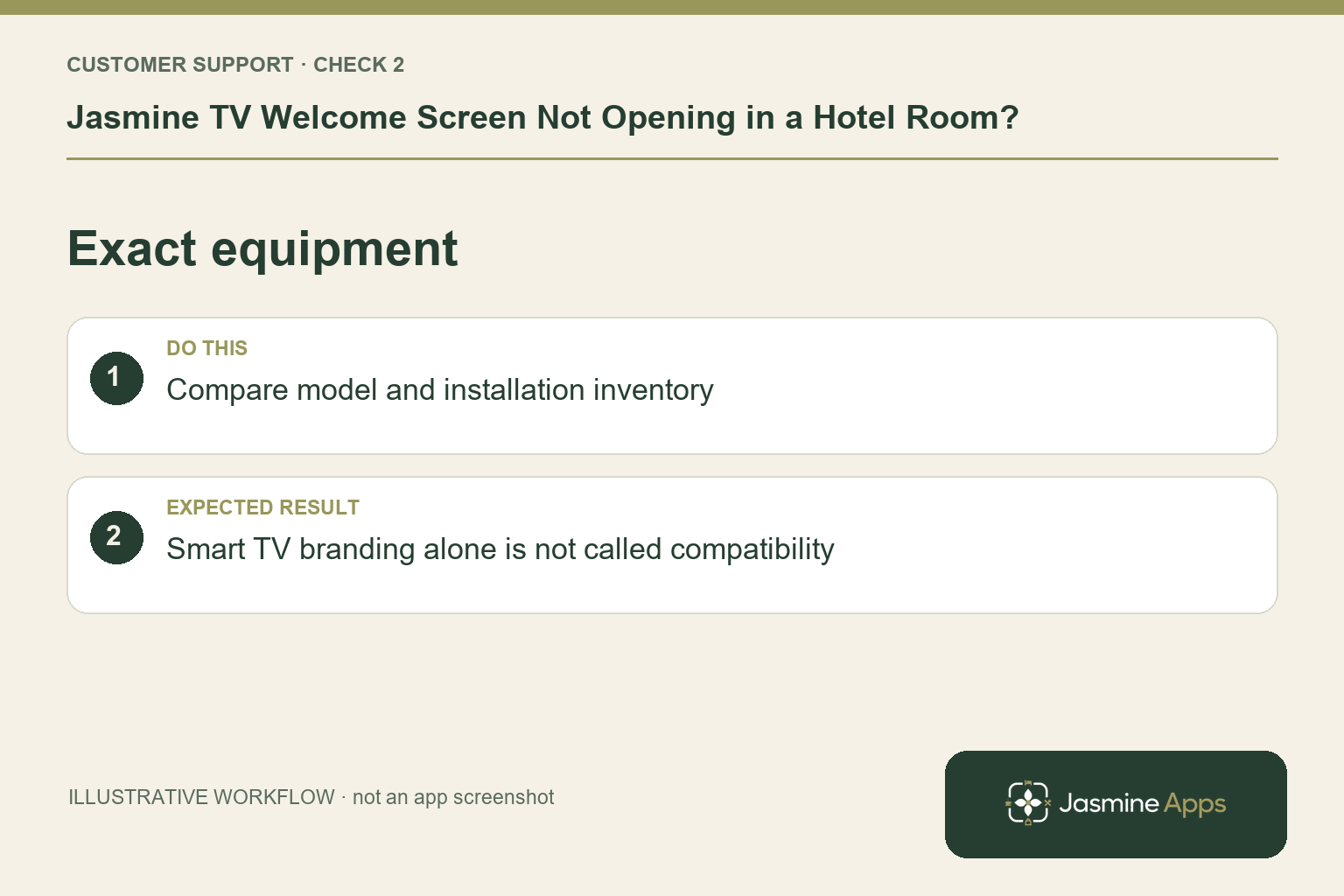
2. Does any smart TV support the installation?
The existing Jasmine TV guide requires a supported Google TV or Android TV setup and confirmation of the exact model and software. Smart TV branding alone is insufficient. Match the affected room to the installation inventory, including any external device and its power/input arrangement. A replacement screen may need compatibility and configuration checks even when it looks identical to the one it replaced.
Check the result: Smart TV branding alone is not called compatibility.
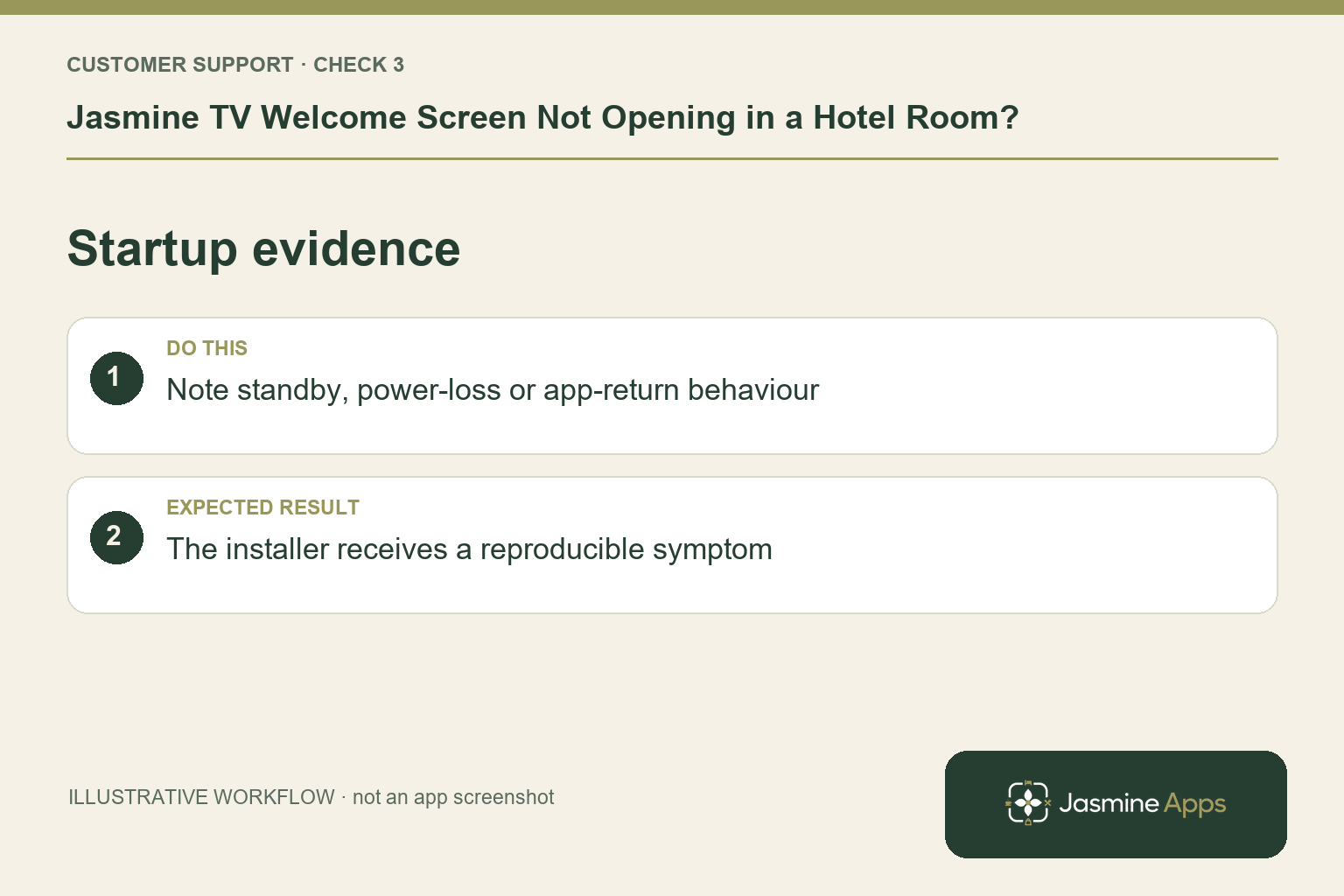
3. How should I check connectivity and startup?
Use the approved device checks for the room and compare with a known working configuration. Note whether failure happens after standby, power loss or switching entertainment apps. Test the agreed network route rather than changing hotel isolation or guest access controls casually. Record model and software information available through the supported settings. A network fault across several rooms differs from one room opening the wrong input.
Check the result: The installer receives a reproducible symptom.
4. Should I reinstall or factory-reset the TV?
Not without installation-specific guidance. A reset may remove startup configuration, accounts and the intended guest controls. Preserve the current evidence and contact the responsible installer. Use a working alternative and clear reception instructions while investigating. After the approved fix, test power-on, standby, remote navigation and return from entertainment on the actual room equipment, not only a technician's desktop.
Check the result: Configuration is preserved while the room is retested.
Example from the actual app
The actual Welcome screen page says the configured video plays while online and the background image remains if the connection drops. It also provides Home and Choosing nights preview controls and identifies its Room 12 view as a sample. Distinguish a video/network symptom from the whole television failing to power on; the sample preview is not proof of the physical room installation.
Before you contact us
| Check | What to do | Result to verify |
|---|---|---|
| Fault scope | Check power, remote and current input. | Hardware failure is distinguished from welcome-screen failure. |
| Exact equipment | Compare model and installation inventory. | Smart TV branding alone is not called compatibility. |
| Startup evidence | Note standby, power-loss or app-return behaviour. | The installer receives a reproducible symptom. |
| Approved recovery | Use installation-specific guidance. | Configuration is preserved while the room is retested. |
Record which check failed, the exact error wording and when it happened. Include the relevant venue and record reference, and say whether one device or several people are affected. If you changed a setting, identify that change and the retest outcome. This helps us investigate the actual failing stage instead of asking you to repeat the whole process.
Contact Us if the expected result still does not appear. Send only the information needed to investigate; keep passwords, active codes, payment details and unrelated customer records out of screenshots.
When to stop and ask for help
Report room number, exact model, configured device route, software version if available and when the fault occurs. Include a screen photo without guest names or account details. Ask the installer to confirm the supported recovery process before making broad device changes.
Related support checks
Illustrations explain the workflow and are not product screenshots. Any numerical example is labelled illustrative and is not a customer result. Product wording and documented setup checks reviewed on 13 October 2026; confirm the features available in your current installation.