

Previous Guest Still Signed In on a Hotel TV?
· Jasmine Apps
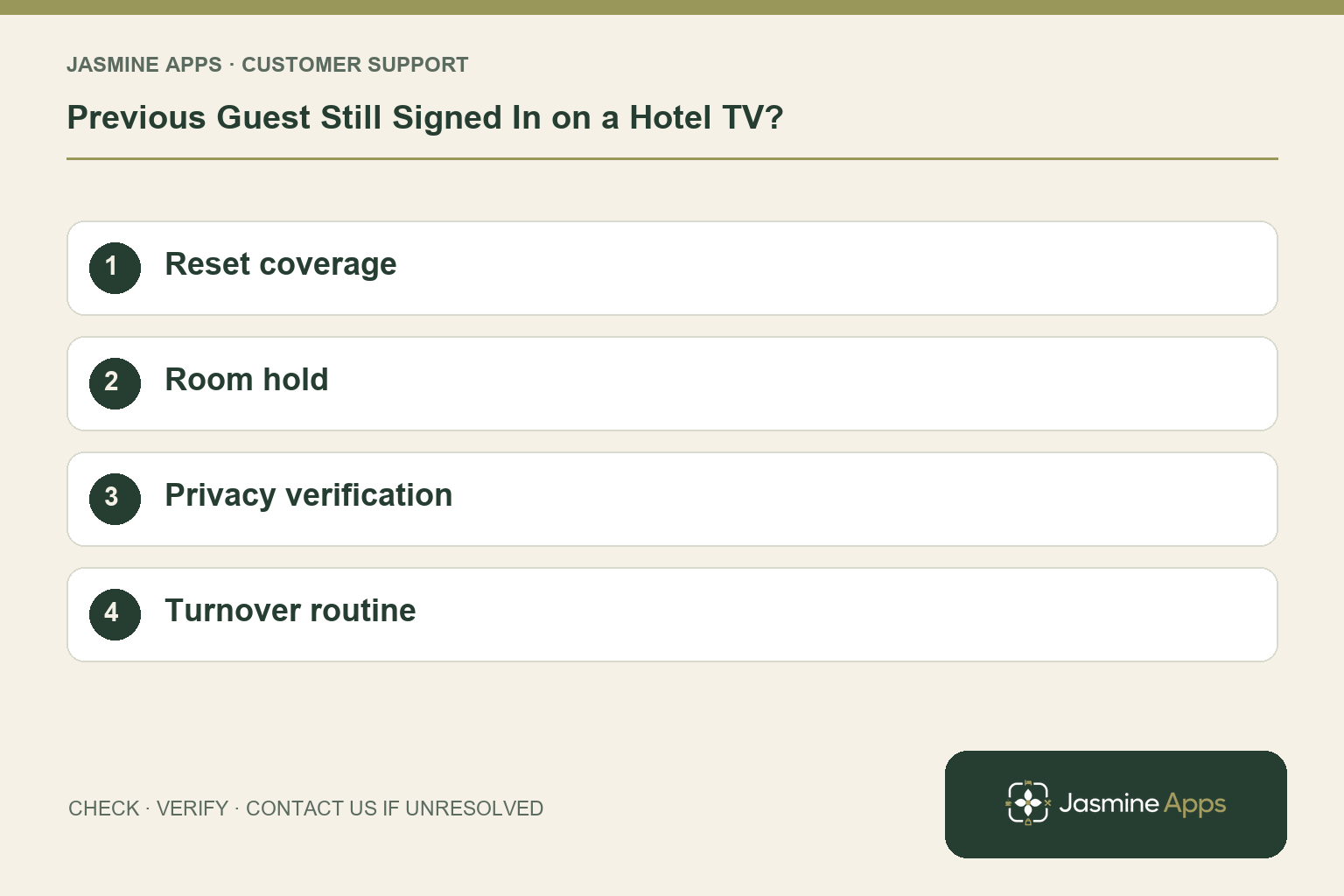
Customer support: Work through these checks in order. After each change, repeat the original action and check the result. If it remains unresolved, use Contact Us.
A room is clean, but its television still shows the previous guest's streaming profile. Bedroom readiness includes the screen as well as the linen. Jasmine TV automatic logout depends on the supported configuration and selected apps, so staff need a visible verification step.
Quick answer: Keep the room from release, use the approved logout/reset for that installation, and verify the relevant apps show no previous guest account.
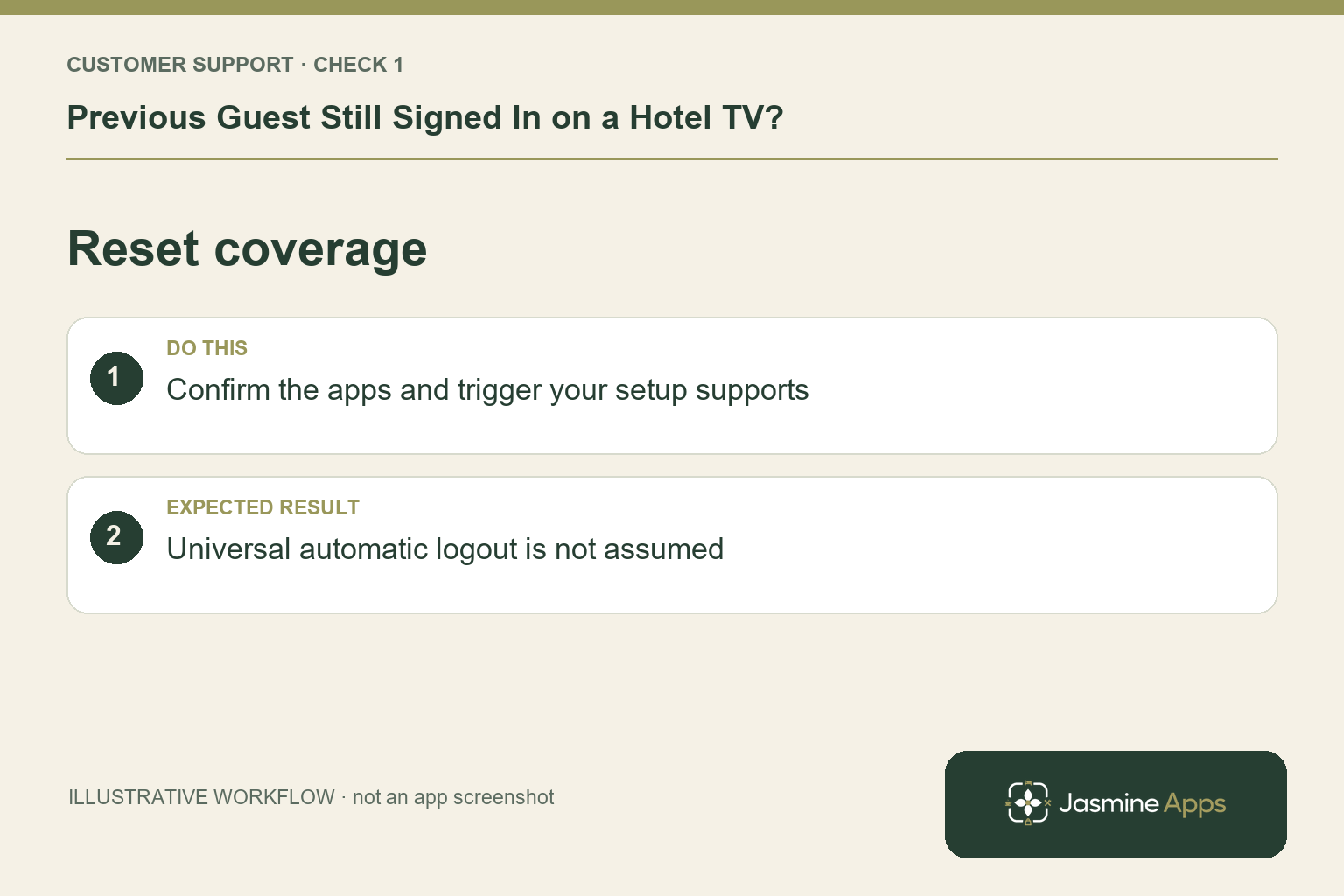
1. Does automatic logout cover every streaming app?
The existing Jasmine TV guidance describes automatic logout on supported configurations, not a universal reset for every service or account. Ask the installer which exact apps are covered and what triggers the process. Streaming and casting are different features with separate setup requirements. A welcome screen appearing normally is not evidence that every entertainment session underneath it has been cleared.
Check the result: Universal automatic logout is not assumed.
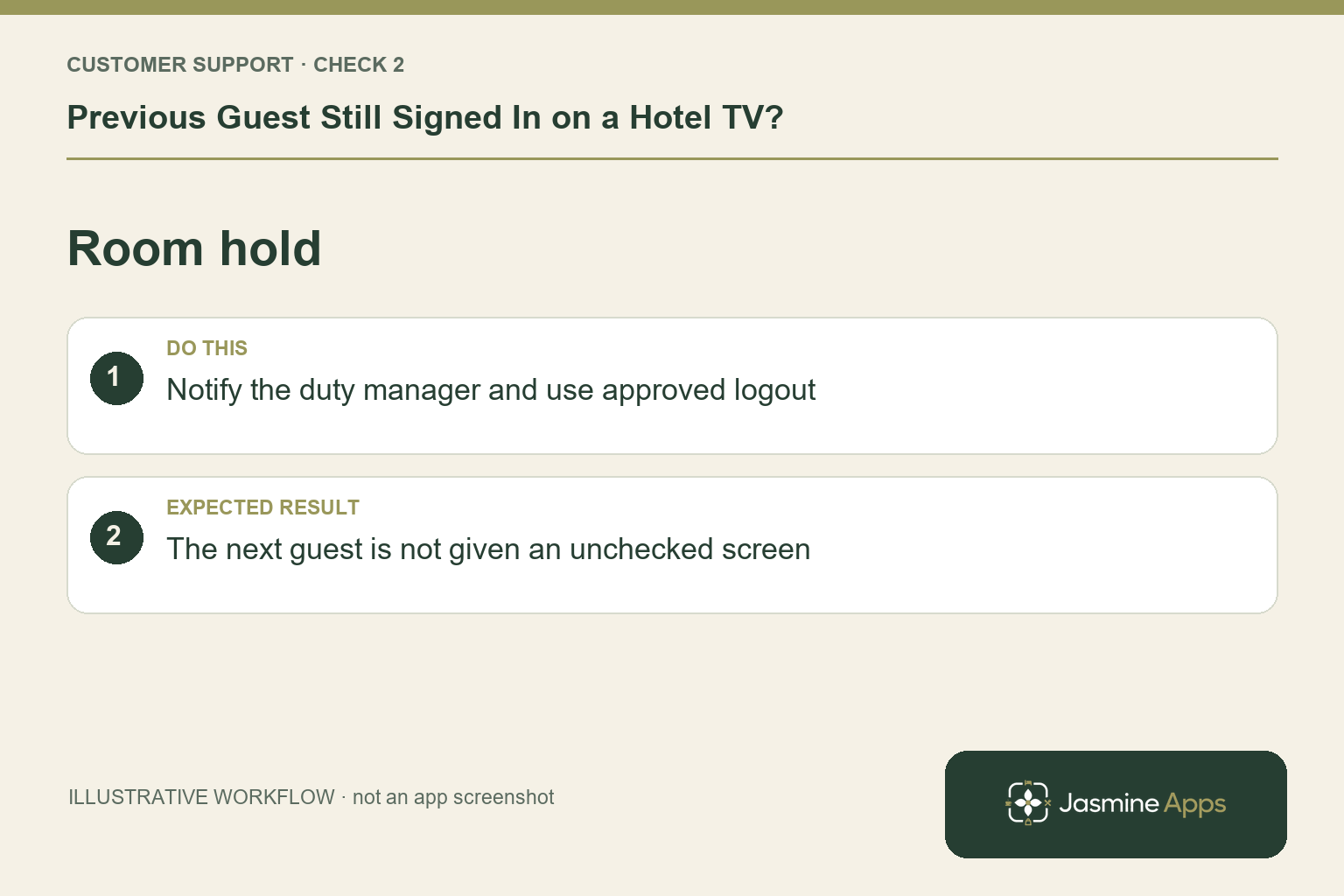
2. What should housekeeping do when an account remains?
Notify the duty manager and follow the room-release hold procedure. Do not browse the guest's viewing history or use their account. Record only the affected room, service and symptom. Use the installation's approved logout or reset steps. If those are unavailable or fail, ask the responsible installer rather than trying a factory reset that may remove the hotel's configuration.
Check the result: The next guest is not given an unchecked screen.
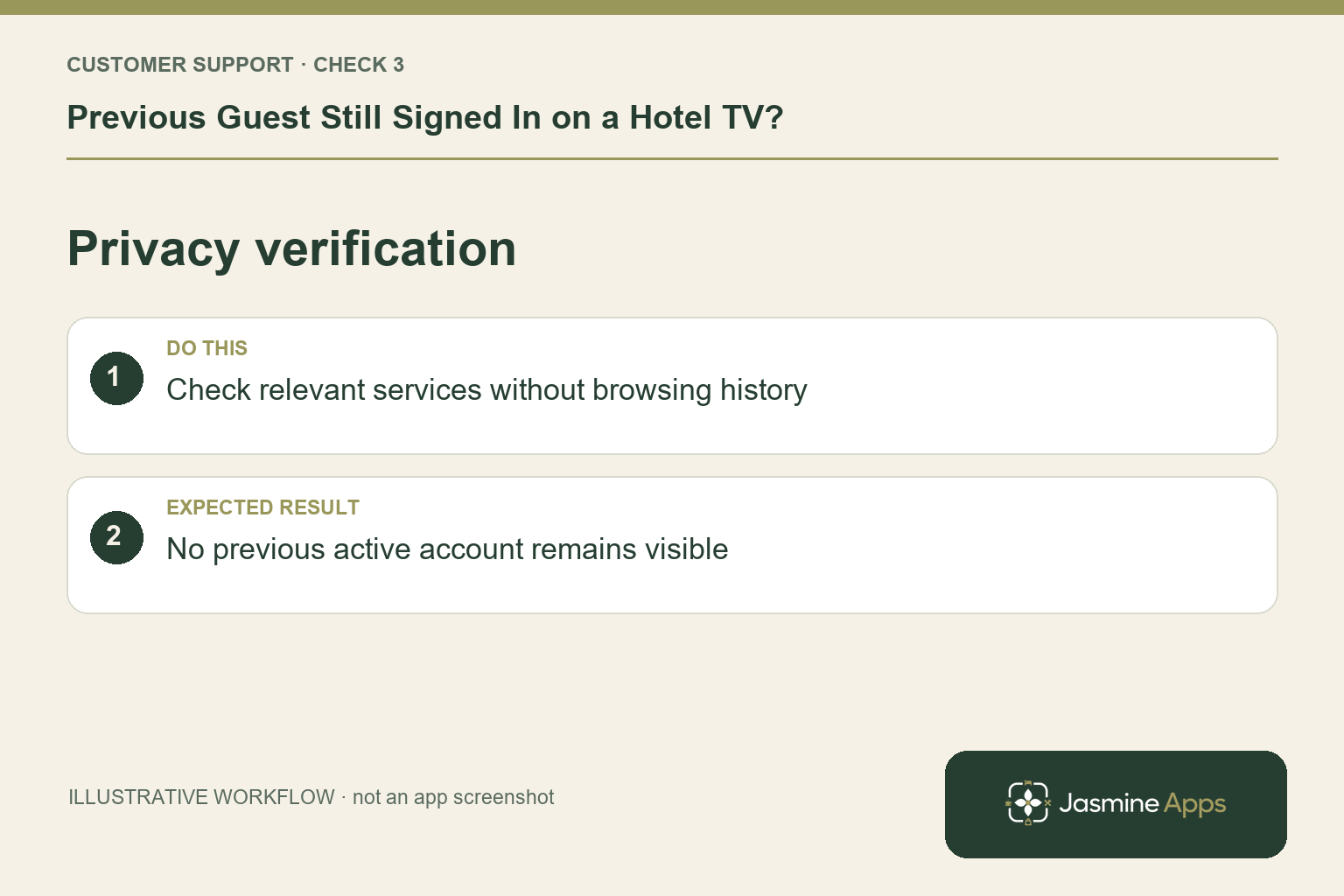
3. How can the team verify a successful reset?
Check each relevant service in the agreed room-ready test. It should no longer expose the previous guest's active account or profile. Return to the intended welcome screen and check remote navigation and the approved startup state. Test any separate supported casting-session reset as specified. Log the result so reception knows the screen has been checked, rather than relying on a cleaner's memory.
Check the result: No previous active account remains visible.
4. How do we make this part of every turnover?
Give housekeeping a short device-specific checklist and a clear escalation route. Cover departure, room change and exceptional resets, not just normal checkout. The installer should demonstrate the trigger and failure case with a controlled test account before rollout. Do not put real guest credentials into training. Review the process after app updates or equipment changes because the supported configuration may have changed.
Check the result: The manager receives a recorded room-ready result.
Example from the actual app
The current TV Welcome screen description says checkout clears Netflix and other apps at 11:00 in the venue timezone. Confirm that behaviour with the installer on the actual supported room device, including a room change or exceptional departure. A sample preview and a scheduled checkout description do not replace checking that the previous account is no longer visible.
Before you contact us
| Check | What to do | Result to verify |
|---|---|---|
| Reset coverage | Confirm the apps and trigger your setup supports. | Universal automatic logout is not assumed. |
| Room hold | Notify the duty manager and use approved logout. | The next guest is not given an unchecked screen. |
| Privacy verification | Check relevant services without browsing history. | No previous active account remains visible. |
| Turnover routine | Review every supported departure scenario. | The manager receives a recorded room-ready result. |
Record which check failed, the exact error wording and when it happened. Include the relevant venue and record reference, and say whether one device or several people are affected. If you changed a setting, identify that change and the retest outcome. This helps us investigate the actual failing stage instead of asking you to repeat the whole process.
Contact Us if the expected result still does not appear. Send only the information needed to investigate; keep passwords, active codes, payment details and unrelated customer records out of screenshots.
When to stop and ask for help
If a supported reset leaves a guest signed in, give the installer the room, model, affected app and reset outcome. Share no account credentials or viewing history. Keep the room from release until the responsible manager confirms the privacy and readiness checks are satisfied.
Related support checks
Illustrations explain the workflow and are not product screenshots. Any numerical example is labelled illustrative and is not a customer result. Product wording and documented setup checks reviewed on 13 October 2026; confirm the features available in your current installation.