

TutorialIn-app guide
Jasmine Maintenance rooms: add names and review before saving
· Jasmine Apps
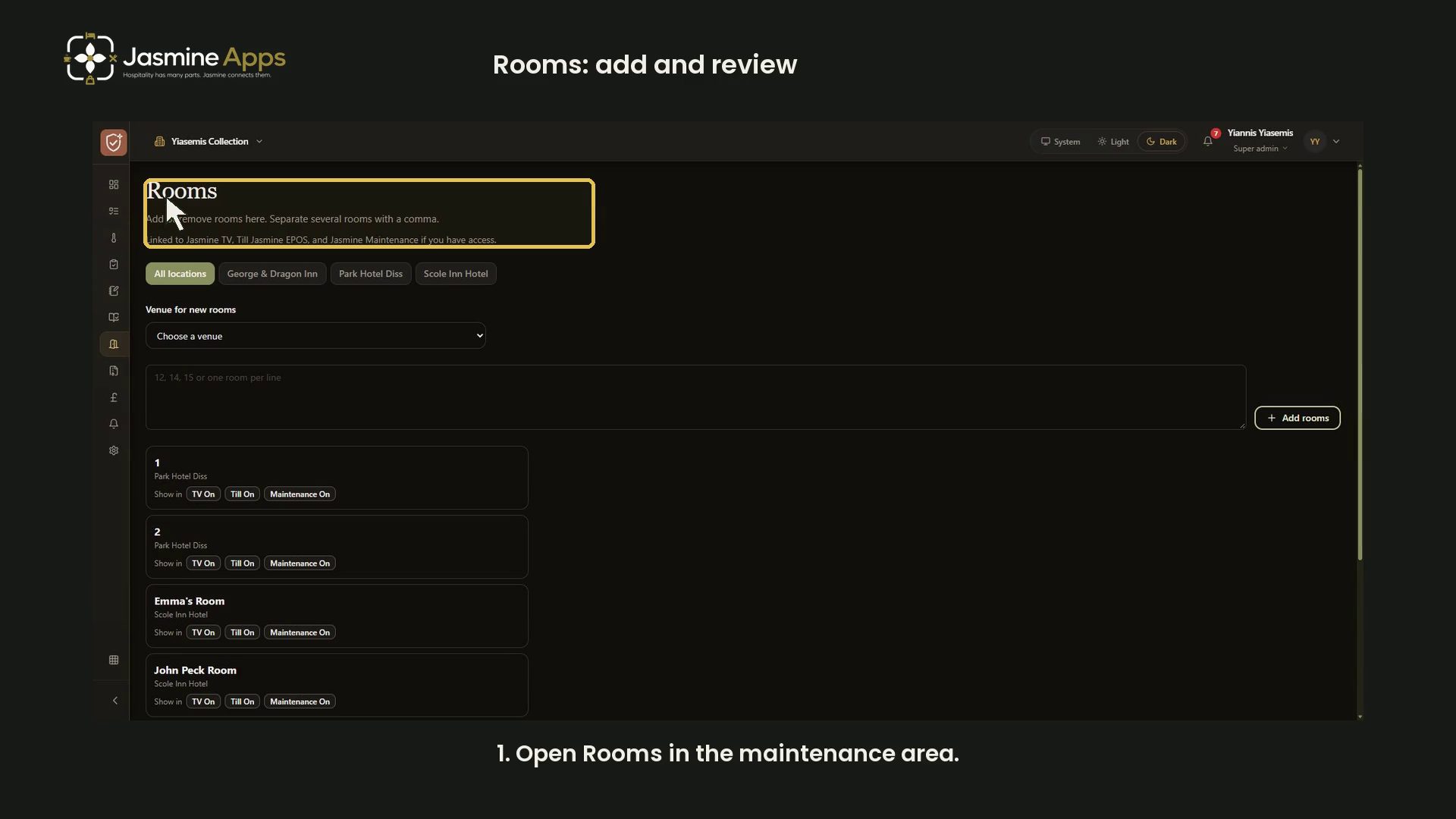
Use the Rooms page in Jasmine's maintenance area to prepare room names for the apps you use. The current navigation is branded Comply Jasmine; the page describes links to Jasmine TV, Till Jasmine EPOS and Jasmine Maintenance where you have access.
This guide follows an unsaved example from entering names through reviewing staged rows. No tutorial room is saved.
Watch the walkthrough
Choose the location
Open Rooms. Use the location buttons to review one site, or select All locations.
In All locations, choose Venue for new rooms before entering names. Selecting a single location narrows the list and targets the add-room form to that location. Check the selected site before you add anything.
Enter room names
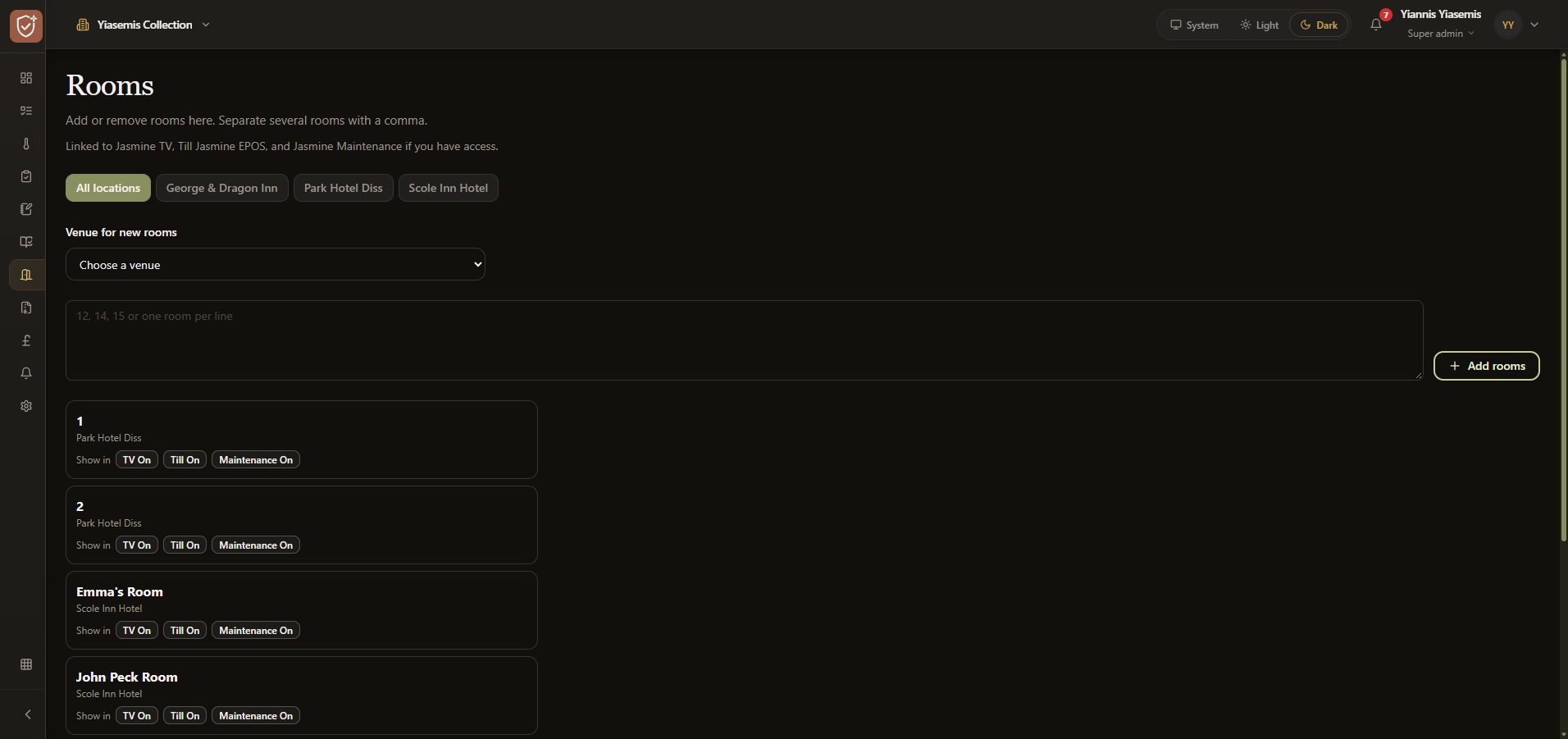
Type names in the large box. The page supports comma-separated names, and the placeholder also allows one room per line. Use clear room names that your team will recognise.
The demonstration enters Tutorial room A — unsaved, Tutorial room B — unsaved. These labels identify the example; use your real room names for a finished setup.
Stage the new rows
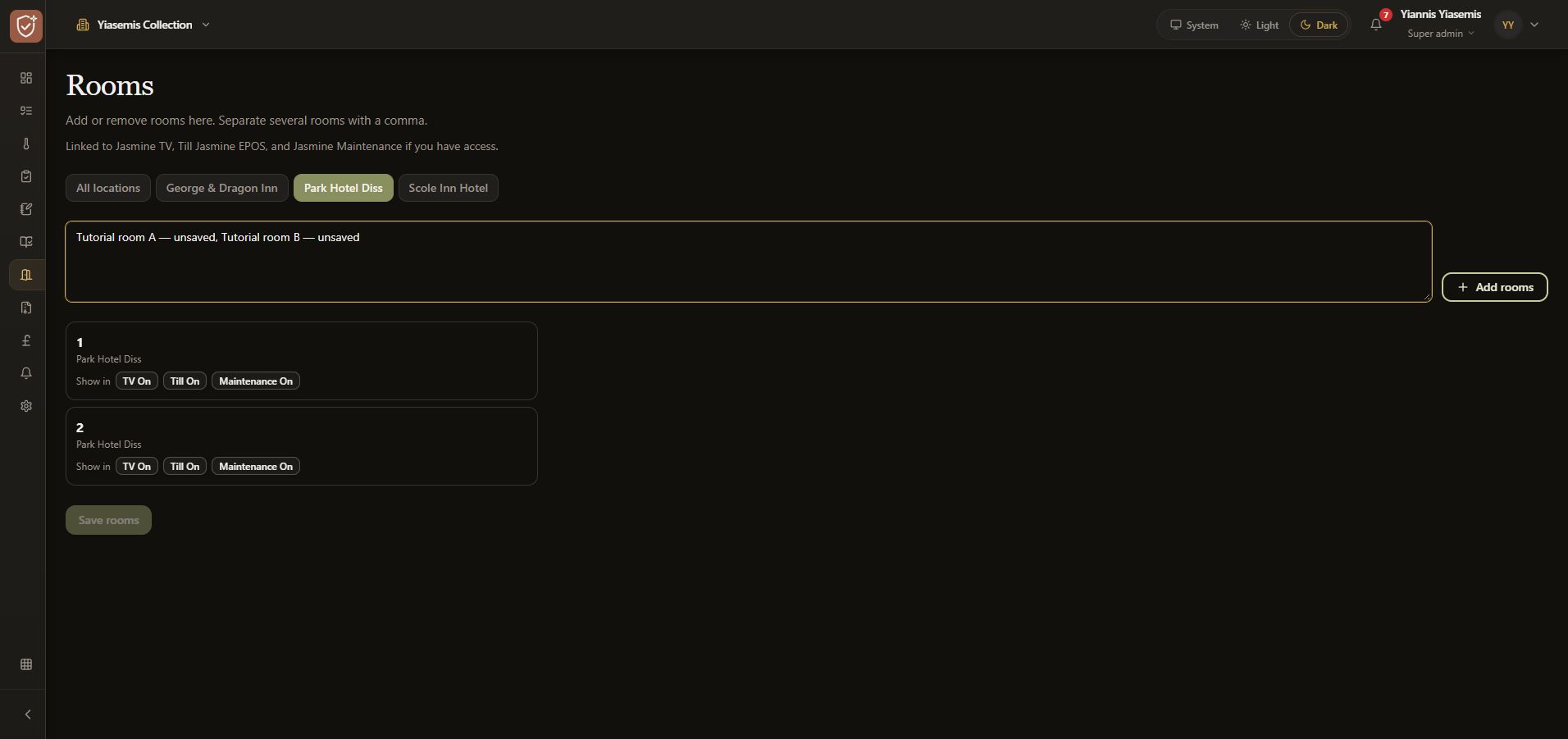
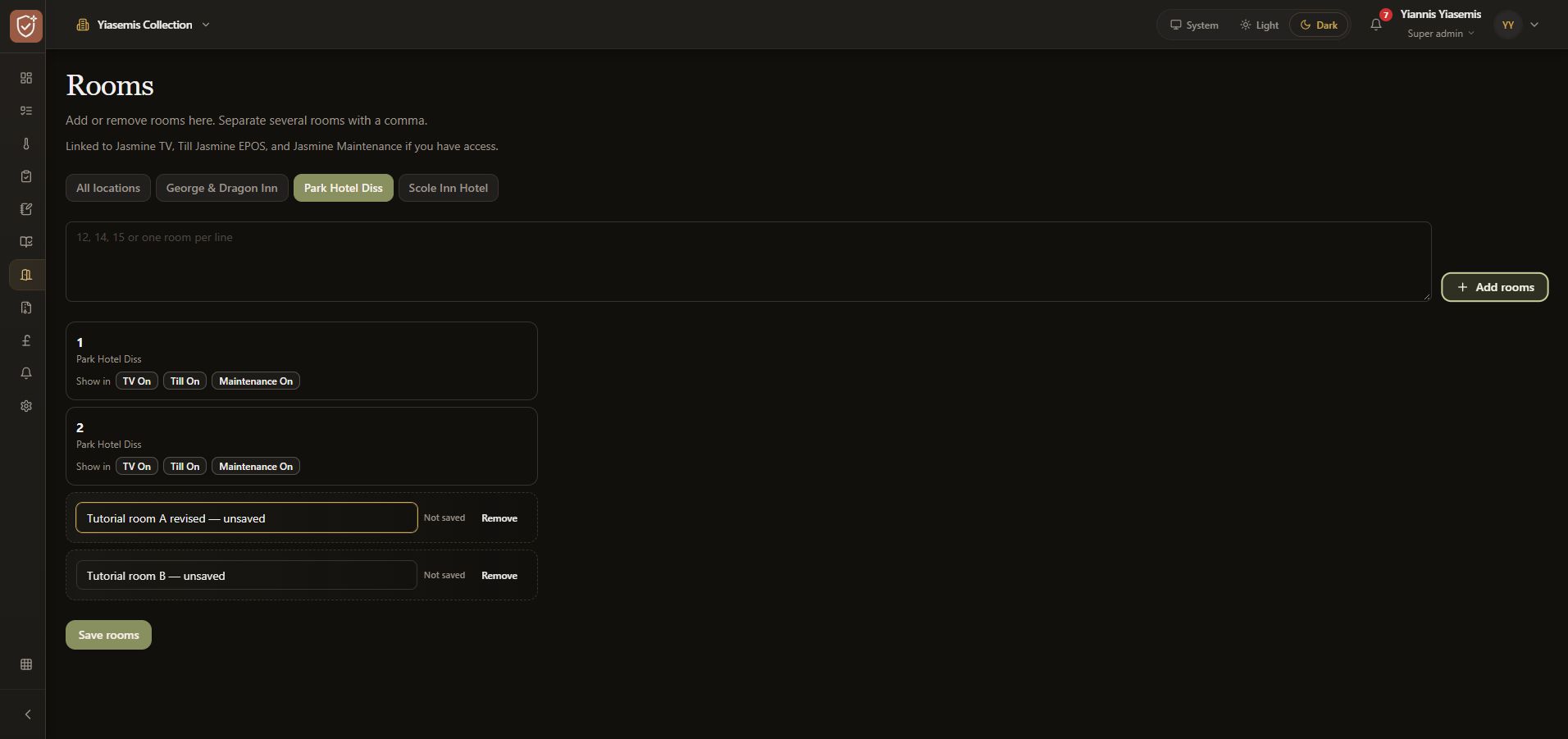
Choose Add rooms. Each name becomes an editable row marked Not saved. This is a staging step: Save rooms is a separate action.
Correct or remove an unsaved row
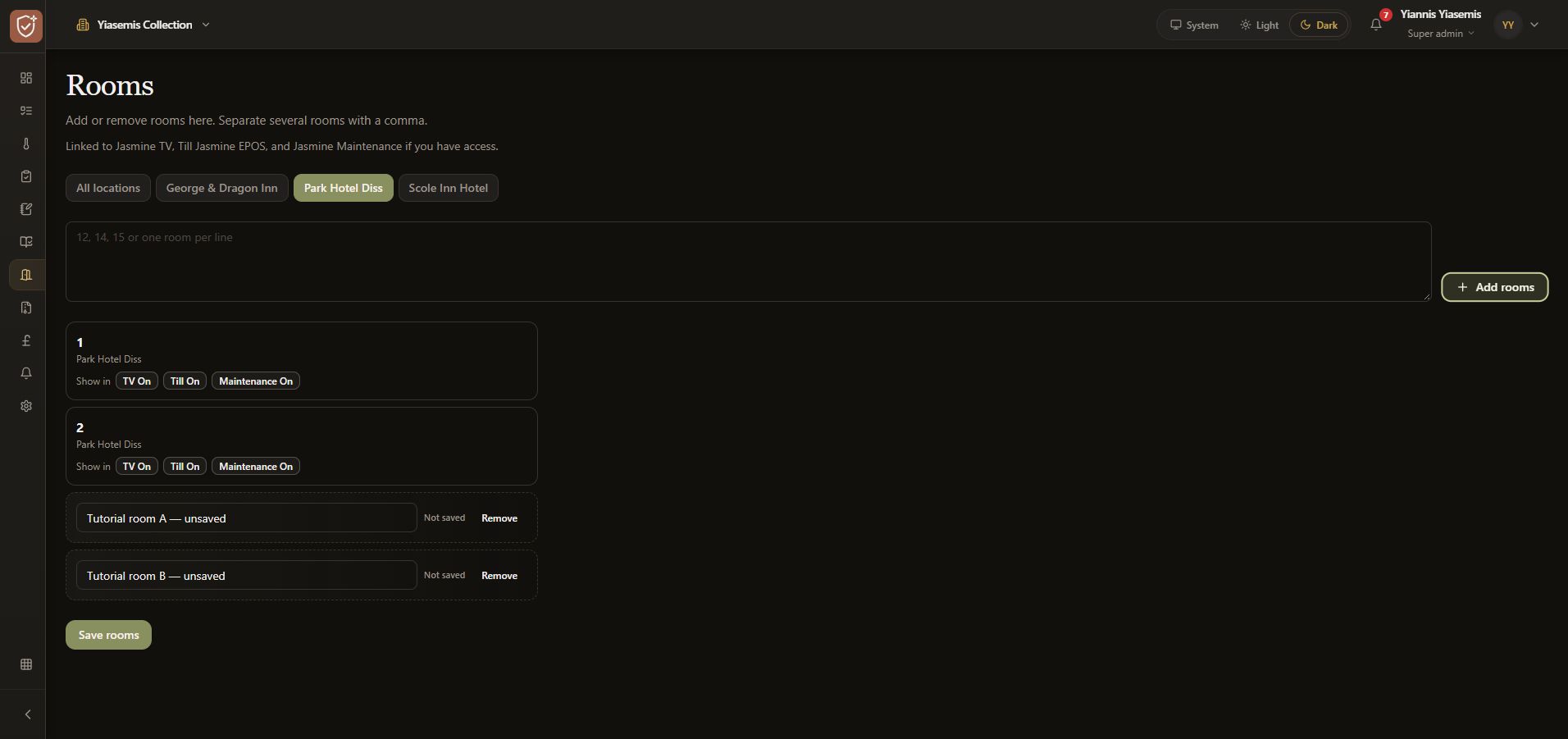
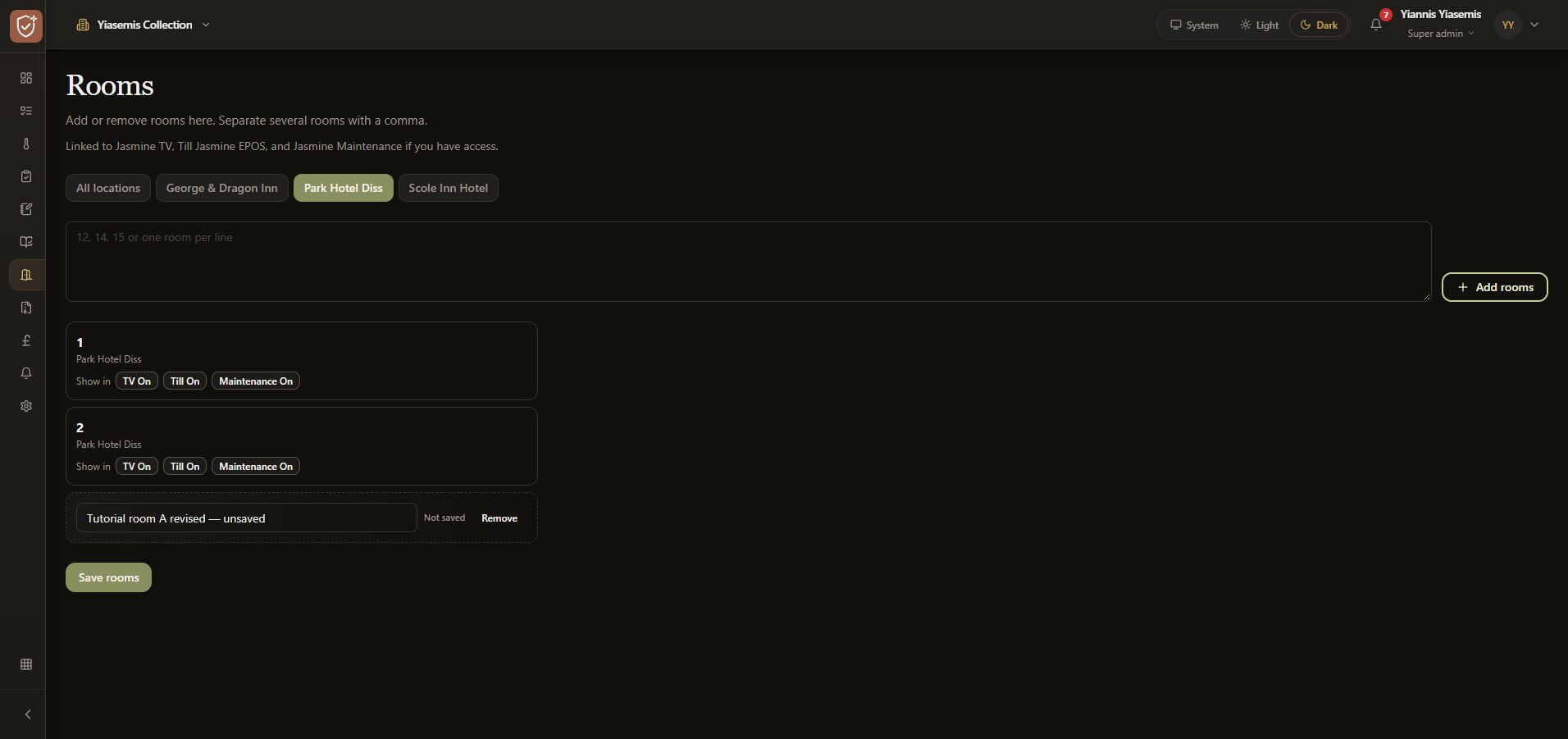
Check spelling in each staged name field and edit it directly if needed. The example corrects the first tutorial name. Use Remove beside an unwanted unsaved row; the demonstration removes only the second tutorial row.
Review the shared room list
Existing rooms display Show in controls for TV, Till and Maintenance. Review these indicators when checking where a room appears. This walkthrough leaves the existing controls unchanged.
Before a real save, check the selected venue, existing names and every remaining staged row. Choose Save rooms only when the intended list is ready.
Discarding this example
The demonstration does not choose Save rooms. Reloading discards the remaining unsaved tutorial row. The original two room entries remain for the selected location, and Save rooms is disabled again.
Avoid using this example to remove or rename an existing room. Review any real changes against the rooms used by your team and linked apps.
Continue with Jasmine
See Jasmine TV room setup for the linked room workflow, or explore the maintenance app overview.