

TutorialIn-app guide
Clock Jasmine Kiosk: review clocked-in controls
· Jasmine Apps
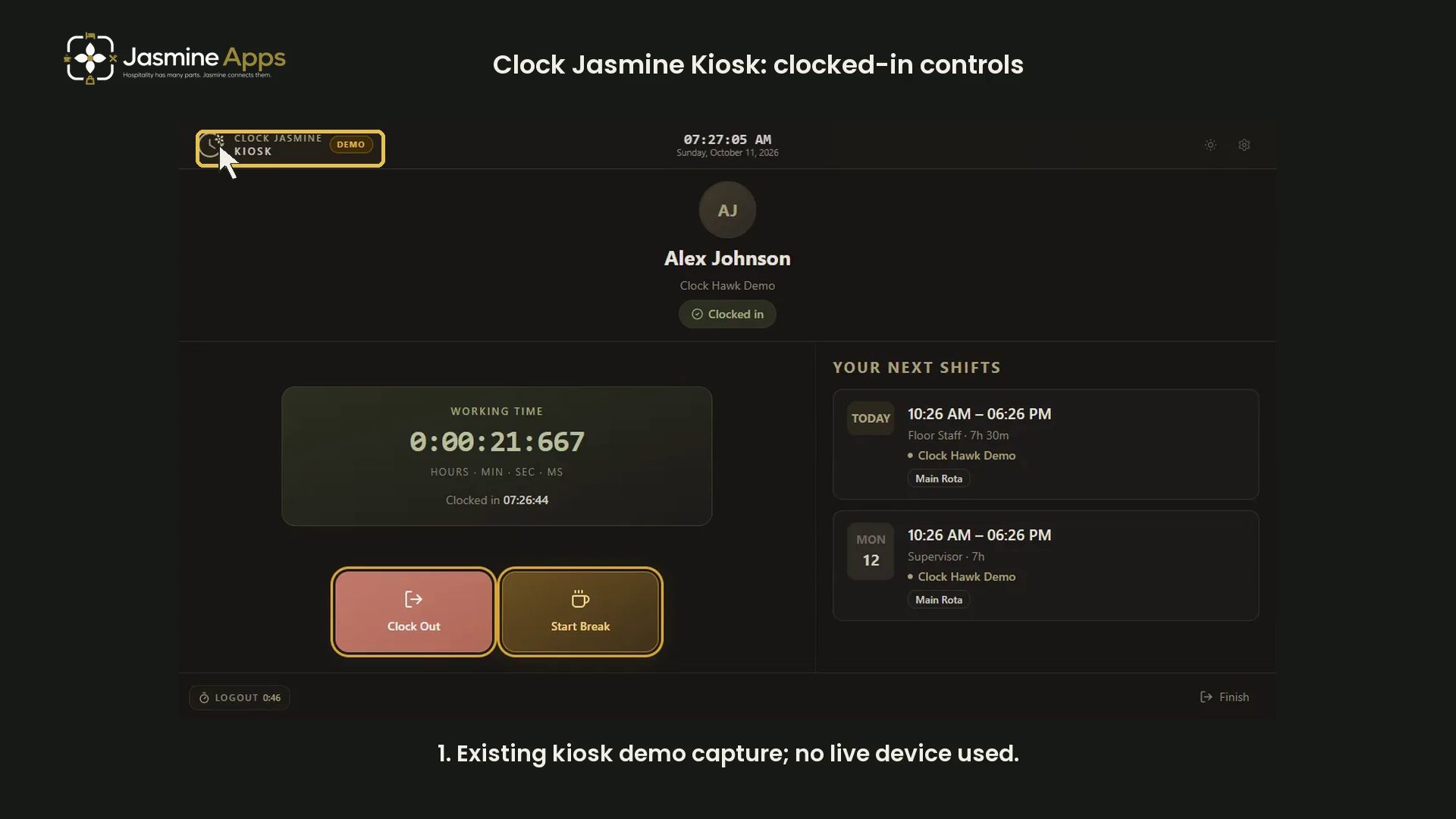
Clock Jasmine Kiosk shows the current attendance state after a person has identified themselves. This guide reviews an existing clean dark-mode demo capture of a clocked-in session. It does not register a device, enter a PIN or record attendance.
Watch the walkthrough
Confirm the attendance state
Read the name and status beneath it. In this example, the sample employee is Clocked in. The capture is marked DEMO and uses an example account.
Read Working time
The Working time panel includes a running timer and the session's Clocked in timestamp. Read them together rather than confusing a timer with the start of a planned rota shift.
Recognise the attendance actions
Clock Out ends the current attendance session. Start Break begins a break. These controls affect attendance records, so the walkthrough highlights them without pressing them. Follow your venue's approved process when recording actual work.
Keep upcoming shifts separate
Your next shifts displays upcoming rota information. It is a different panel from the current attendance timer.
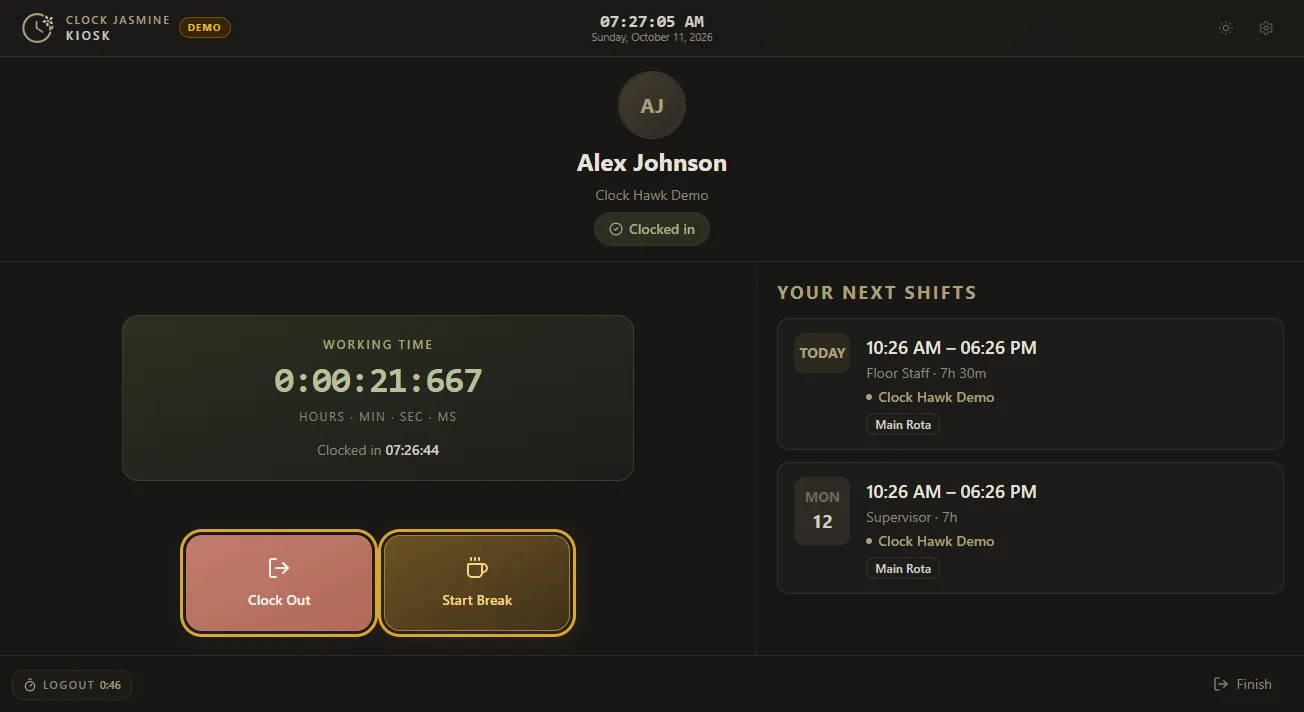
Device pairing, PIN entry, selfie checks and policy configuration are outside this screen review. No live attendance records, staff access or devices were changed.