

TutorialIn-app guide
Clock Jasmine: prepare course content and a quiz
· Jasmine Apps
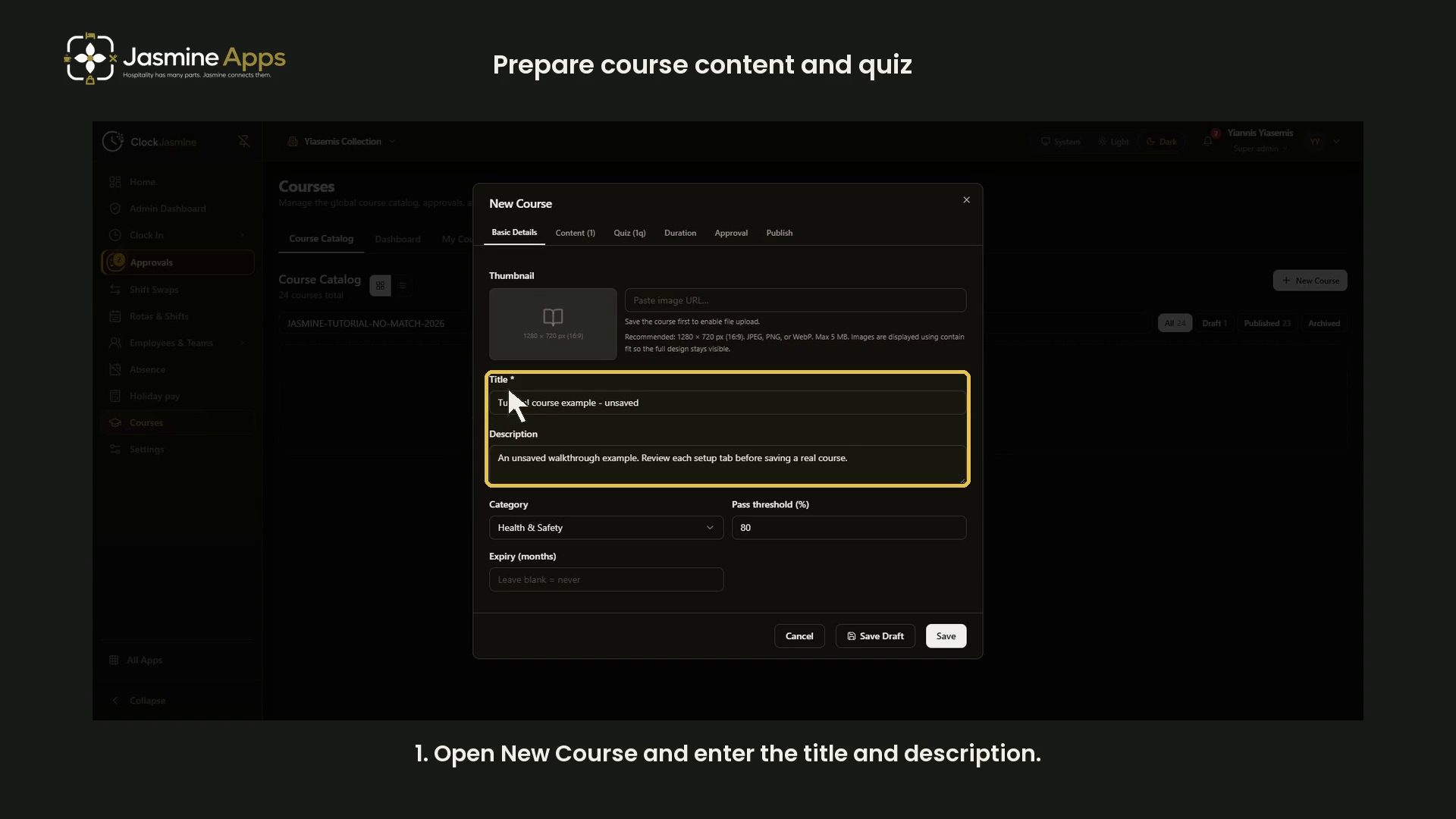
Review Clock Jasmine course setup before adding training to the catalog. This guide walks through the current New Course tabs in dark mode, with a narrated video and complete screenshots.
Watch the walkthrough
Before you start
Open Courses using an account authorised to manage the course catalog. Prepare approved learning material and suitable quiz questions first.
The demonstration uses a deliberately empty catalog search and an example titled Tutorial course example - unsaved. It closes with Cancel; no course or employee training record is created.
1. Enter Basic Details
Select New Course. On Basic Details, enter a clear Title and Description, then review Category, Pass threshold (%) and Expiry (months).
The captured form shows Health & Safety and an 80% threshold. These are the recorded example values, not a recommended setup for every course. The expiry placeholder says Leave blank = never.
The thumbnail guidance recommends 1280 × 720 pixels. The page says a course must be saved before file upload becomes available.
2. Prepare Content
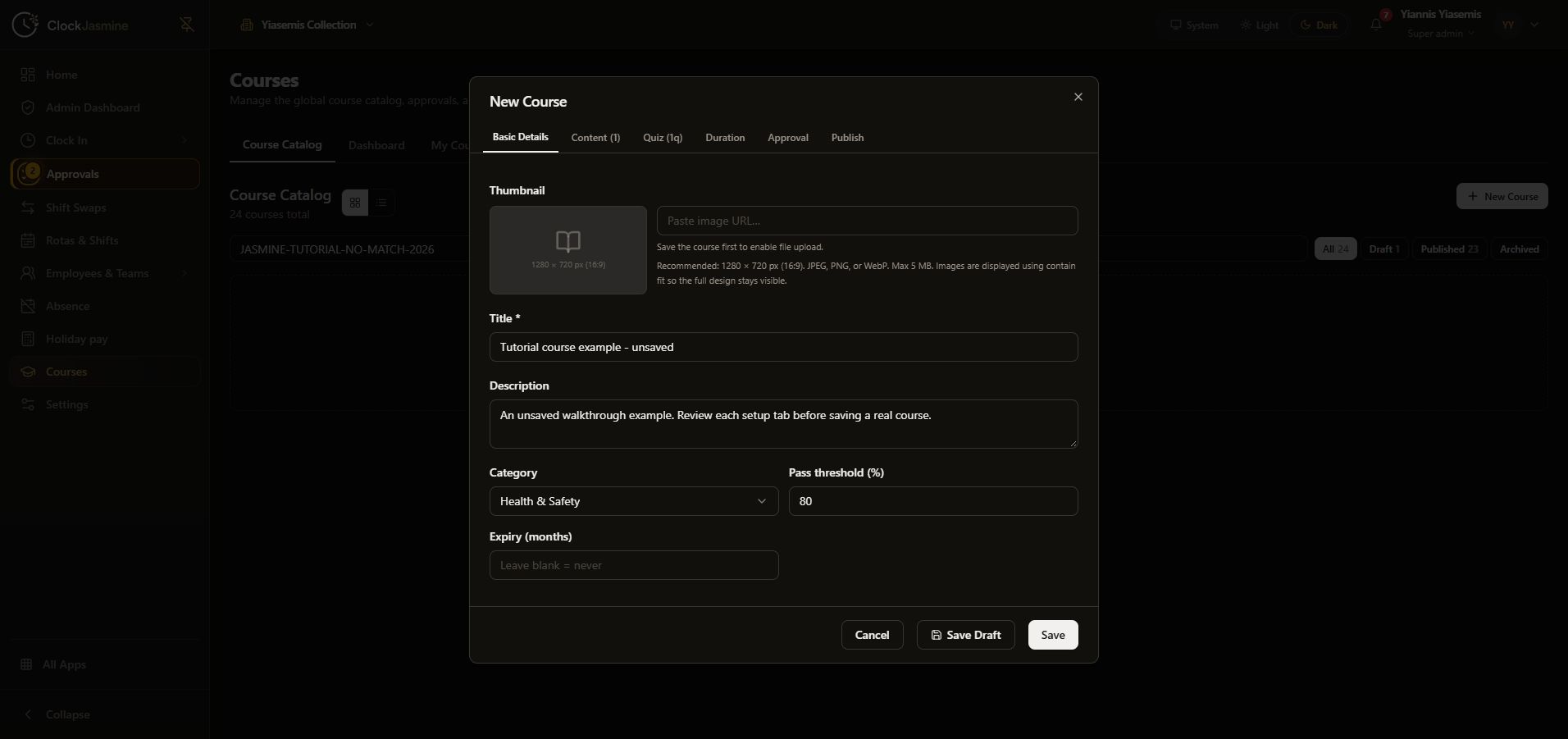
Open Content. Enter the section title and learning material. Add Section provides another section when needed.
The editor describes callout tags including [KEY_POINT], [WARNING], [CHECKLIST], [QUOTE] and [DIVIDER]. The example includes a short key point about welcoming a guest. The screen also says to save the course before adding section images.
3. Review the Quiz and correct answer
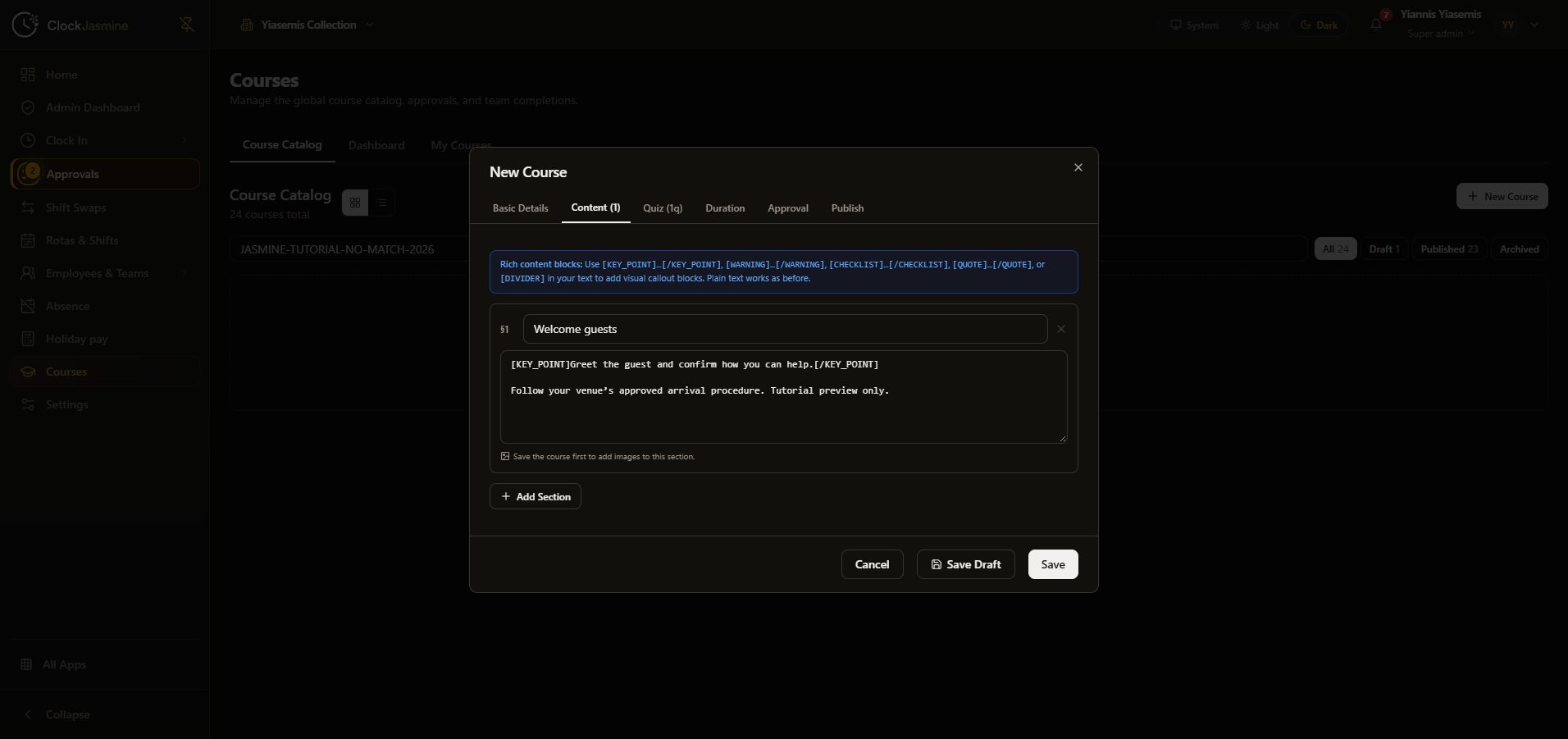
Open Quiz, enter a question and the answer choices, then check the correct-answer marker. The captured example has the green tick beside Current venue instructions.
Use Add Question when another question is needed. Check the wording, choices and intended correct answer before keeping the course.
4. Read the calculated Duration
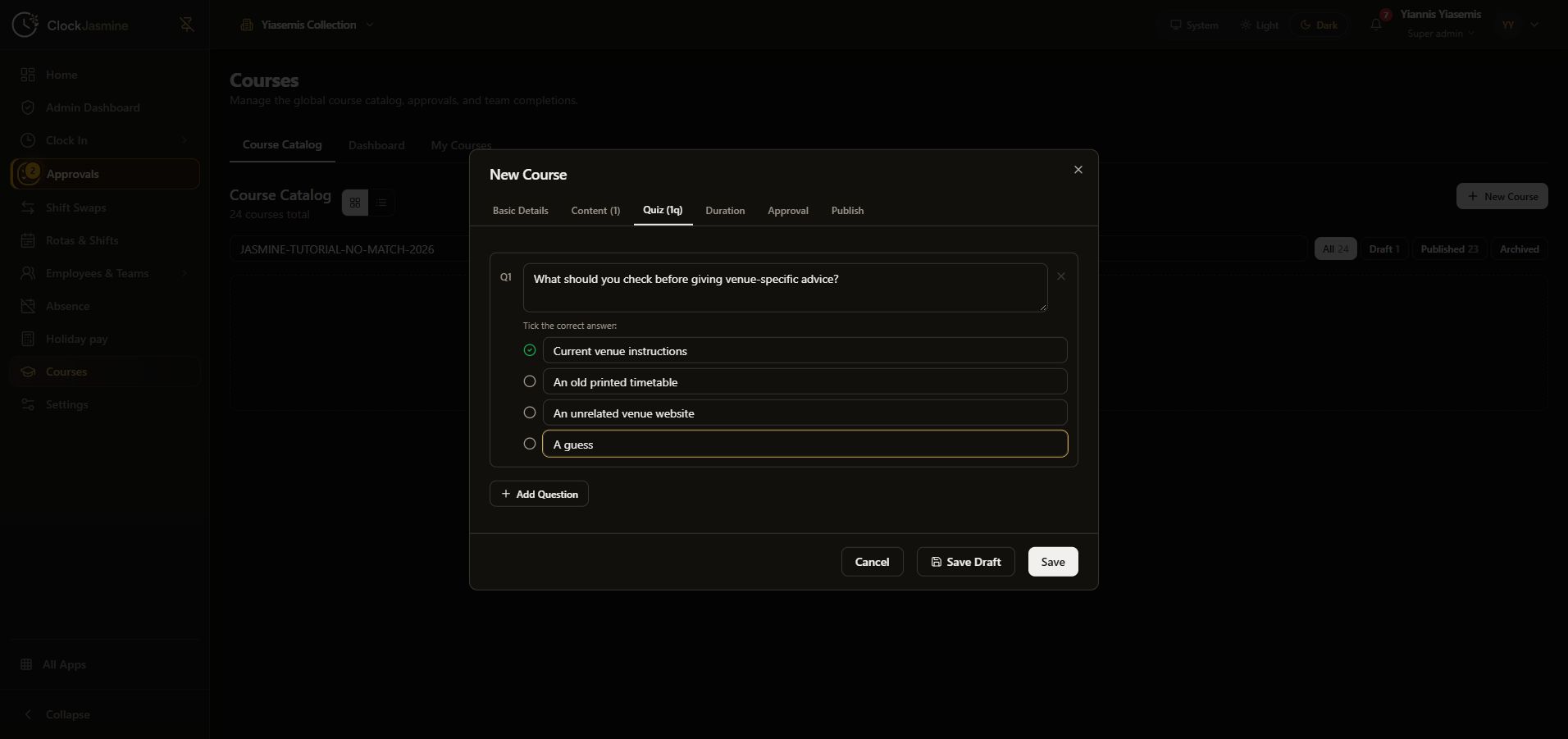
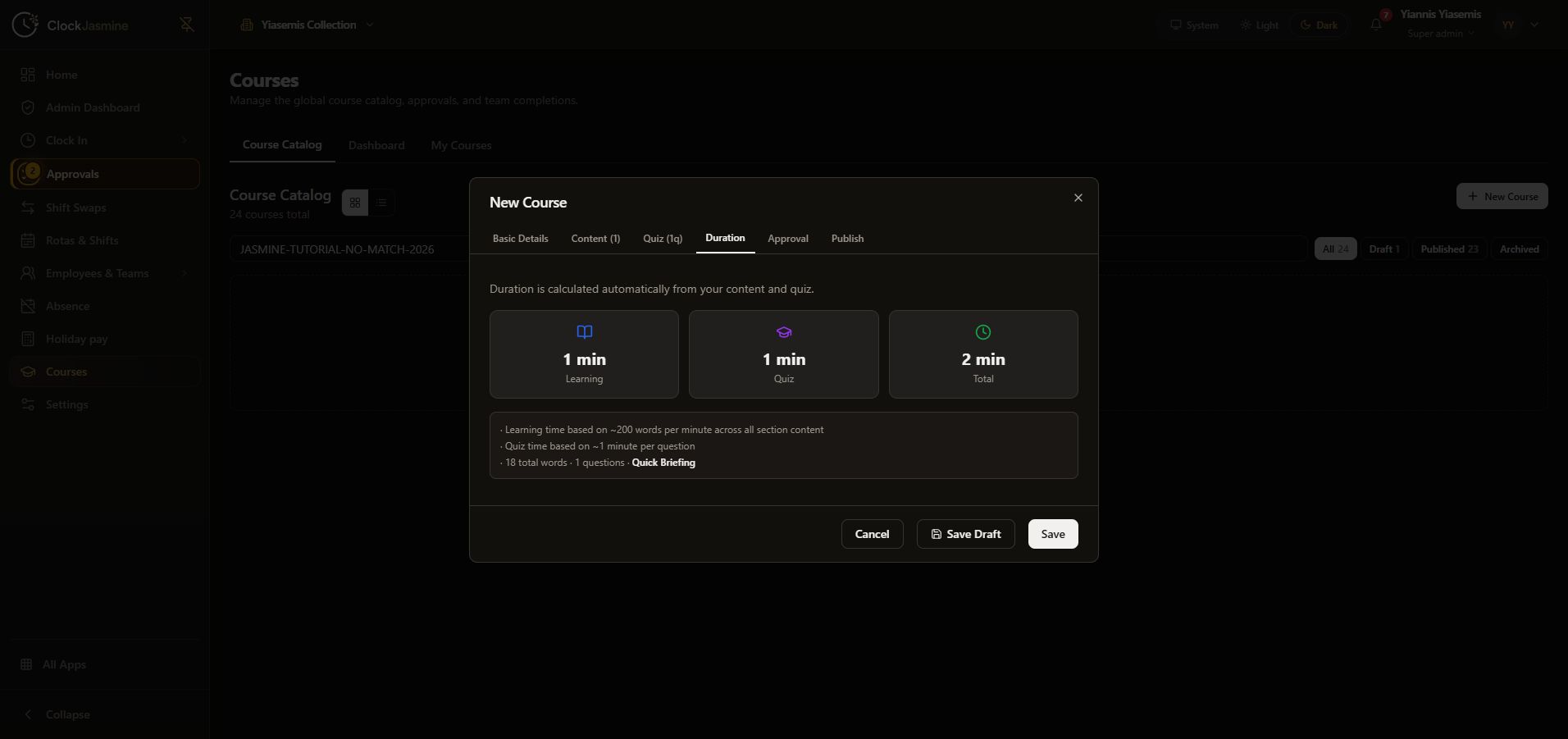
Open Duration to review the automatic learning, quiz and total estimates. The page explains its estimates as approximately 200 words per minute for content and one minute per question.
This short example displays one minute for learning, one minute for the quiz and two minutes total. That estimate describes the content; it does not show employee attendance or completion.
5. Check Approval status and type
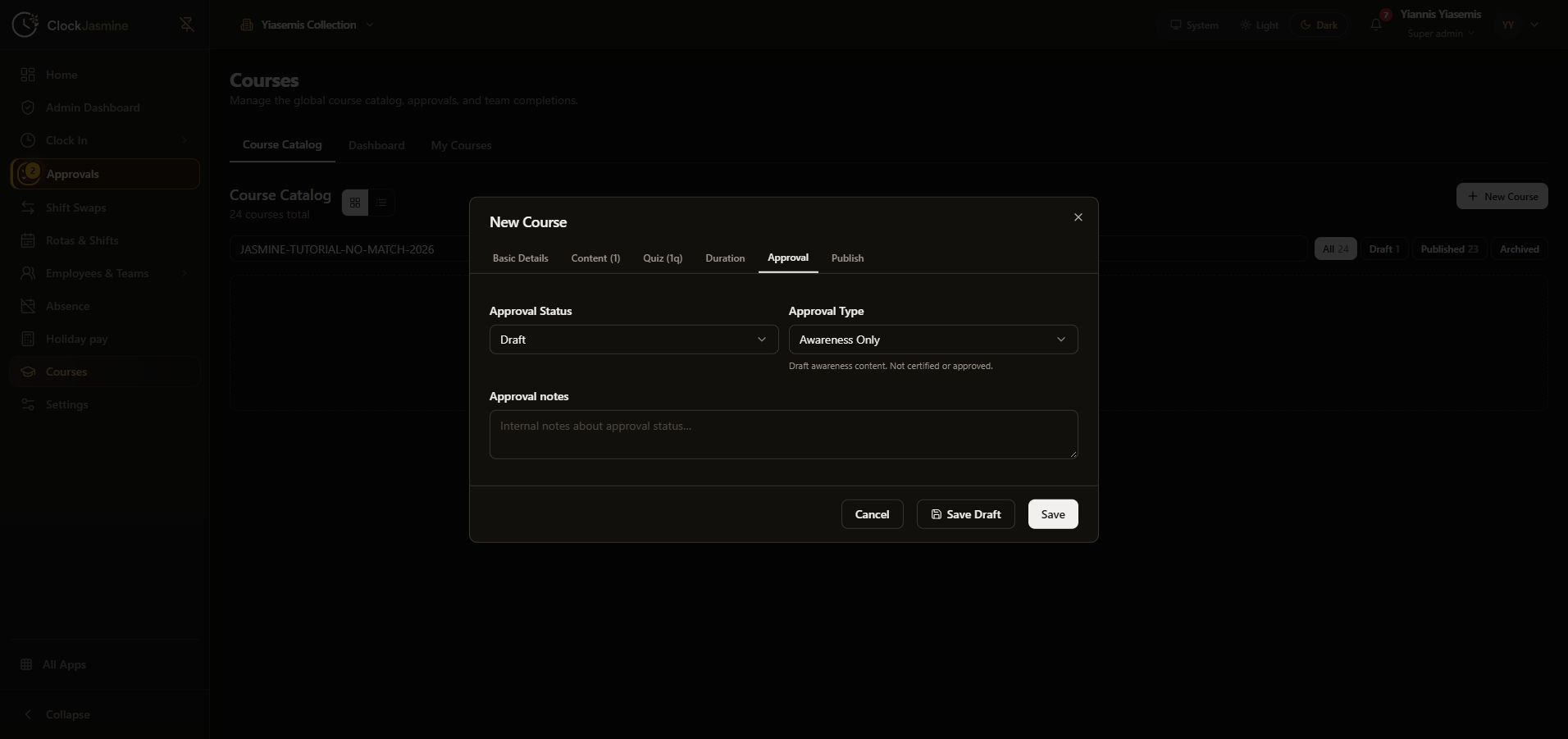
Open Approval and review Approval Status, Approval Type and Approval notes. The captured example shows Draft and Awareness Only, with the message Draft awareness content. Not certified or approved.
Do not describe an example as approved or certified when its status says otherwise. This walkthrough leaves these values unchanged.
6. Review Publish settings before saving
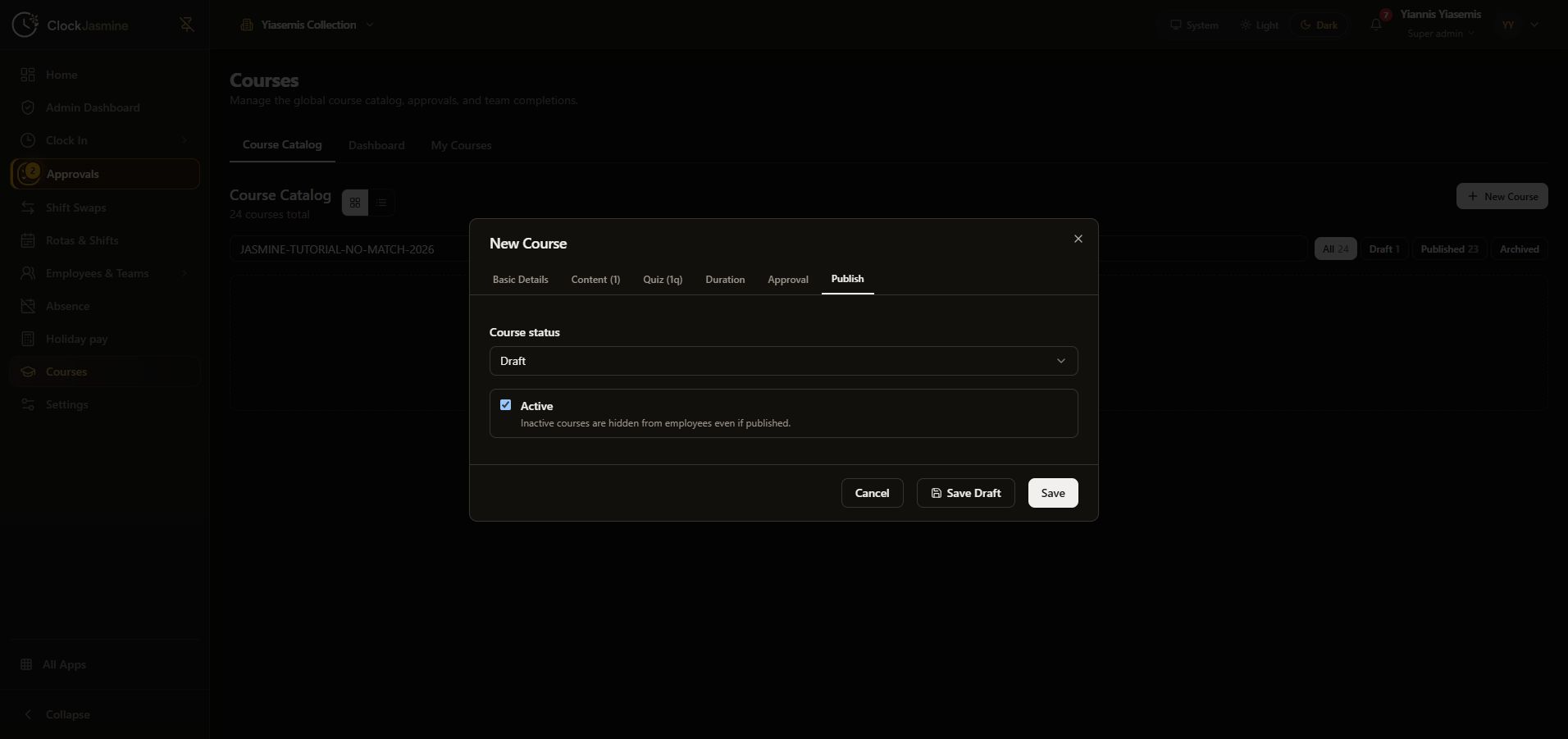
Open Publish and review Course status and Active separately. The page explains that inactive courses are hidden from employees even if published. The example stays on Draft.
Review Save Draft and Save against the intended course state. The demonstration chooses Cancel, leaving the example unsaved. It does not publish training, assign a course, or record a completion.
Related guides
Getting started with staff onboarding · Prepare a rota board · Clock Jasmine overview.