

TutorialIn-app guide
Clock Jasmine contract templates: merge tags and preview
· Jasmine Apps
Clock Jasmine contract templates let you prepare reusable onboarding documents with merge tags and a live sample preview. This walkthrough demonstrates the editor using an unsaved example.
Watch the walkthrough
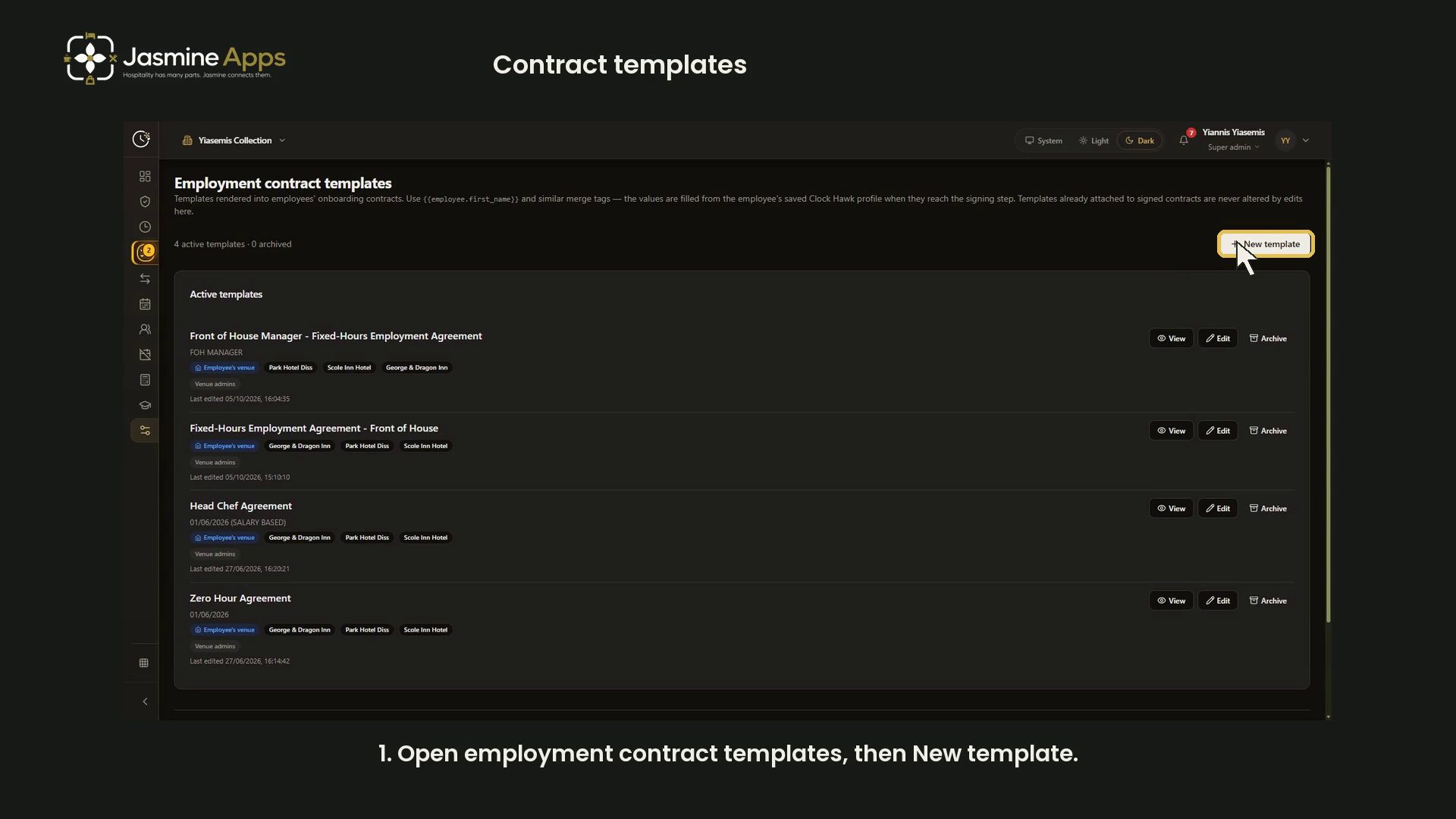
Open a new template
Open Clock Jasmine Settings, then Manage under Employment contract templates. Choose New template.
The list offers View, Edit and Archive on existing rows. The demonstration creates no saved template and changes no existing contract.
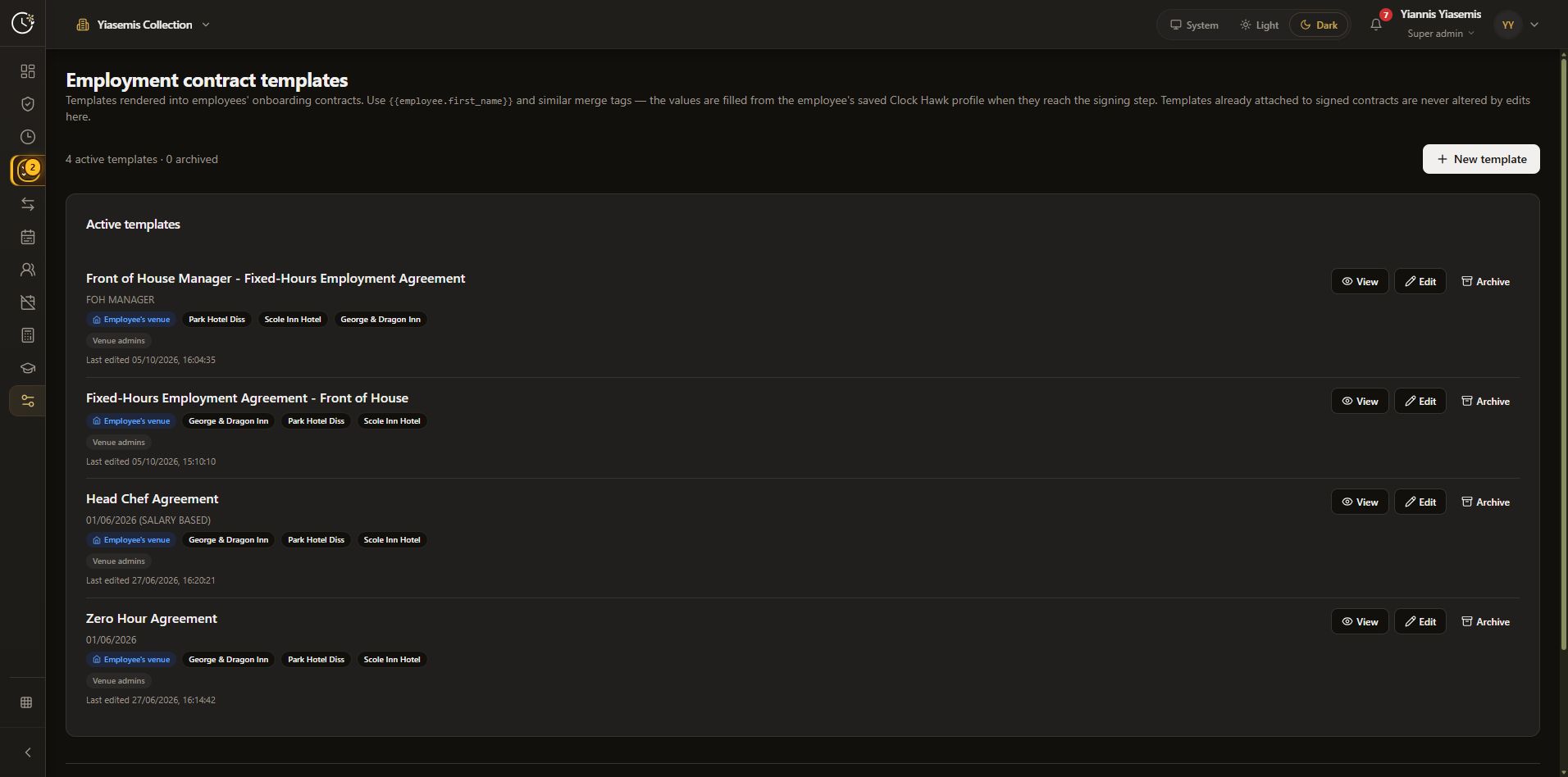
Name the template and review its scope
Enter a clear Template name and an Internal note (admin only) if useful.
Under Venue settings, choose the group or organisation name, or the employee's primary venue. Review Allowed venues: leaving every venue unchecked makes the template available across the group.
Review Who can send this contract. Venue admins are selected by default. The editor explains that roles and departments apply only to people who can already invite staff; named people appear only after being allowed to invite. Check these controls against your organisation's intended process before saving.
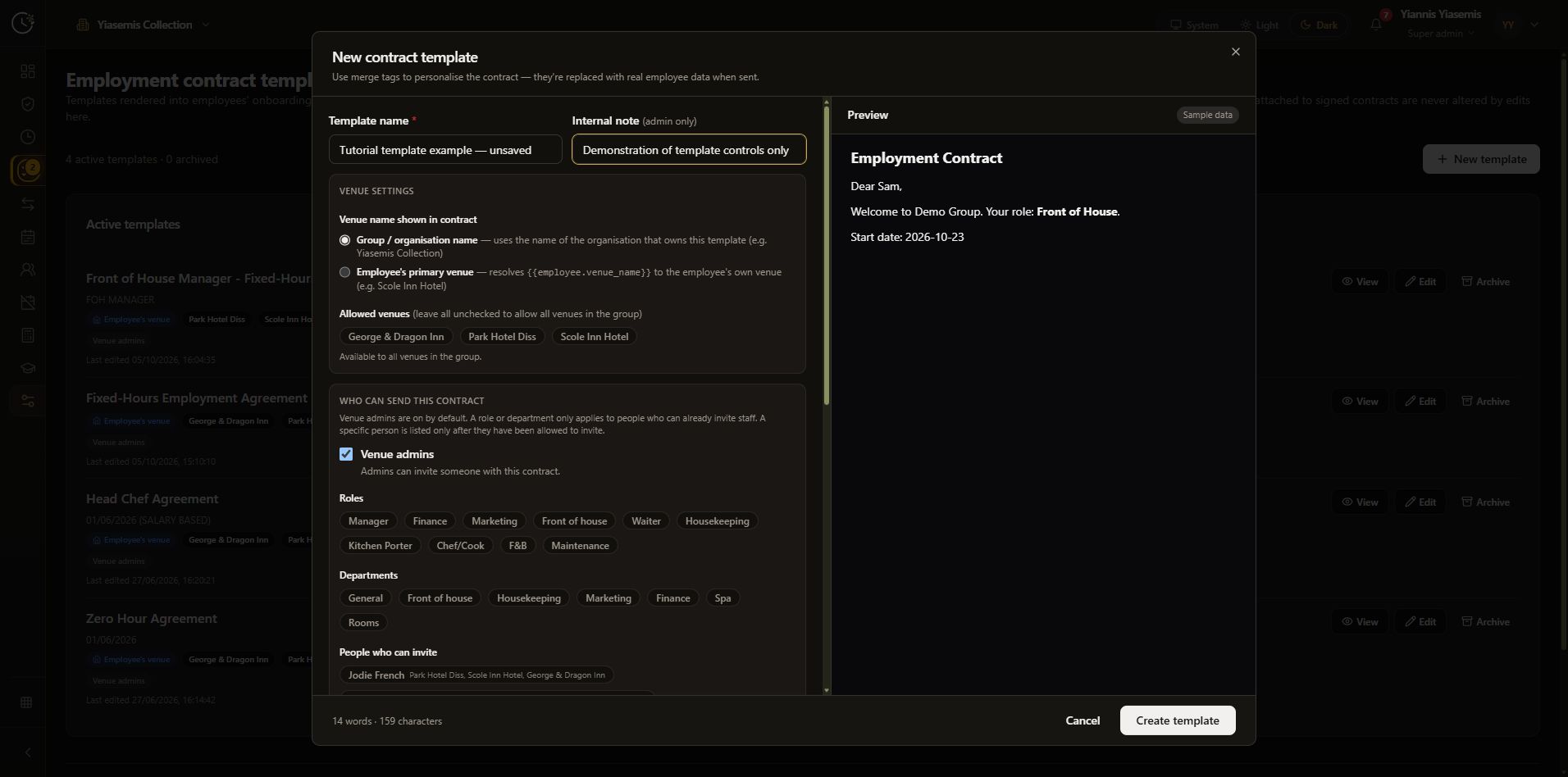
Review wage and hours options
Scroll down to Set salary amount. The available choices are Don't Specify Wages, Salary and Hourly Rate. In this example, Don't Specify Wages means the salary merge value stays empty.
Minimum weekly and monthly hours have separate checkboxes and matching merge tags. Review whether these are needed for the template before using it in onboarding.
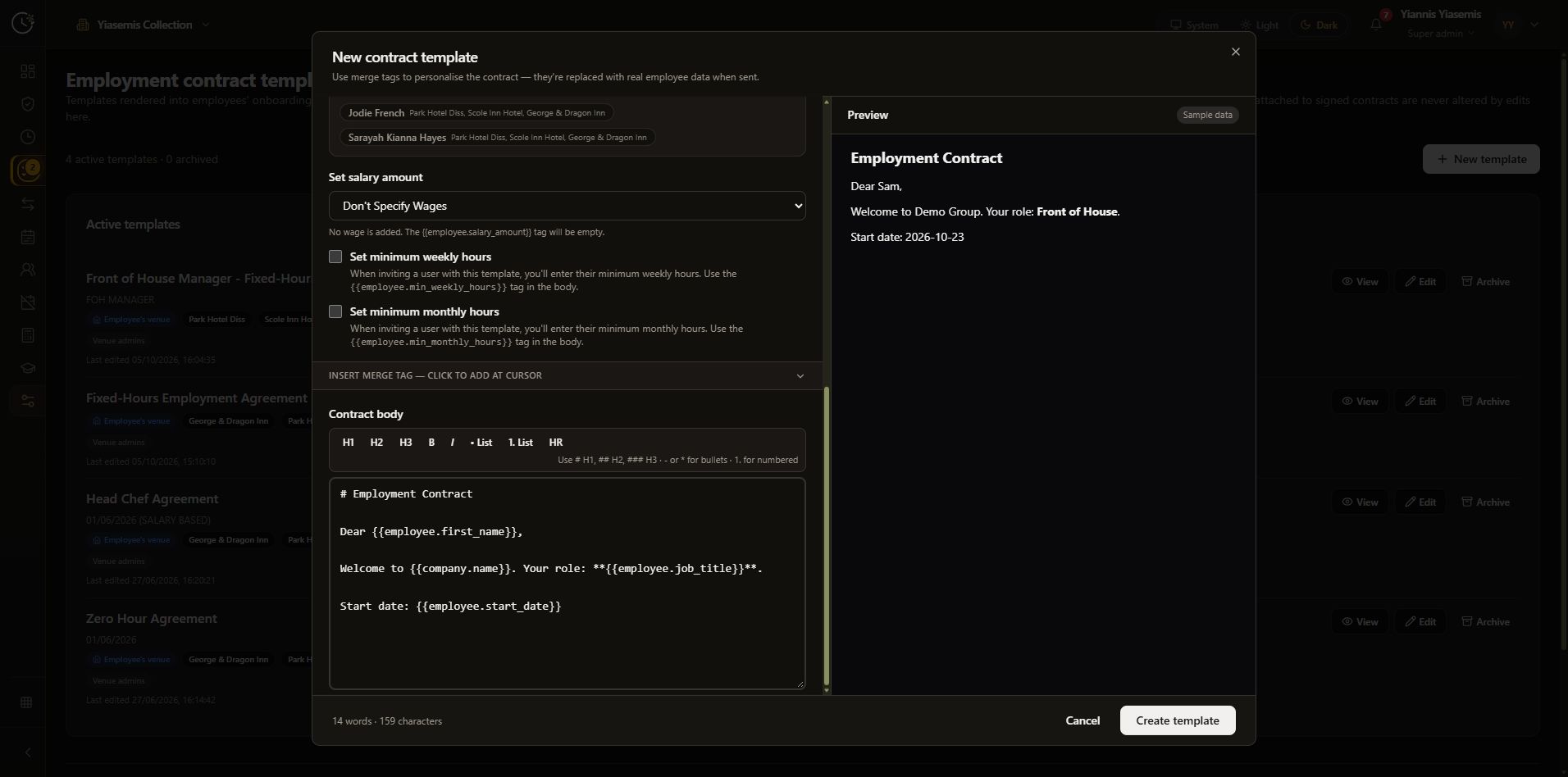
Add merge tags and format the body
Open Insert merge tag — click to add at cursor. The menu groups employee, company and venue placeholders. Place the cursor where a value belongs, then select its tag. Keep the tag syntax intact.
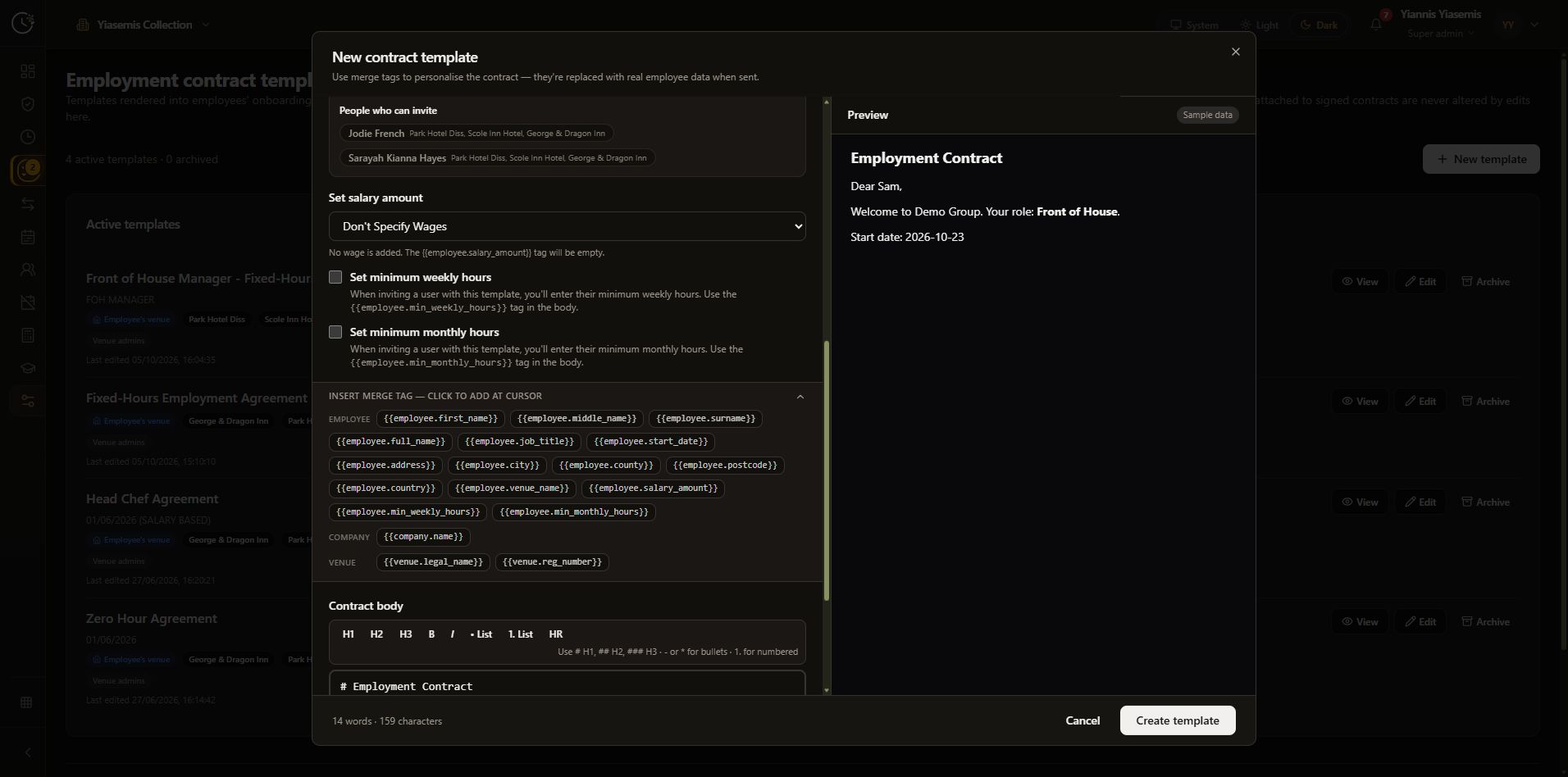
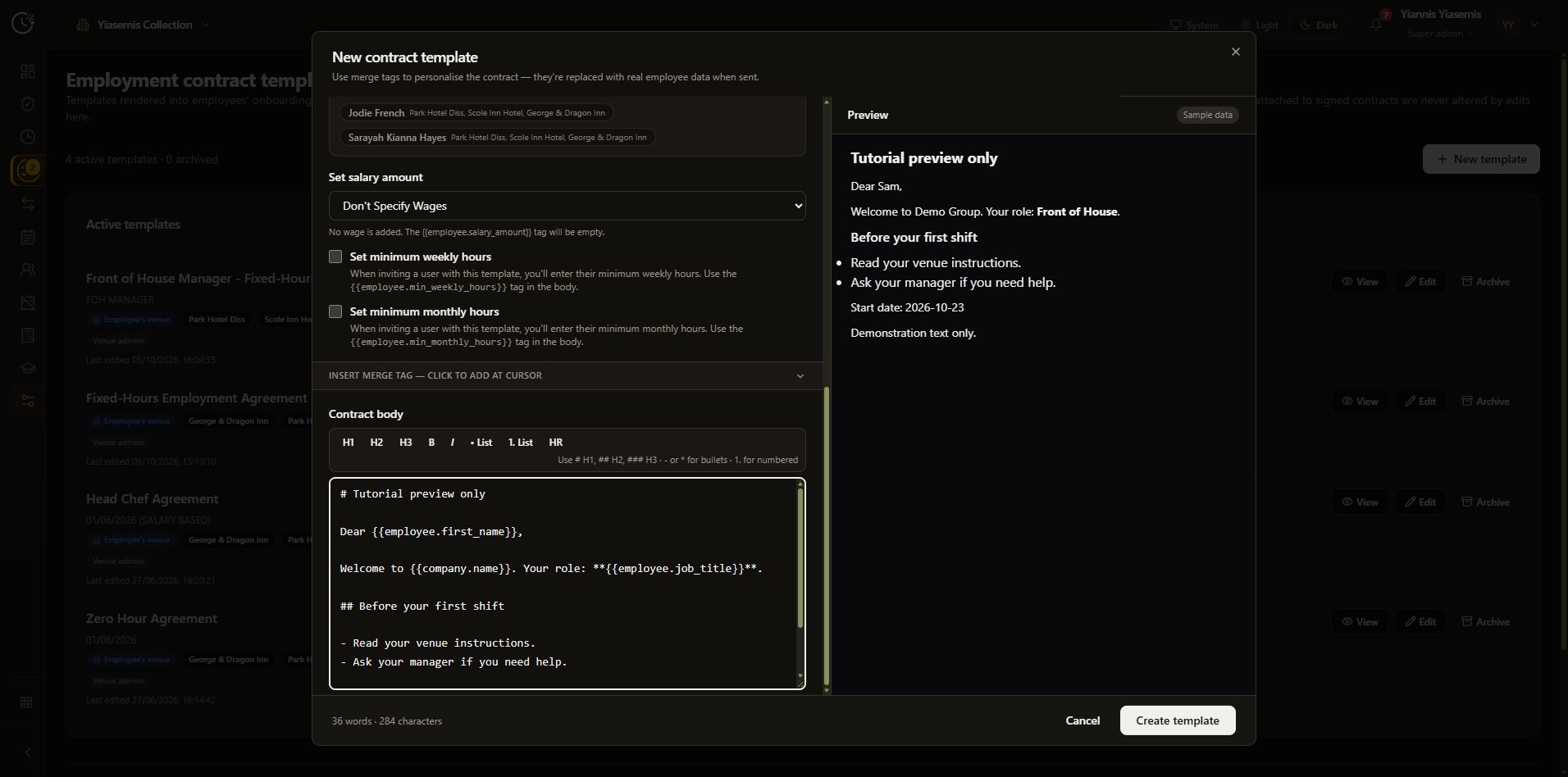
The Contract body supports Markdown headings, bold text, bullet lists and numbered lists. The toolbar provides shortcuts. The right panel shows Preview with Sample data, so you can check formatting while editing.
Our sample uses a heading, greeting and short list. Sam, Demo Group and Front of House are preview values, not a real employee's details. The text is a formatting example; use your organisation's approved contract wording for an actual template.
Review before creating
Read the complete preview, confirm the merge tags and review the venue and sender settings. Create template keeps a finished template; Cancel closes this example without saving it.
The page states that templates already attached to signed contracts are never altered by later edits here. Treat template editing and the management of an existing employee contract as separate tasks.
Continue with Clock Jasmine
See staff onboarding for the invitation and contract-template selection controls, or course setup to prepare learning content and a quiz.