

TutorialIn-app guide
Table Jasmine events: create and verify a draft
· Jasmine Apps
Create and check a draft with Table Jasmine events. This walkthrough follows a real Demo Venue workflow: entering the details, saving, correcting a date that did not persist, and reopening the event to verify the stored settings.
Watch the walkthrough
The recording uses fictional training records in Demo Venue. Demo names remain readable; real private details are excluded.
Prepare your event
Check the venue in the header and use an account authorised to manage its events. Have the name, description, date, times and capacity ready. The example creates Acoustic supper in Demo Venue for 5 December 2026, 18:00–21:00, with 24 free RSVP places. It remains a draft.
Add the event details
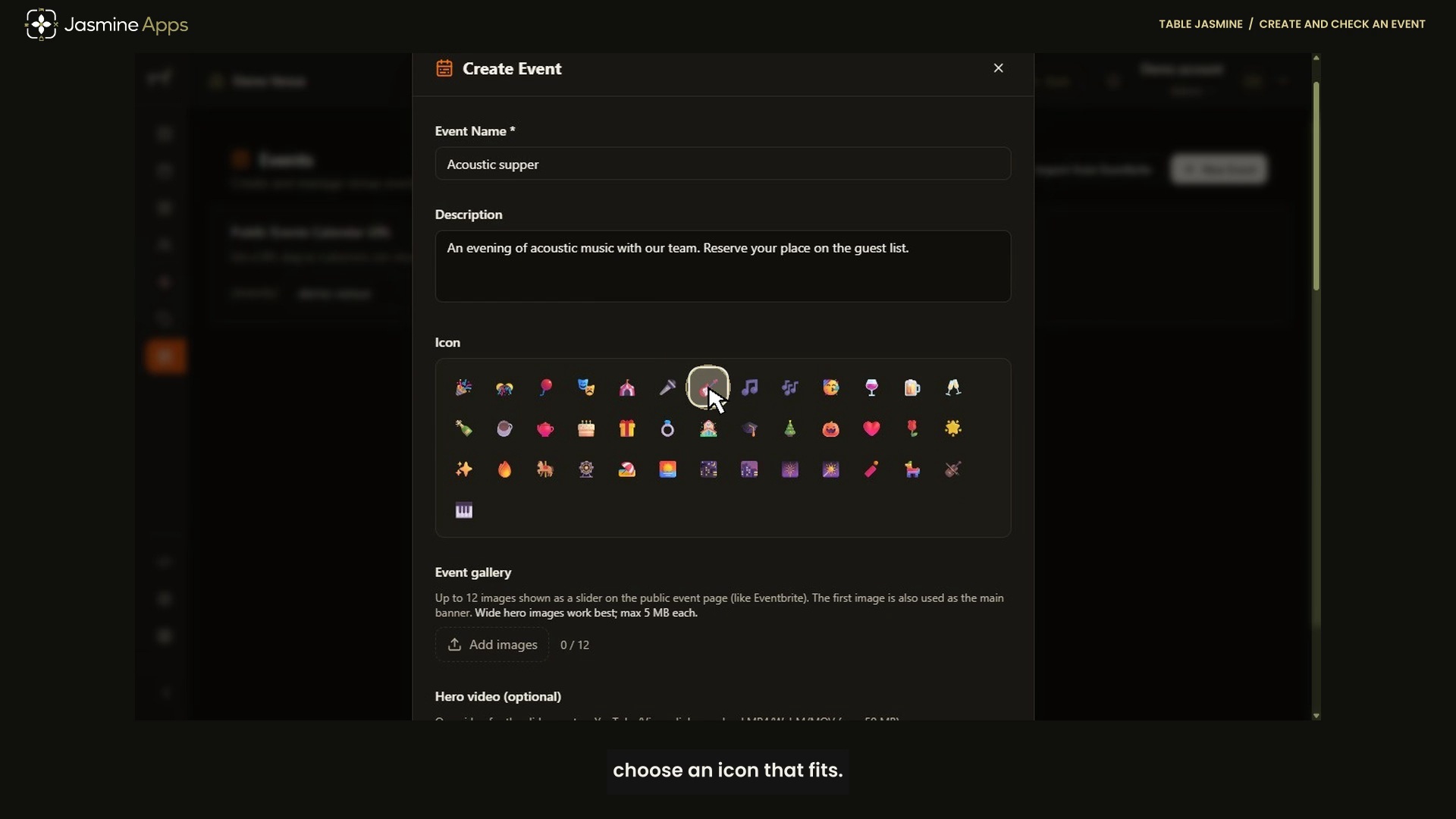
Open Events and choose New Event. Enter Event Name and Description, then select an appropriate icon. Keep the description useful to guests: explain the experience and what reserving a place means. Optional gallery, hero video and menu controls are available; this example leaves them empty.
Set dates and times
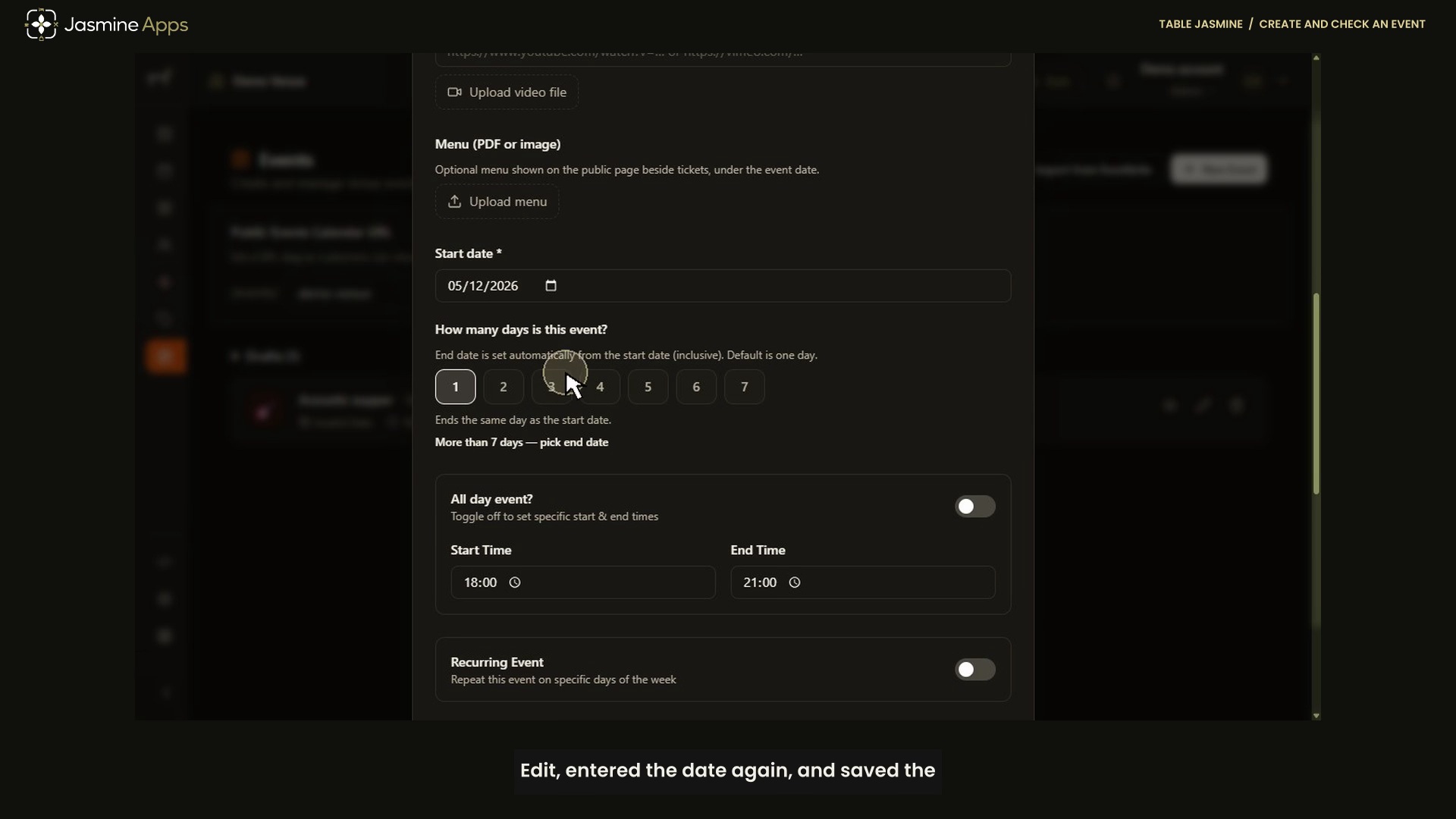
Set Start date and choose the event duration. For a timed event, turn off All day event? and enter Start Time and End Time. The example lasts one day and does not recur. Check the dates and times again after saving; the form alone is not proof that they were retained.
Choose entry and table bookings
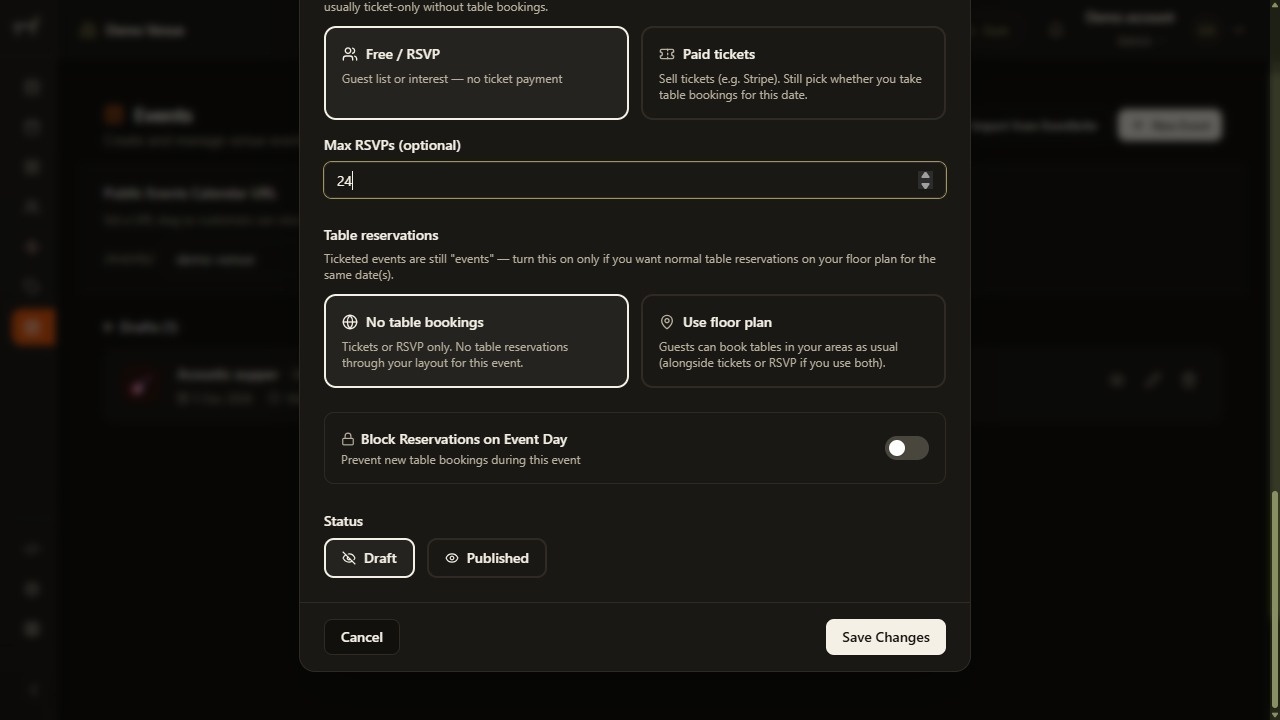
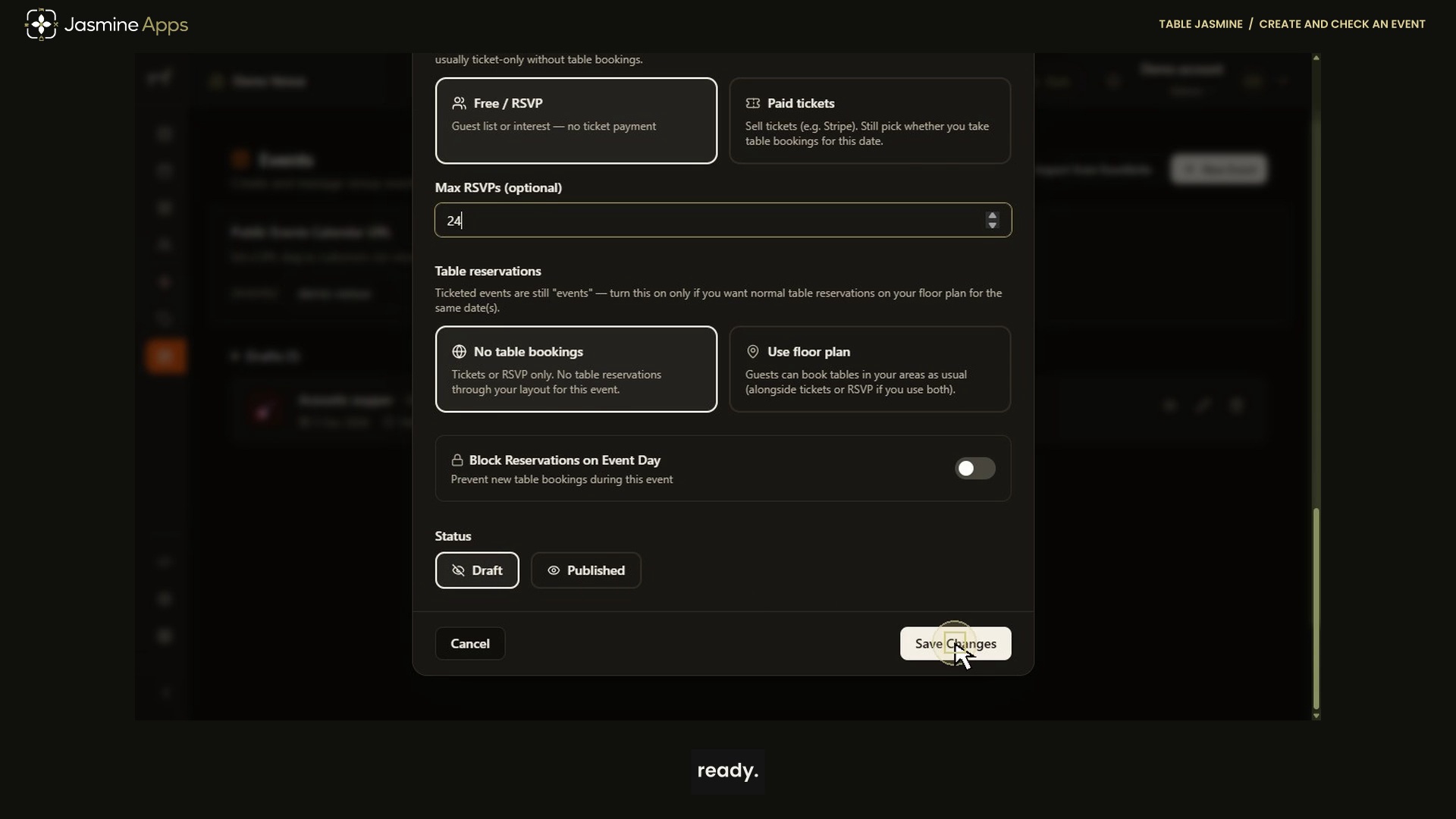
Select Free / RSVP to collect a guest list without ticket payment, then enter Max RSVPs. The example uses 24. Paid tickets is a separate entry option and is not exercised in this walkthrough.
Under Table reservations, No table bookings keeps this example to an RSVP guest list. Use floor plan is a separate choice for normal table reservations. Review Block Reservations on Event Day independently; it remains off here. Keep Status → Draft selected while preparing the event.
Save and check the result
Choose Create Event, then inspect the new card under Drafts. In this recording the first saved card showed Invalid Date, so the walkthrough reopens Edit, enters the intended date again and chooses Save Changes. After a page reload, the card displays the correct date and times.
If your saved result is wrong, correct the existing draft and reload it before proceeding. Avoid creating duplicate listings to work around a date issue. Reopen the editor and compare the stored name, description, schedule, entry type and capacity with your intended settings. Use Cancel to close a verification-only visit.
Review the overview
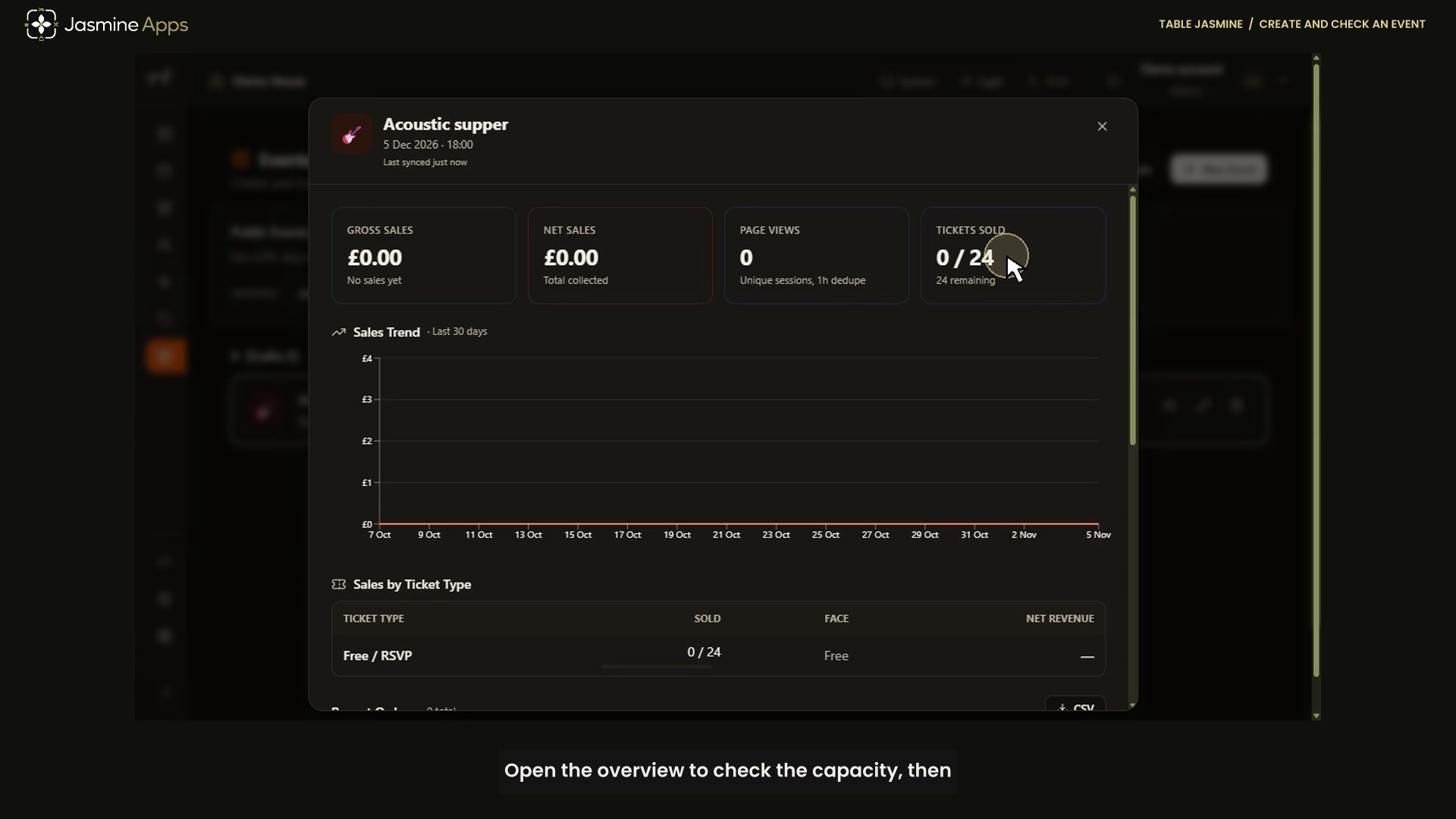
Open the saved event overview. Check the event date and capacity against the draft. In this empty example, Tickets sold 0 / 24 confirms the configured capacity, while sales and attendees are empty. These are training values, not venue performance results.
Before publication
Keep the event in Draft until its details and guest-facing experience have been checked. Preview public page was not available in this demo account, so this recording does not demonstrate a guest preview. Complete that check through your venue’s available workflow before publishing. Publishing merely to test an incomplete draft is not part of this tutorial.
This walkthrough verifies draft creation, date correction and retained settings. Guest registration, paid ticket checkout and door check-in require their own checks.
Common checks
- The card says Invalid Date: edit the existing draft, enter the intended date, save and reload before proceeding.
- Time controls are missing: review All day event? and the intended duration before changing the schedule.
- Capacity is unexpected: compare Free / RSVP and Max RSVPs with the saved overview.
- No public preview is offered: keep the draft unpublished and complete the guest-facing check through an available authorised workflow.
- No attendees are listed: the example has no registrations; configured capacity is not evidence of a guest booking.