

TutorialIn-app guide
Spa Booking: read the calendar and selected day
· Jasmine Apps
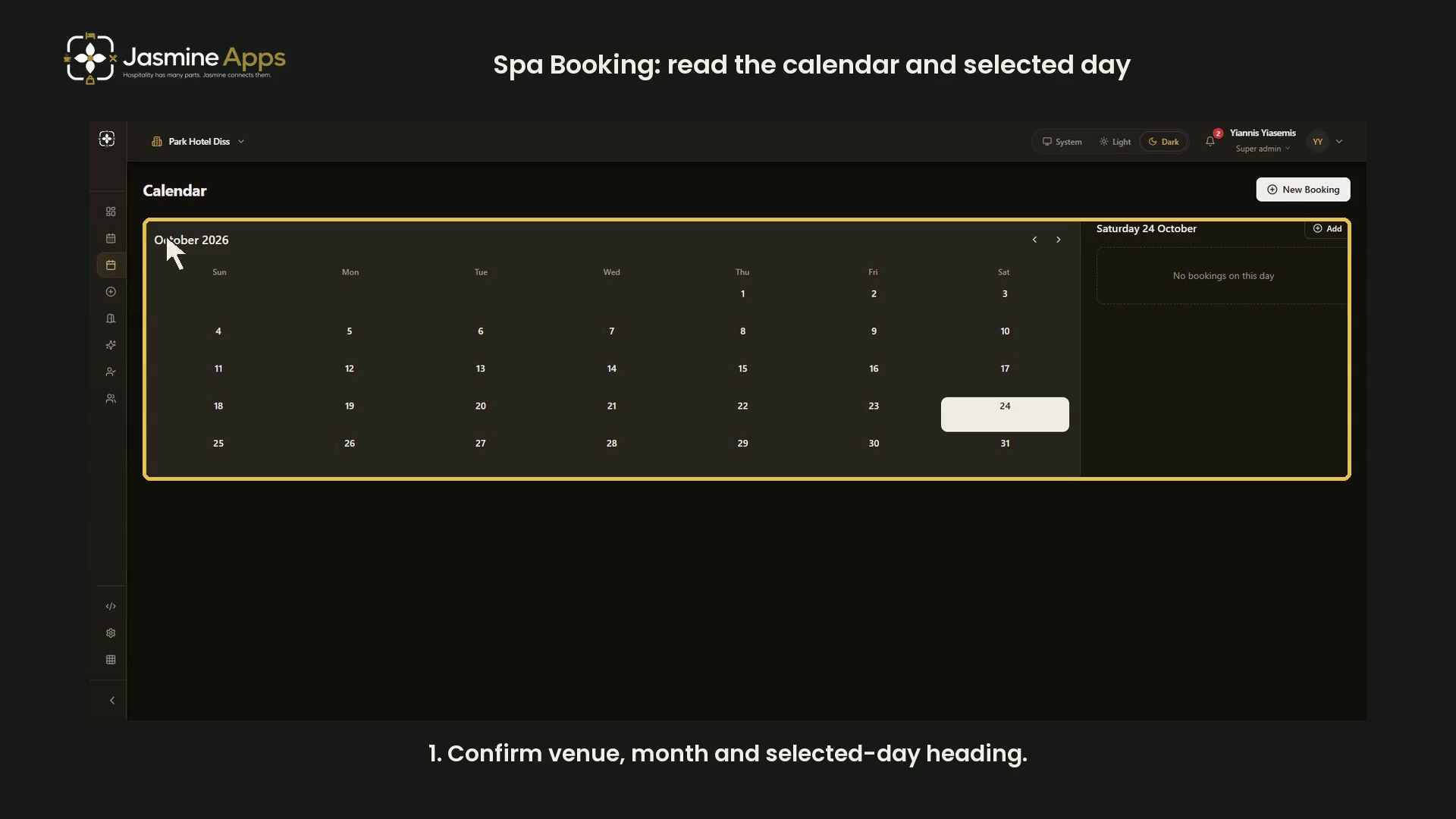
The Spa Booking calendar separates the month grid from the selected day's booking panel. This dark-mode walkthrough demonstrates date selection at Park Hotel Diss without opening a guest record or creating an appointment.
Watch the walkthrough
Confirm the selected date
Open Calendar. The recorded example starts in October 2026, with Saturday 24 October selected and no bookings on that day.
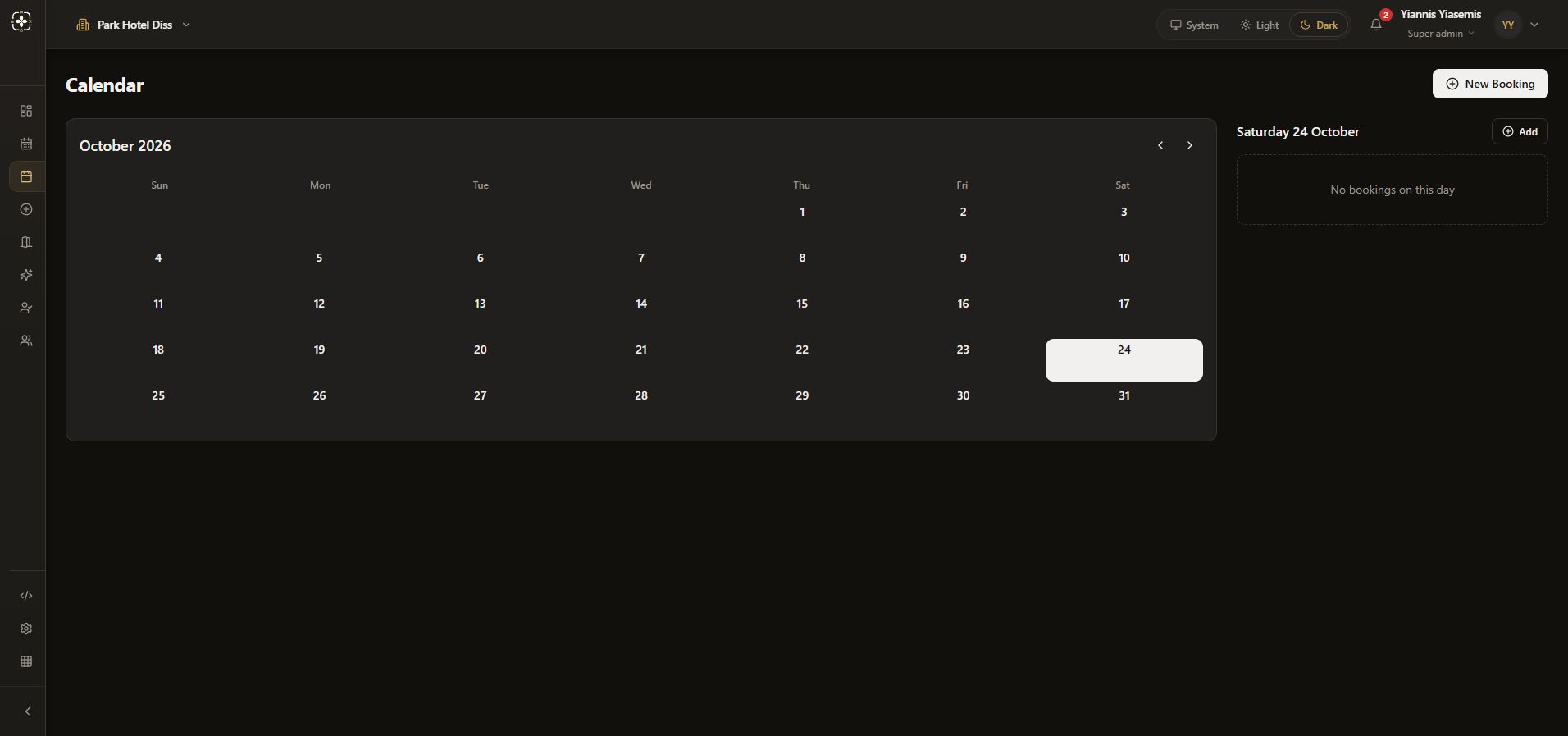
Select another day
Choose 25. Its tile becomes selected and the side heading changes to Sunday 25 October. Read that heading before interpreting the list: No bookings on this day refers to that date, not the whole month.
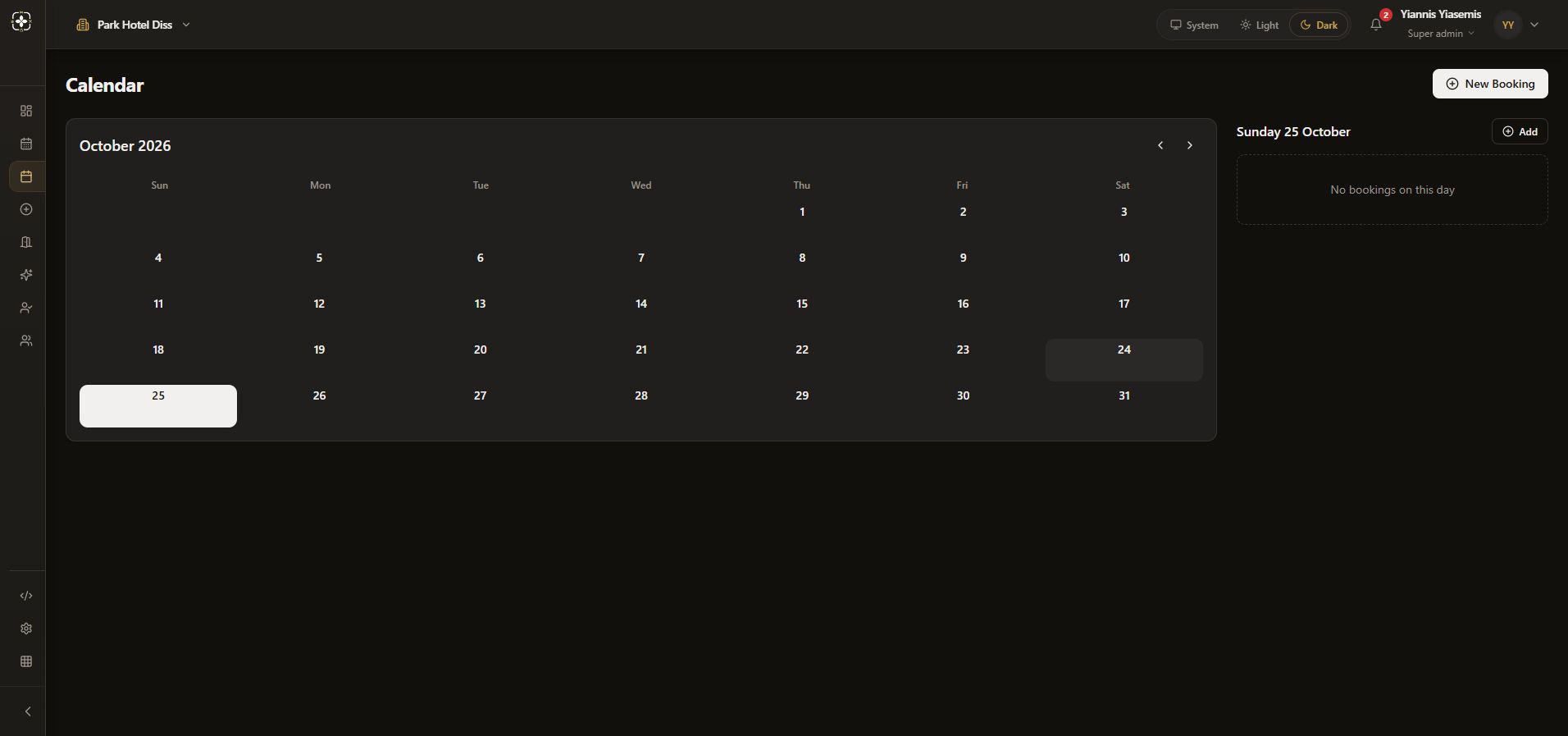
Move between months
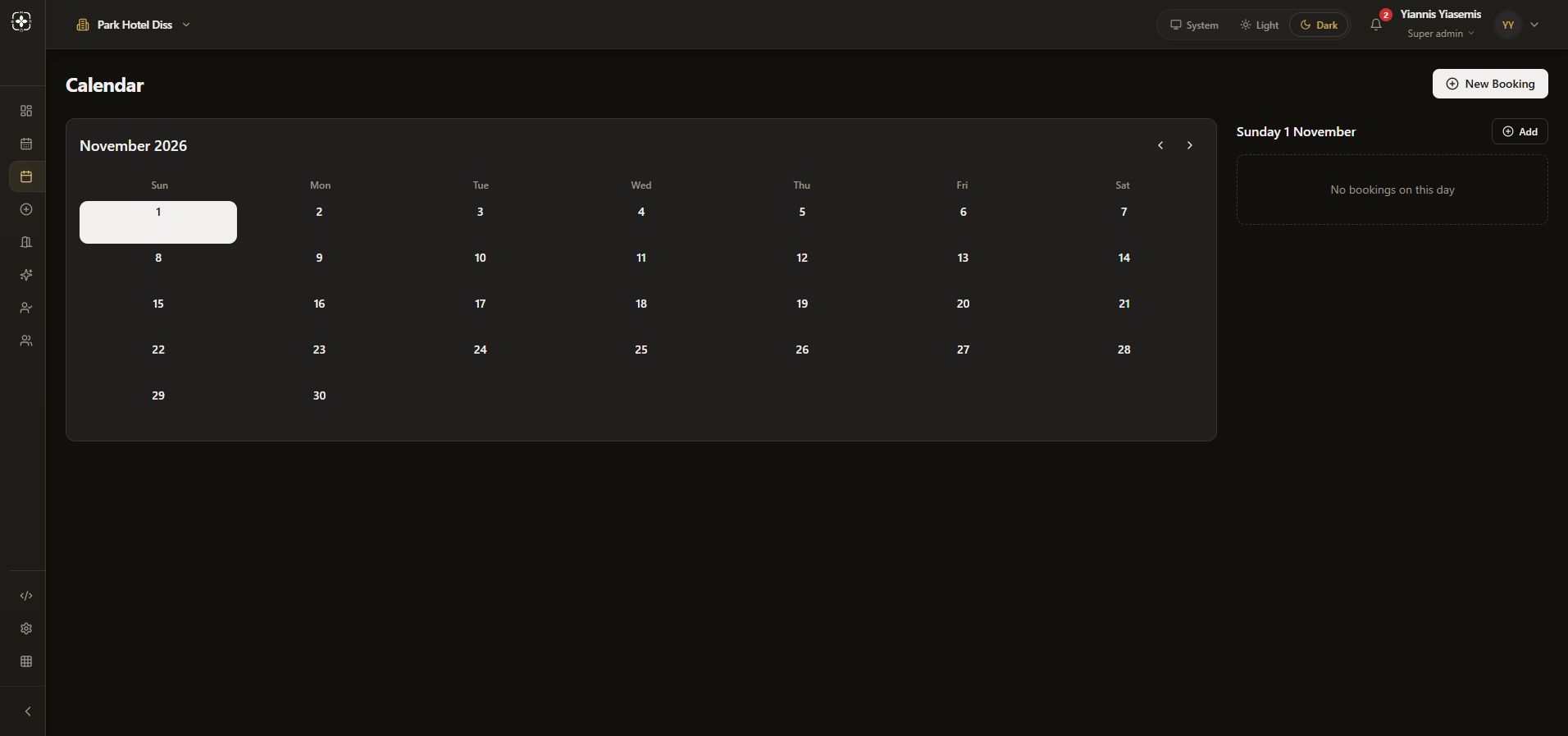
Use the arrows beside the month name. Moving the grid to November is separate from selecting a date. In this captured view, the side panel retains the previous October day until a November day is chosen.
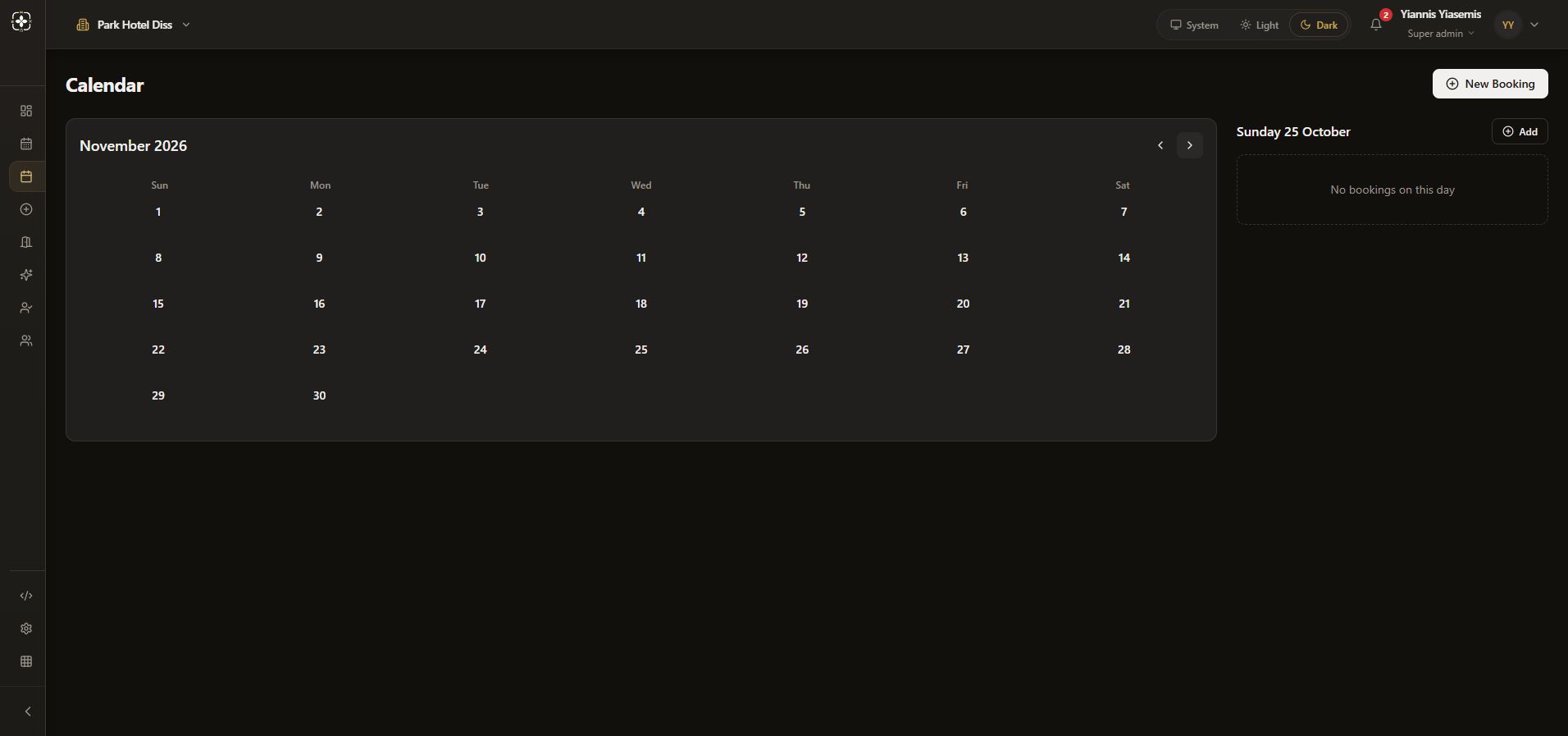
Confirm the new day before booking
Choose 1 in November. The side heading becomes Sunday 1 November. Its Add link points to a new booking with that date in the address; New Booking is also available. Confirm the date in the booking form before any real save.
The walkthrough creates no appointment. See the separate appointment-preparation guide.