

TutorialIn-app guide
Jasmine Loyalty: edit and preview the welcome email
· Jasmine Apps
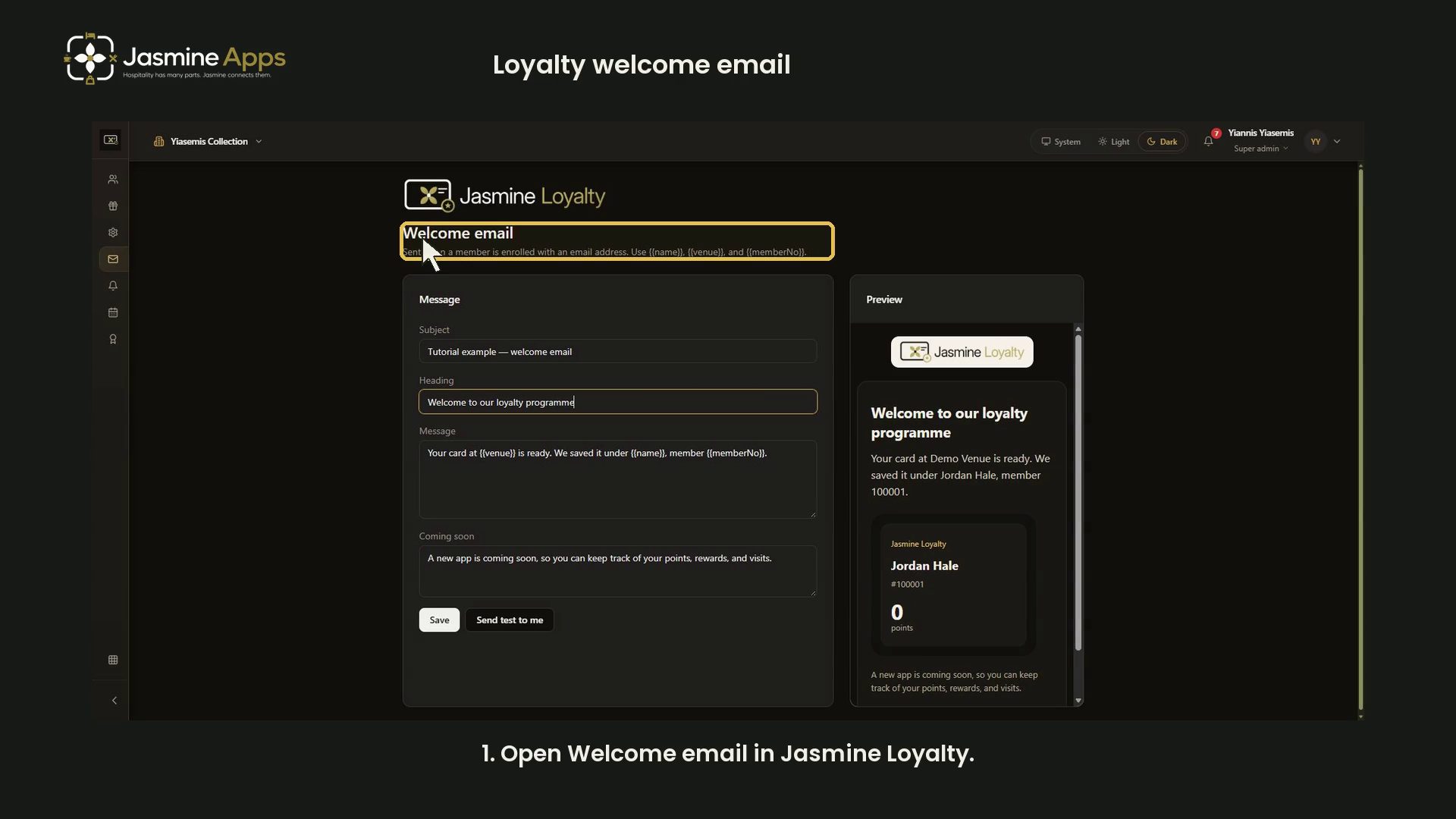
The Jasmine Loyalty welcome email is sent when a member is enrolled with an email address. This guide shows the editor, personalisation tags and live sample preview using an unsaved example.
Watch the walkthrough
Open the welcome email editor
Open Welcome email from the Jasmine Loyalty sidebar. The page lists three supported placeholders: {{name}}, {{venue}} and {{memberNo}}.
Set the subject and heading
Subject and Heading are separate fields. Use a clear subject and a heading that makes sense at the top of the email. Our unsaved example uses a tutorial subject and a short welcome heading.
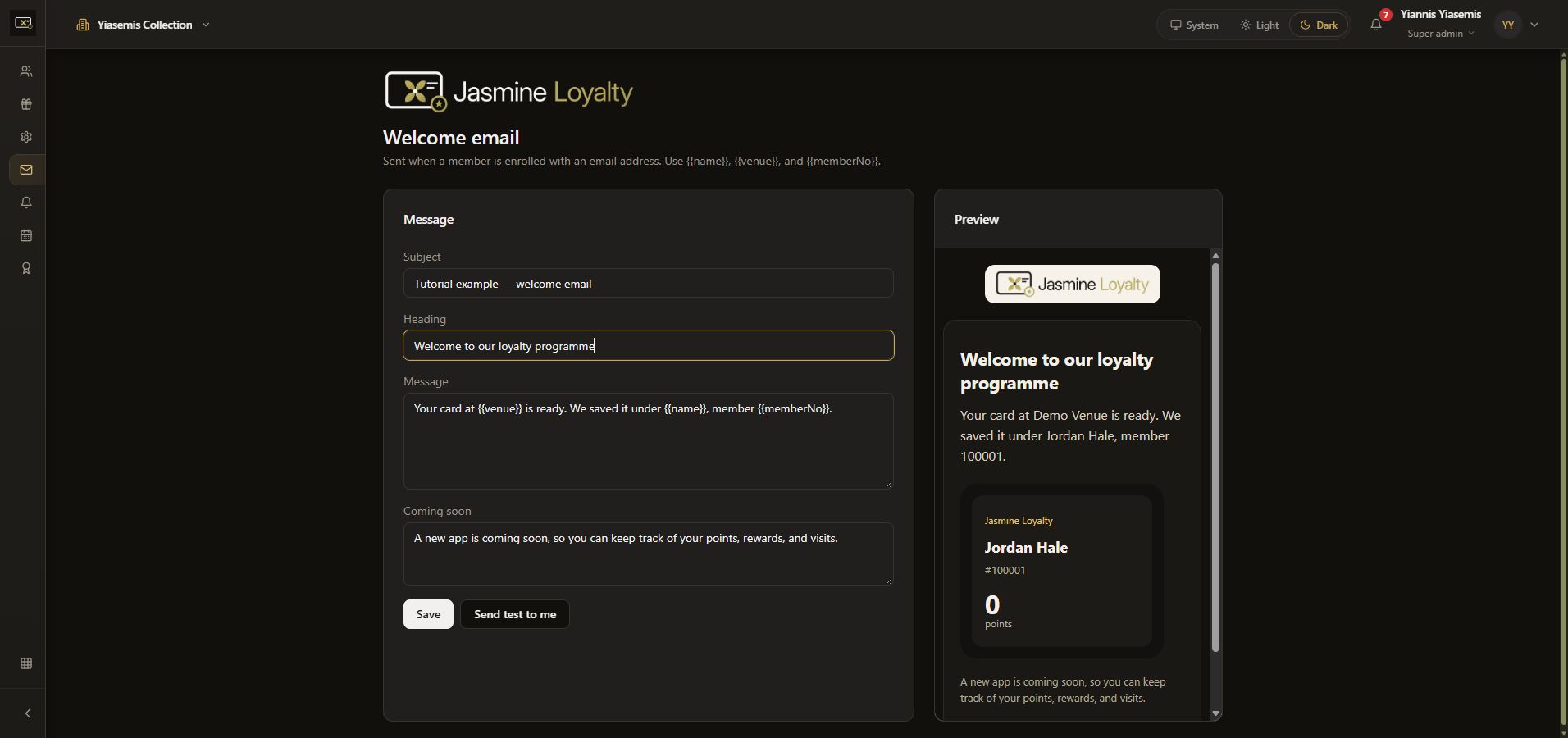
Write the personalised message
Enter your wording in Message. Keep the supported tags exactly as shown on the page, including both pairs of braces and the capital N in memberNo. They represent the member name, venue and member number.
The demonstration greets the member and explains where to ask about points and available rewards. It does not promise a particular earning rate or reward.
Review the sample preview
Watch Preview on the right as you edit. It replaces the tags with sample values: Jordan Hale, Demo Venue and member number 100001. These are preview data, not a real member record.
Check that the greeting, venue and member number appear naturally in the message. Read the heading as well as the paragraph beneath it.
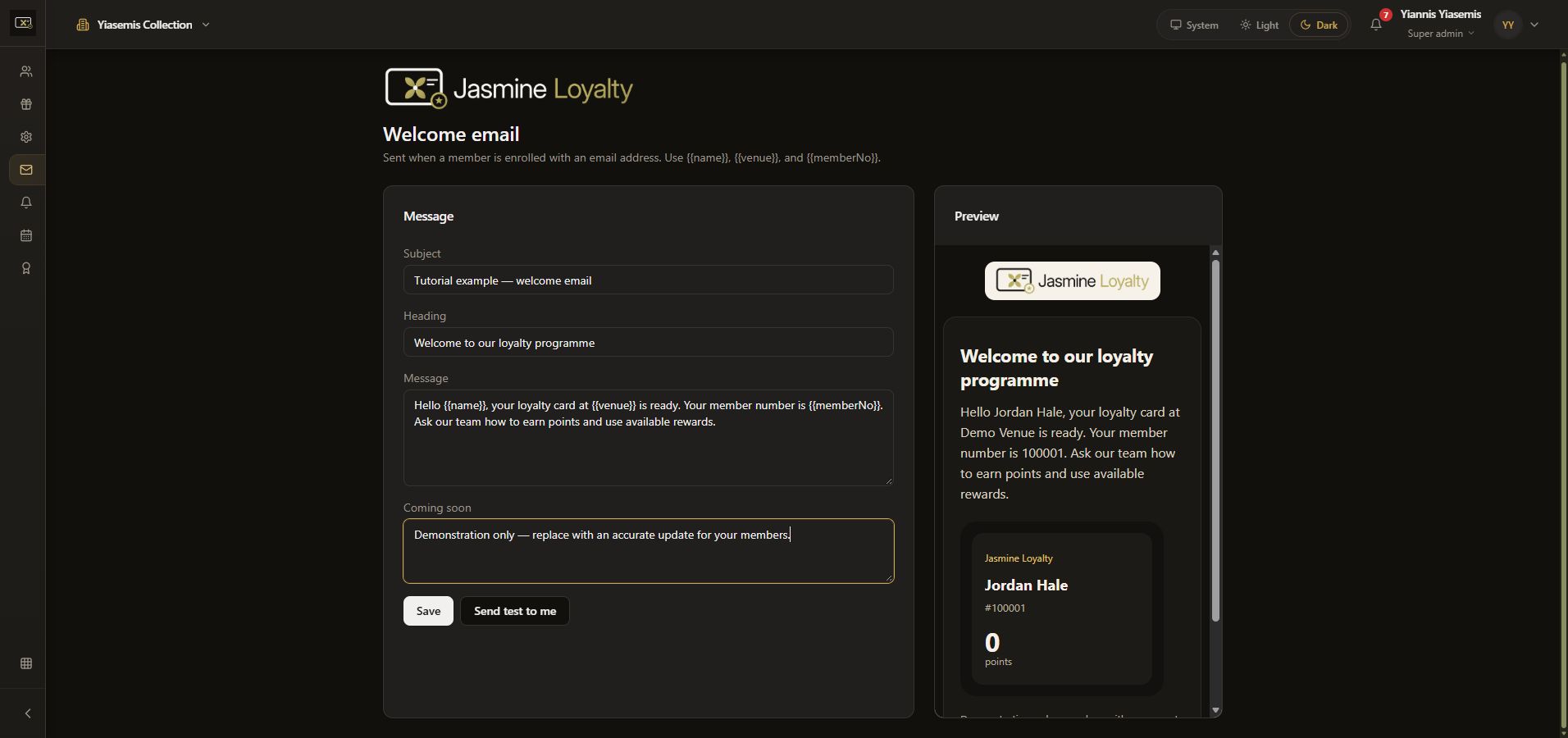
Check Coming soon and the lower preview
Coming soon is a separate editable text block. Keep the wording accurate for your members. Scroll inside the preview to inspect this text, the sample points card and the footer. The preview scrolls independently from the main page.
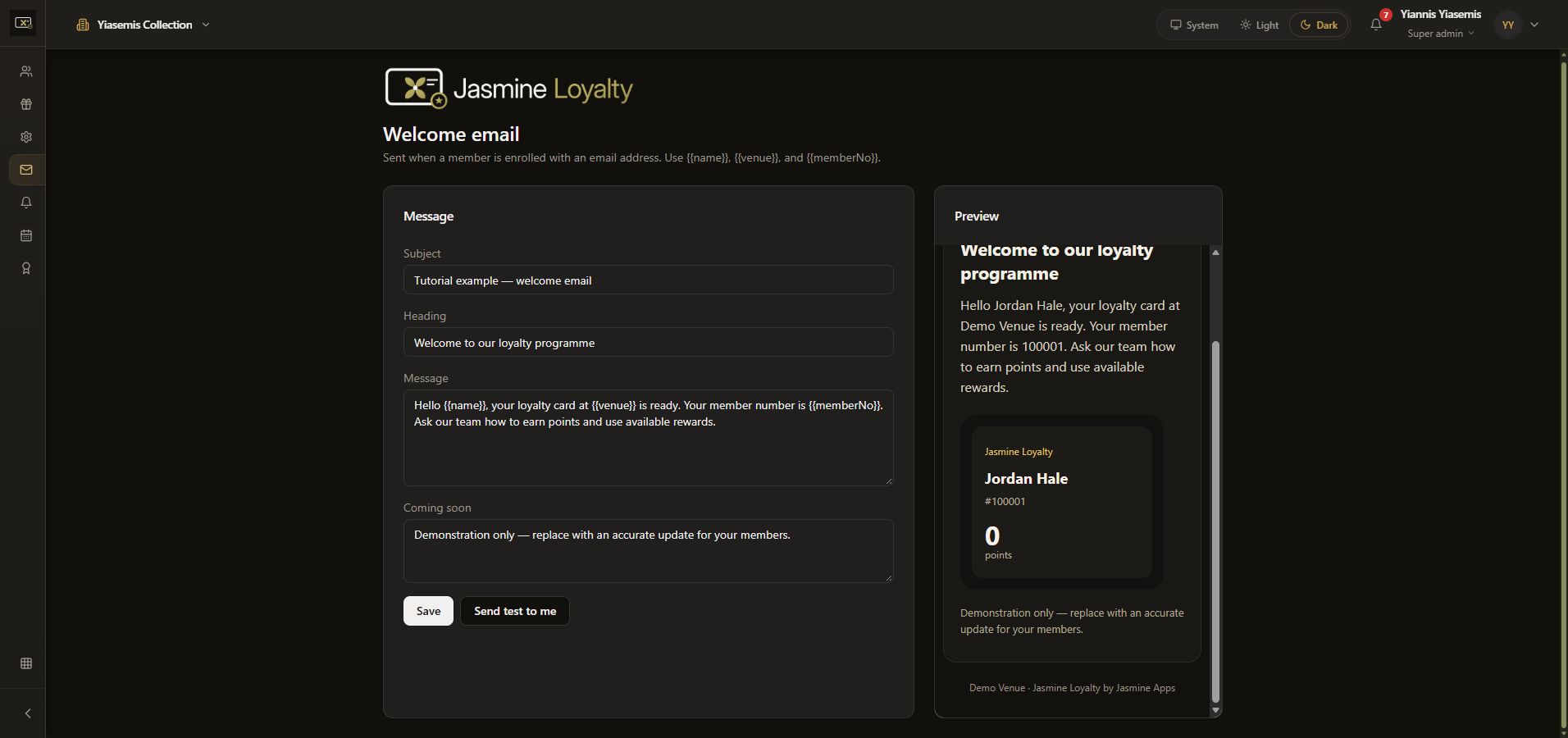
Review Save and test-email actions
Save keeps the template. Send test to me is a separate action that sends a real test email. Use it only when you intend to send that copy.
This walkthrough uses neither button. Reloading discarded the example and restored the original wording. For a finished template, check the subject, heading, supported tags and complete preview before saving or choosing to send a test.
Continue with Jasmine Loyalty
Review scheme rates and redemption settings, or explore the Jasmine Loyalty overview.