

TutorialIn-app guide
Jasmine Loyalty members: enrol, find and verify a member
· Jasmine Apps
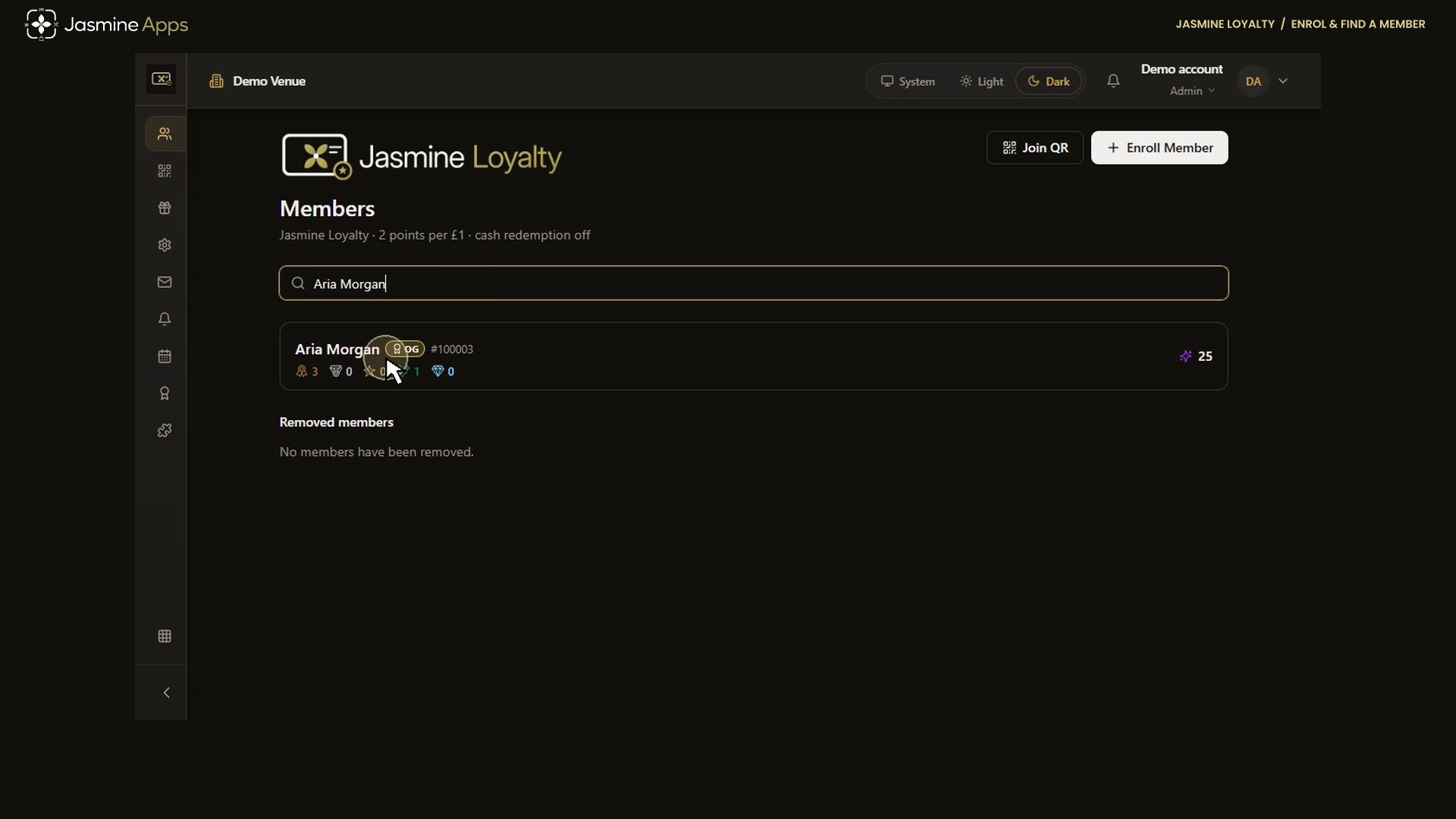
Enrol a Jasmine Loyalty member, check the saved card and activity, then find the same record again. This walkthrough creates a disposable member in Demo Venue with no email or phone number and the marketing option switched off.
Watch the walkthrough
The recording uses fictional training records in Demo Venue. Demo names remain readable; real private details are excluded.
Open member enrolment
Open Members in Jasmine Loyalty. Check the venue, then choose Enroll Member to open the form. Before creating a real member, use the search field to check whether their record already exists.
Enter the member details
Enter the member's Name and add their Email and Phone when available and appropriate. This example uses a disposable training name and leaves both contact fields empty.
Review Add to Jasmine Marketing Hub separately. The recording clears this option before enrolment. Adding a loyalty member should not be treated as a reason to assume a marketing preference.
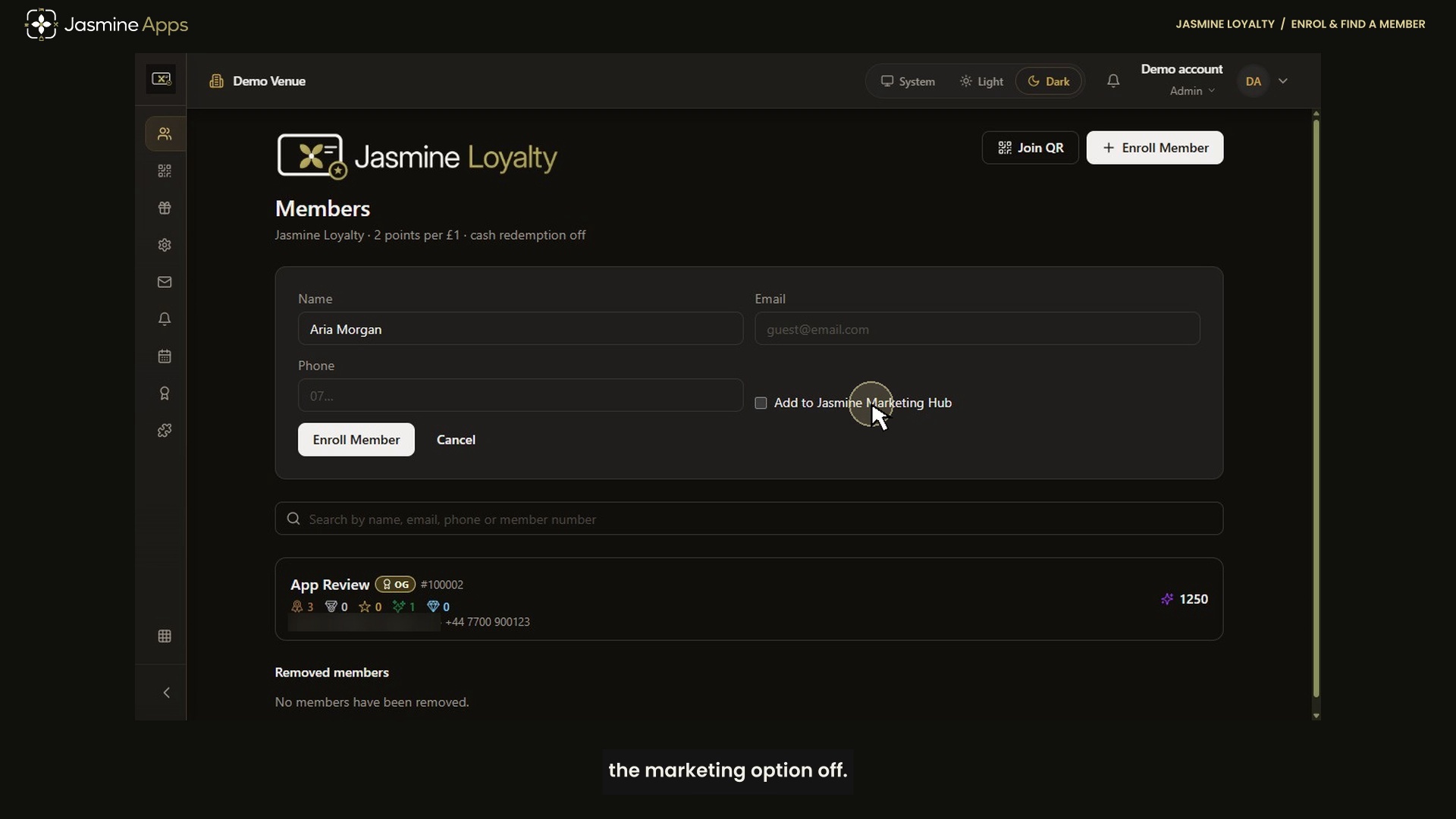
Choose the form's Enroll Member button. Wait while it shows Enrolling… and opens the new record. This example provides no email address and sends no welcome email.
Create and verify the record
The training card’s scannable area is hidden in this recording. In your own account, compare the saved member record and card before using it.
Check the member's identity, number, Member card, Balance and Lifetime totals. Reload the page and verify that the same record remains.
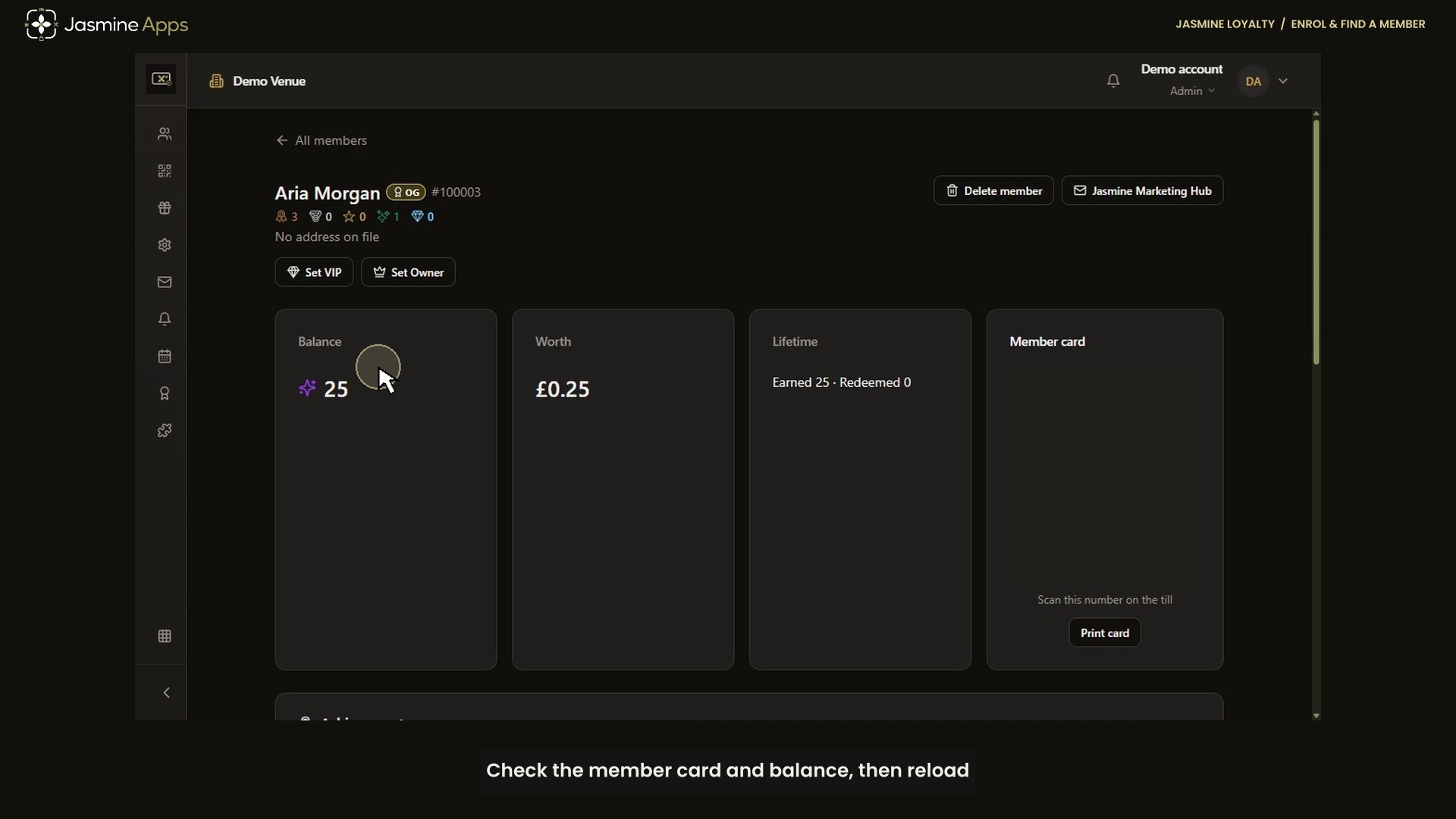
The example has a 25-point balance because the joining achievement was configured earlier. A new member's starting balance depends on the scheme and achievement settings; do not expect this example's value in every venue.
The admin page also displays Worth. Treat this as a displayed monetary equivalent, not proof that cash redemption is available. The member catalogue in this recording explicitly shows cash redemption off.
Review achievements and activity
Scroll down to Achievements. Check each displayed title and its explanation. In the recording, The Beginner lists the joining requirement and 25 bonus points.
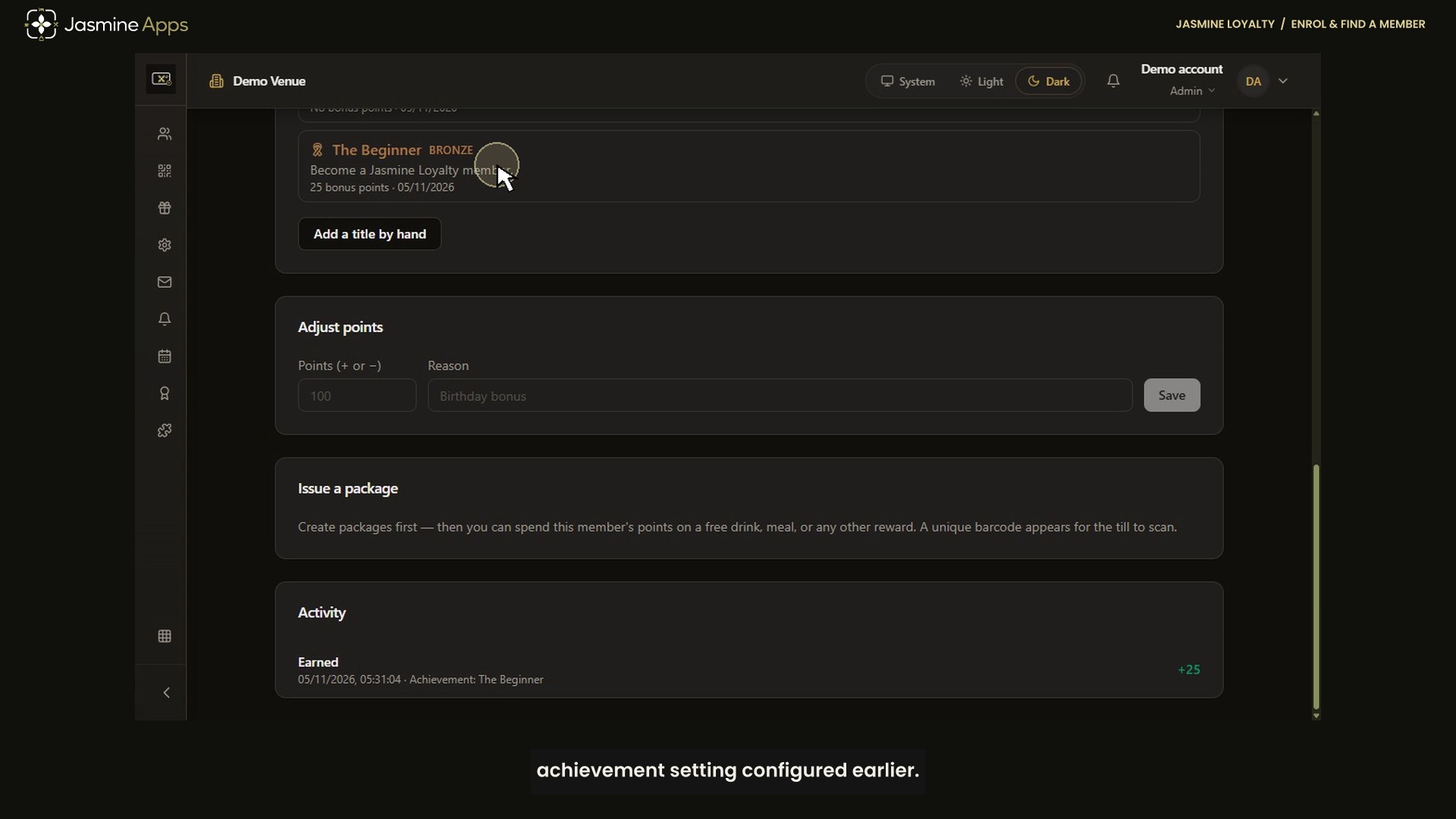
Continue to Activity. The example records an Earned entry for Achievement: The Beginner, with +25 points. This connects the balance to its recorded source.
The walkthrough does not manually adjust points, award a title by hand or issue a reward package.
Find the member again
Choose All members, then use Search by name, email, phone or member number. Enter the detail you have and inspect the matching result before opening it.
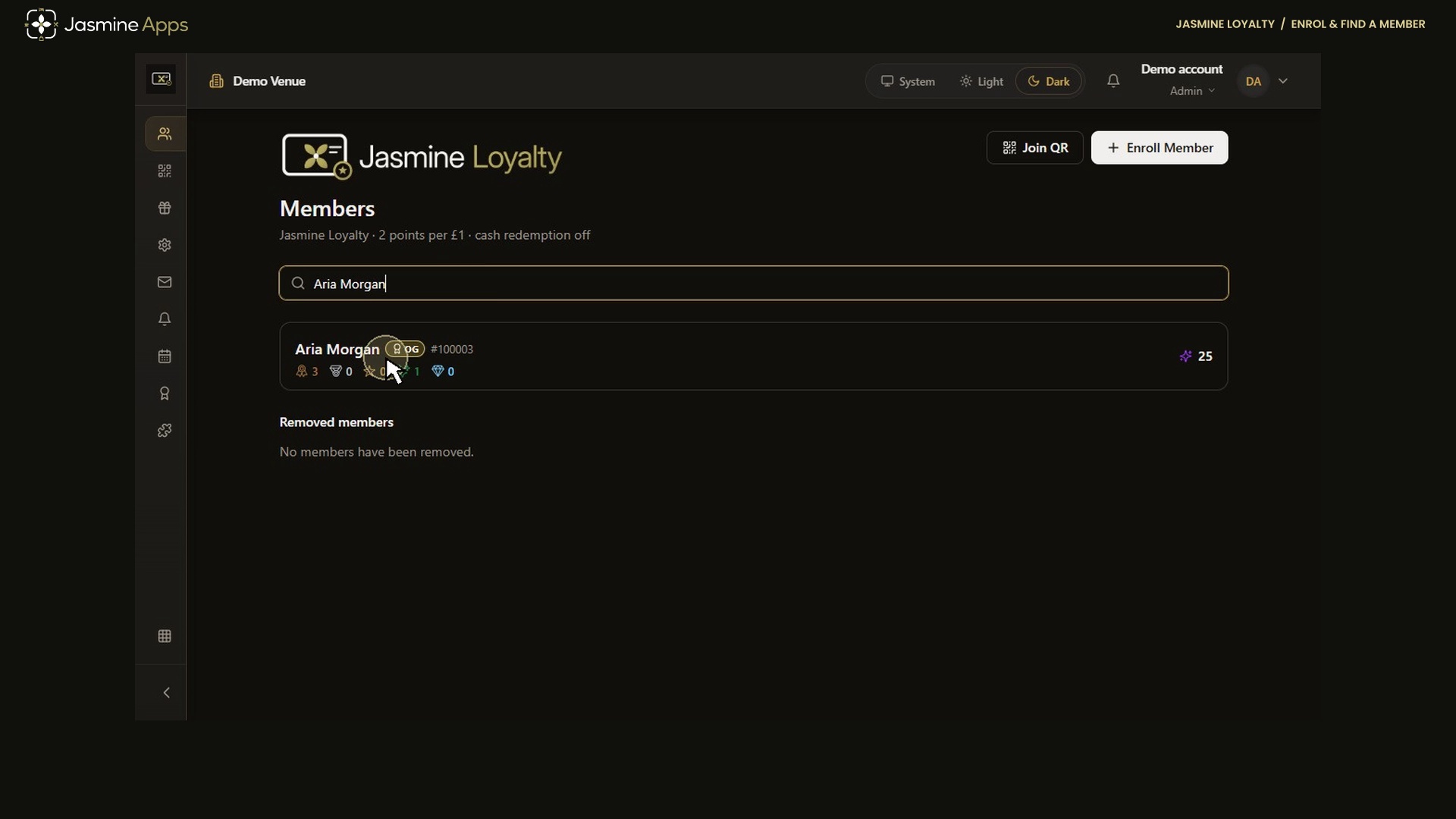
Open the matching member and check that the card number and balance agree with the saved record. The video finishes with this verification.
Other member controls
The member page also exposes Adjust points, Print card, badge controls and an Issue a package area. These are separate actions from enrolment and review. The recorded workflow leaves them unchanged. See reward packages for package preparation and achievement bonuses for the reward setting used in this example.
Common checks
- Enroll Member is disabled: check that a name is entered.
- The member already appears in search: open that record before creating another.
- The balance is unexpected: review achievements and activity for its source.
- A search returns several people: compare the member number and available contact details before opening a record.
- You need to confirm enrolment completed: reload the record or find it again from All members.