

How to Put a Direct Restaurant Booking Link on Google Maps
· Jasmine Apps
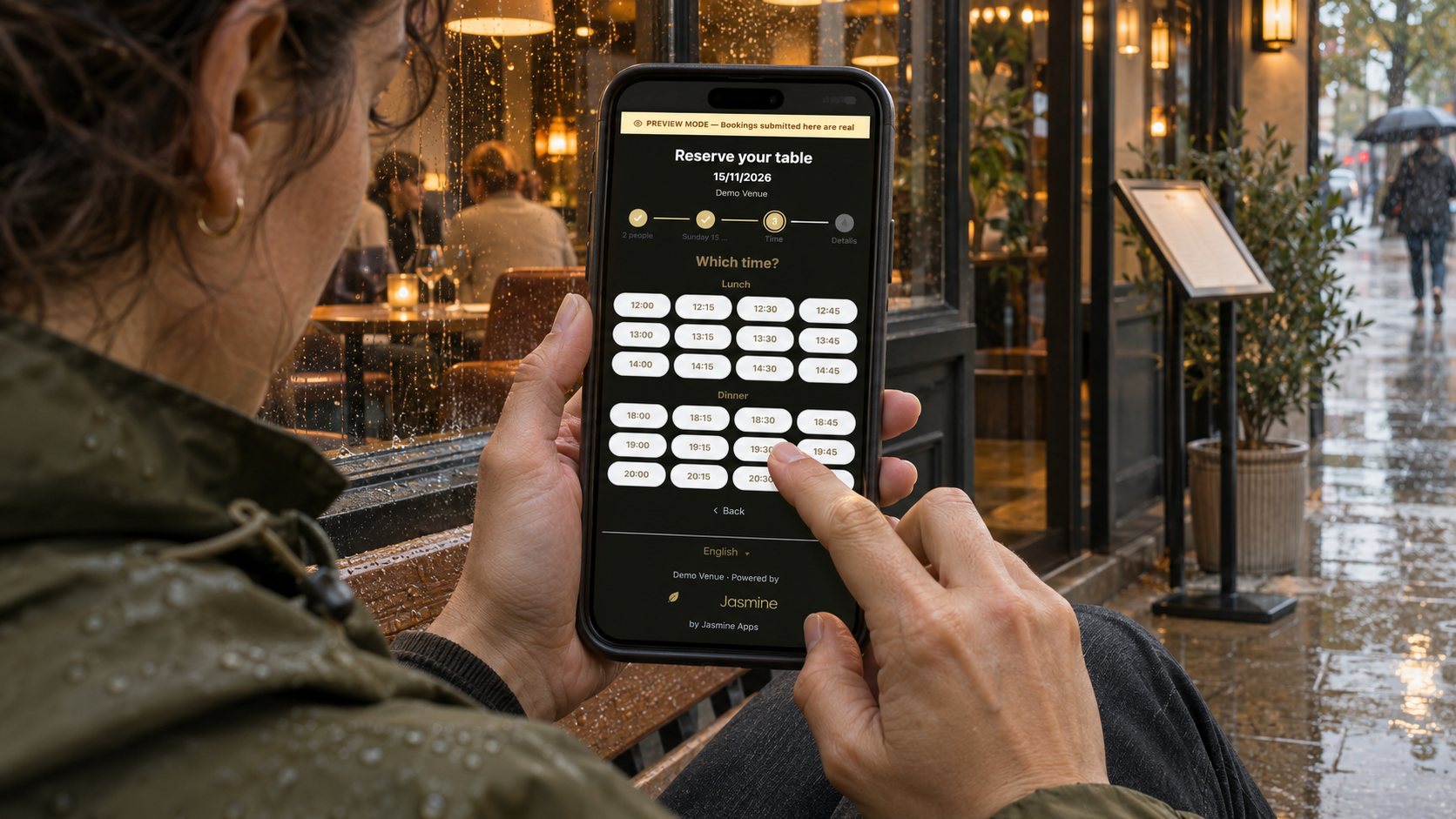
Search for your restaurant in Google Maps and follow every booking link you see. A guest looking for your opening hours can go straight from Maps to a reservation page. Check which page they land on, who controls it and whether the booking reaches the right diary before you change any links.
Cover image: AI illustration based on a Jasmine product capture.
Check the links guests already see
On a phone, find your restaurant in Google Search and Maps. Open each booking option and make a note of the destination. Check whether the name, address and opening hours match the dining room you want guests to book. A hotel and its restaurant can give guests different reasons to look for each listing, so check which experience the link opens.
Google Business Profile lets businesses add reservation links to a profile. In Google Search, use the booking section from the managed profile. In Maps, Google's instructions direct you to Edit profile and the relevant transaction type. Add your venue-specific booking URL, save and choose the preferred link where the option is available. Review the current Google instructions for your interface. Google Business Profile guidance on business links.
Choose between a website link and a provider booking
A website link sends the guest to a page you run, where your booking form can sit alongside the menu, access information and cancellation terms. Reserve with Google is a provider route, where available, with steps and charges that depend on the provider. Ask who controls availability and which system is responsible for changes or cancellations. Google says a chosen provider may charge for the service. Google guidance on bookings through a provider.
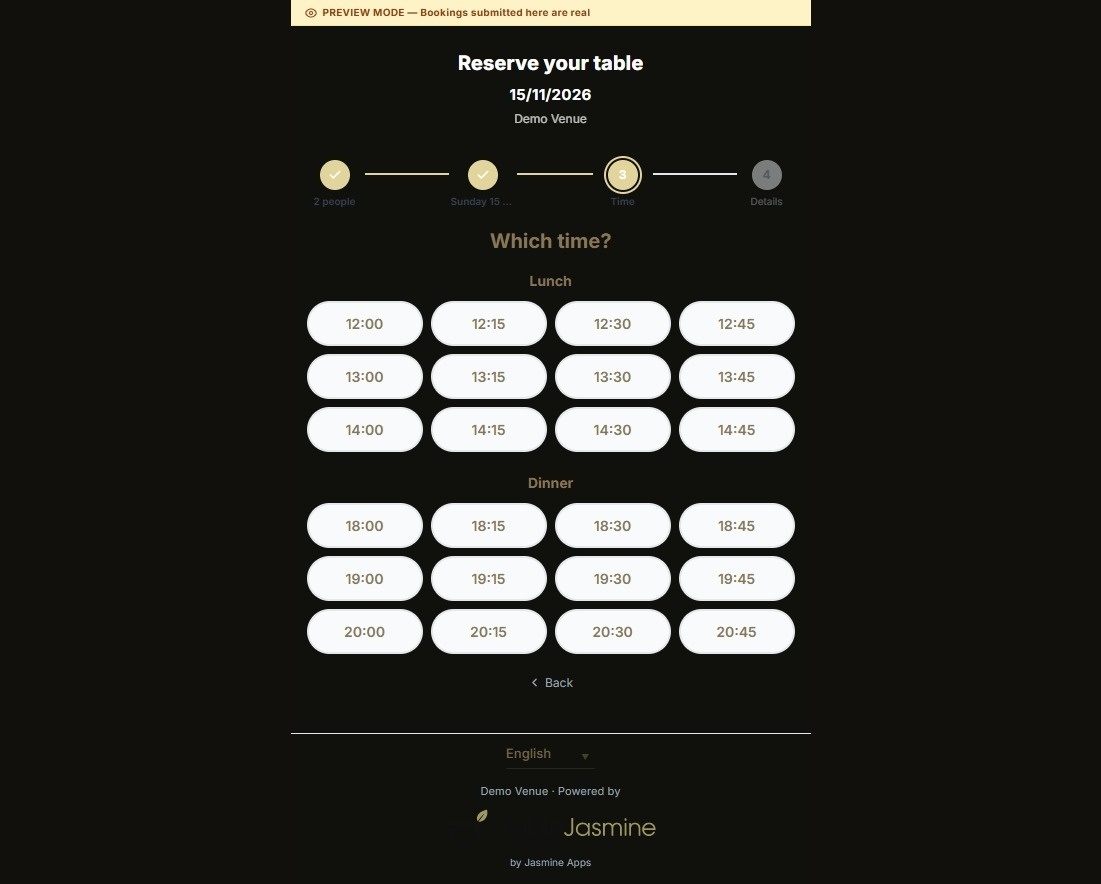
Table Jasmine offers a branded website widget and lists Google Reserve as a separate extension. Scole Inn Hotel’s publicly accessible Table Jasmine widget shows what such a booking page looks like. For your listing, use the live booking page you want guests to reach. If you want a provider booking flow, ask about the extension and your listing’s eligibility, then test it end to end. Scole Inn Hotel’s branded widget · Table Jasmine widget setup · Table Jasmine booking extensions
Run one booking all the way through
With an agreed test service and test details, check the date, party size and arrival time on the guest's phone. Look at the confirmation and verify the reservation reached the right diary. Check how the guest can change it. Remove the practice reservation when finished. From then on, track link visits and completed reservations where your measurement can attribute them reliably. The live diary and confirmation are the first things to check.
Give the website or bookings lead ownership of the link after launch. Recheck it when the venue changes its domain, switches booking provider or adjusts which dining areas guests can book online.
Book a Table Jasmine demo and share your public Google listing. We'll use it to discuss which route suits your restaurant.