

Document Version Control: Stop Sending the Right Signing Link to the Wrong PDF
· Jasmine Apps
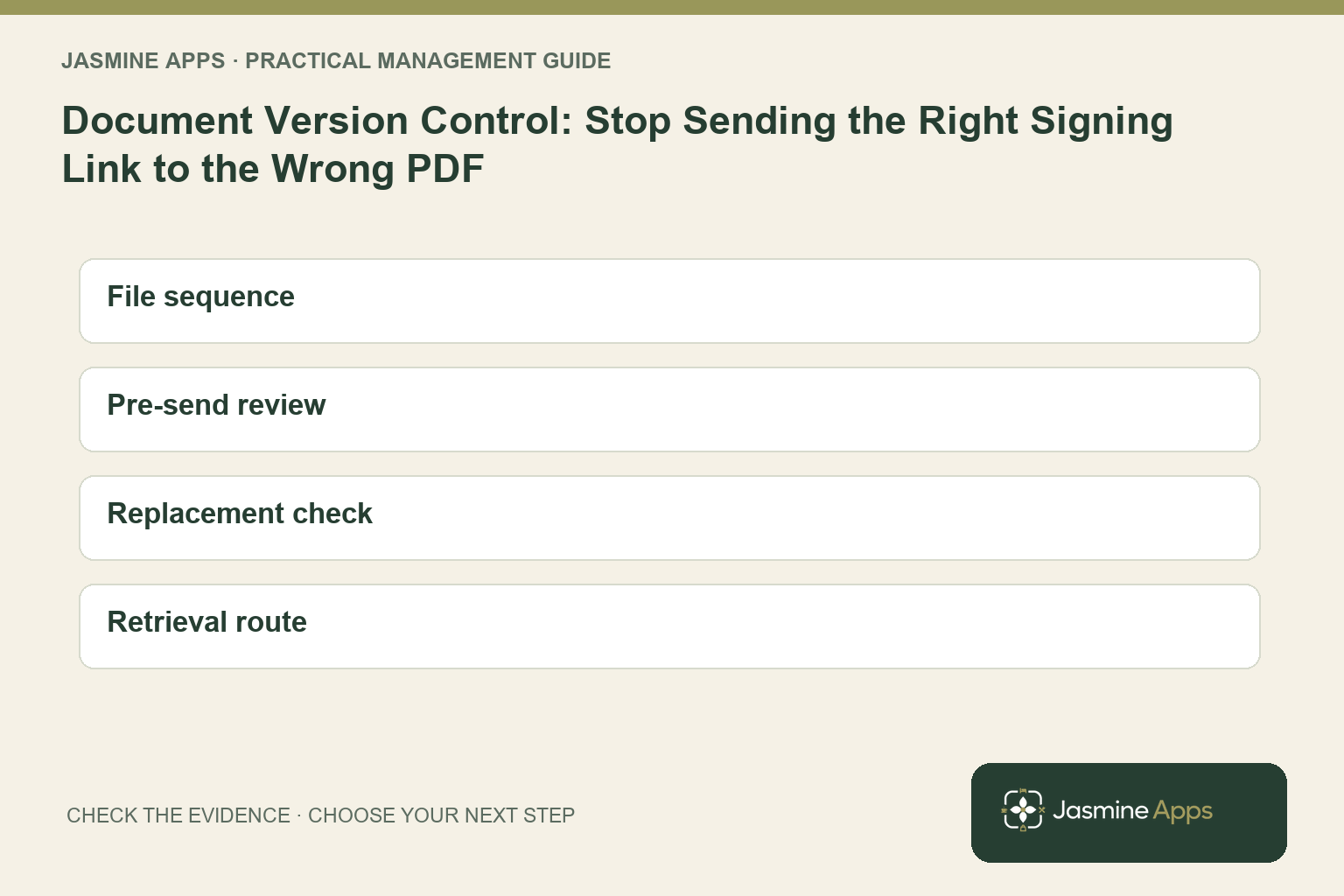
Your signing link can work perfectly while the guest receives an outdated agreement. Electronic delivery does not correct the date, package or wording in the file you uploaded. Your document version control therefore needs to begin before the envelope exists, with a clear decision about which PDF is approved to send.
You should connect the editable source, approved PDF, recipient journey and completed record without treating them as interchangeable files. This guide helps your hospitality team reduce avoidable document chasing while keeping agreement approval with the responsible person.
Key Takeaways
- Identify the approved document before uploading it.
- Keep the source, issued PDF and completed copy distinguishable.
- Recheck the file after any material revision.
- Verify recipient roles and field placement against the selected version.
- Preserve a clear link between the completed record and its signing journey.
Start document version control before the upload
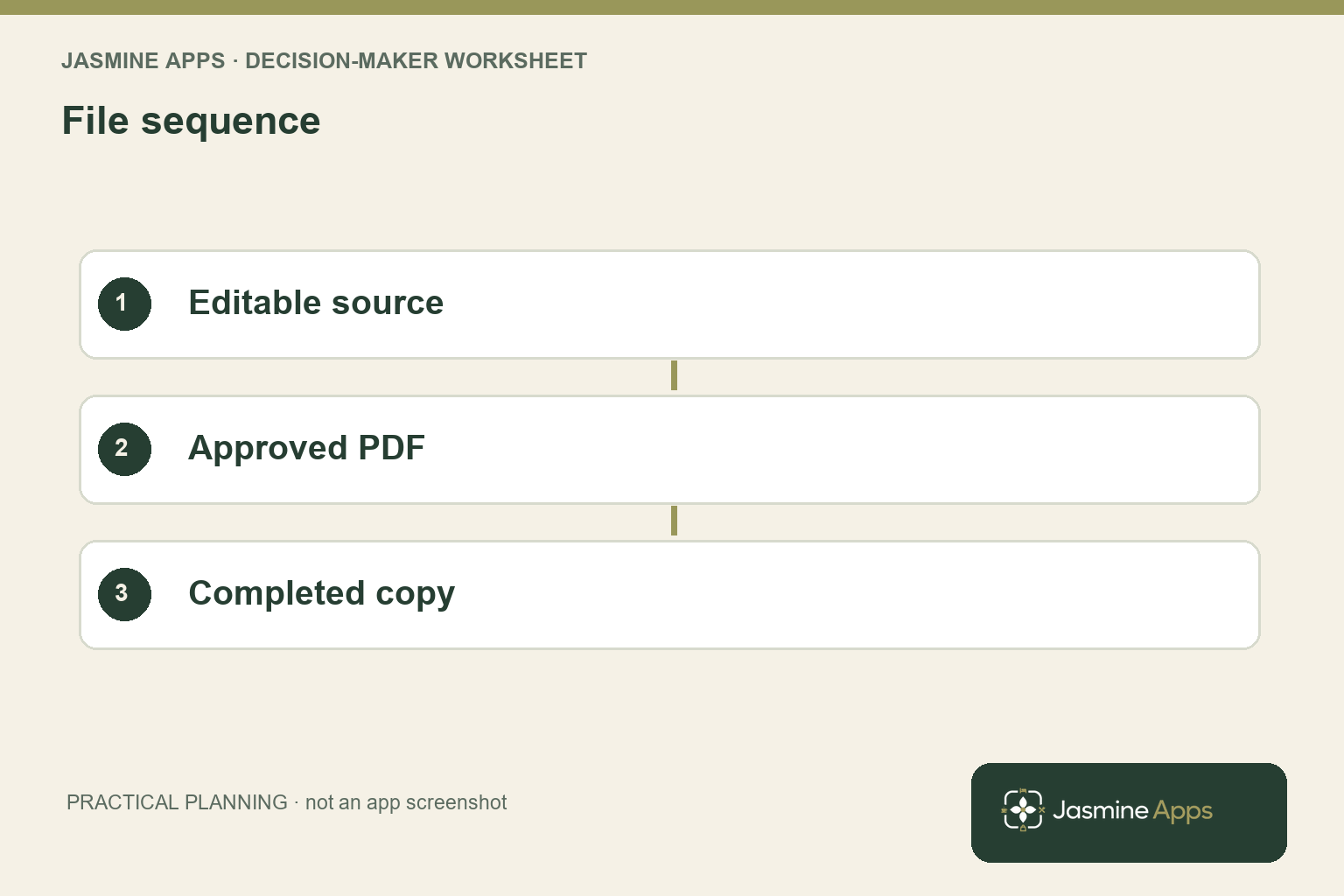
Give the document an owner who can approve its content. Your coordinator may prepare an event agreement, while another authorised person confirms the commercial details and wording. Record that approval against a specific version rather than a general template name. A folder containing several files labelled final does not tell your colleague which one they are allowed to issue.
Use a naming convention that identifies the document and version without exposing unnecessary personal information. Keep the editable source separate from the approved PDF for sending. Your team should know where to find the current issued version and which older copies remain only for reference. Avoid making the latest email attachment the default source because it happens to be easiest to reach.
Review the exported PDF itself. Check its dates, service description, commercial figures and page layout against the approved source. Open it on a phone as well as a desktop where that reflects your recipient’s experience. A correct source document can produce an unreadable or incomplete export, so your approval should concern the actual file the guest will receive, not only the document you edited.
Set a clear release point. Once the PDF is approved, your sender should upload that version and avoid making casual source edits that create a second competing copy. If a material change is required, return it through the approval route and record the new version. Your signing tool can organise recipients, but your own content control decides whether the document being organised is the one you intended to send.
Apply document version control to recipients and fields
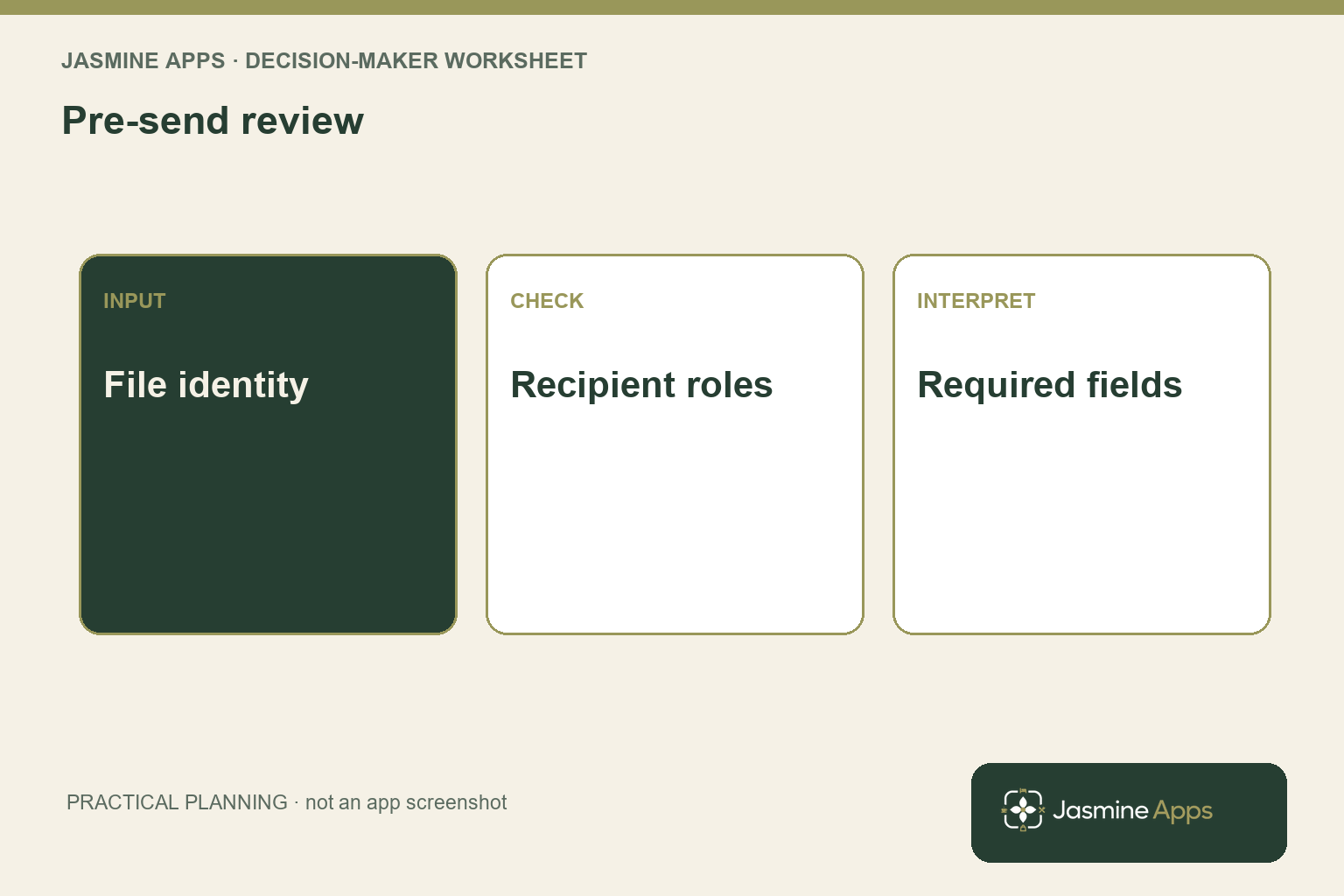
The actual Sign Jasmine new-envelope form includes a title, message, PDF upload and numbered recipients. Recipient roles distinguish Signer, Counter-signer and Viewer, with signing order controlled before field placement. Use that sequence to verify the intended people and their responsibilities against the approved document. A correctly named envelope does not prove the uploaded PDF or the recipient order is correct.
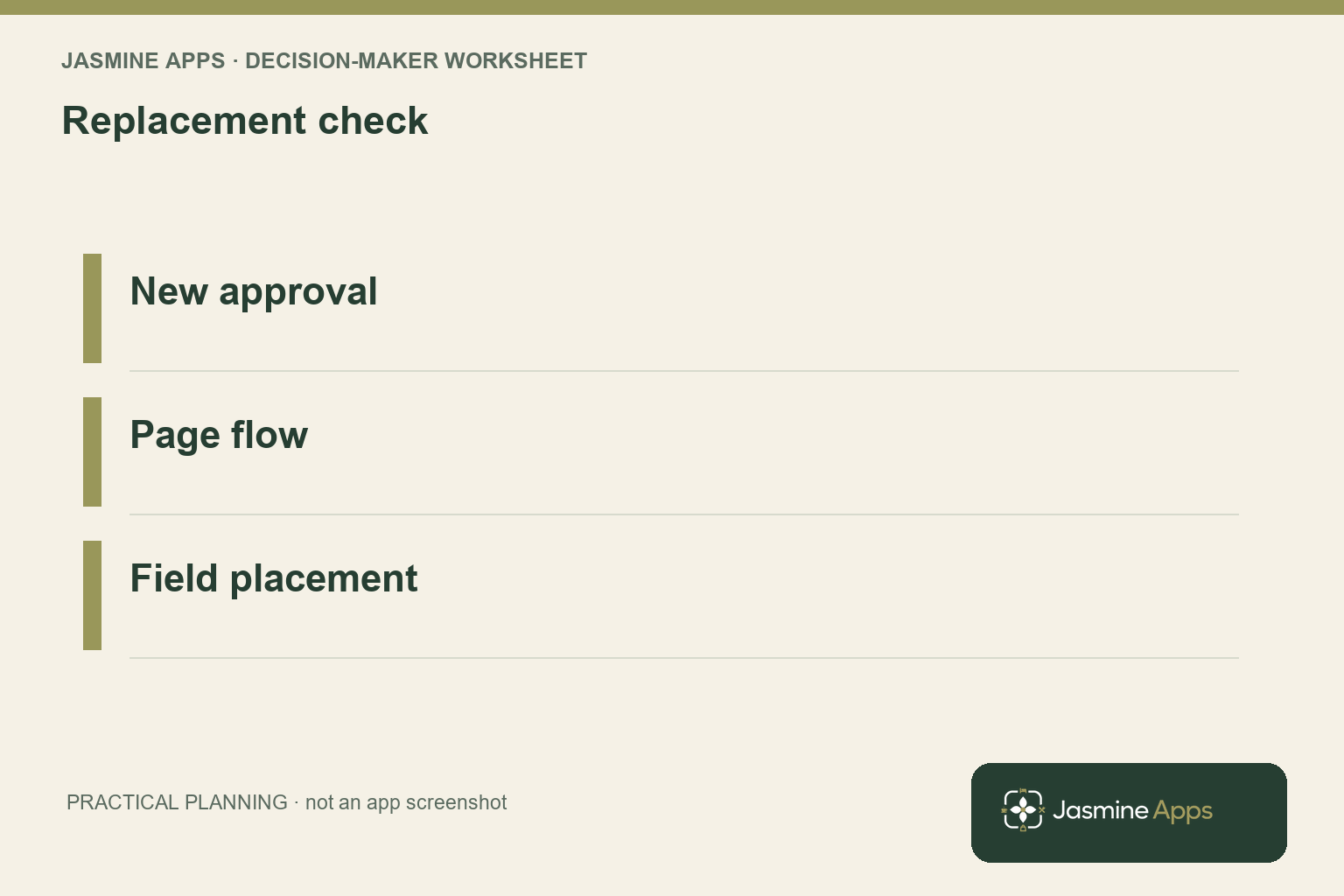
Place fields on the exact version being issued. A changed page break or revised table can move the position where a signature belongs. If you replace the PDF, recheck the field placement rather than assume coordinates from the previous file still fit. Your recipient should not face a required box over unrelated text or a field assigned to the wrong role because the document was revised late.
Use a pre-send comparison covering file identity, page count, material details, recipients and required fields. Have another authorised colleague perform the check for significant documents under your established procedure. Use the envelope-following guide to understand the later status and download journey. Your approval checklist should remain separate from the recipient’s act of signing or the sender’s final send action.
If you use certificate-signed PDFs elsewhere, Adobe’s signed-version comparison guidance explains that product’s review tools. It does not establish that Sign Jasmine uses identical certificate features. Keep the control objective clear: your team needs to know which content was issued and completed, using the evidence your actual signing setup provides rather than borrowing an unsupported technical claim from another product.
Ask your second reviewer to inspect recipient responsibility and field position together so a correctly placed box is not assigned to the wrong person.
Maintain document version control after sending
Distinguish a draft envelope from a sent or completed one. The actual Sign Jasmine list includes Draft, Sent, In progress, Completed and Voided states. Your team should use the supported status and record to establish what happened, rather than infer completion from an email appearing in someone’s inbox. A guest opening a link is not the same as all required recipients completing the journey.
When a change is needed after issue, follow your approved agreement and signing procedure. Identify the affected version and the current envelope state before deciding the next action. Do not quietly alter a downloaded completed copy and present it as the same record. Your responsible approver should determine how the revised content is issued and how the earlier version remains identifiable.
Retain the completed PDF and the available signing evidence according to your approved recordkeeping process. Keep them linked to the relevant envelope or reference so another authorised colleague can find the correct outcome. A visually signed attachment alone may not provide every detail your process needs. Verify the actual supported archive and download options before designing a retention routine around assumed features.
Check who can access the records through the Sign Jasmine access guide. Your coordinator needs a reliable retrieval route, while unrelated staff may not need document access. Use named authorised accounts and keep private recipient information out of widely shared review notes. Your version-control routine should make the right file easier to retrieve without creating an uncontrolled collection of duplicate agreements across personal inboxes and shared folders.
Pro Tips and Common Mistakes
Pro Tips
Check the PDF, not just its name. A convincing filename can still point to an older export. Open the actual uploaded file and compare the material details with the approval record before moving to recipient setup.
Treat replacement as a fresh placement check. Even a small wording change can affect page flow. Verify every required field against the revised PDF and the intended recipient rather than trusting the previous layout.
Keep a completion reference. Connect the final copy to the envelope and available evidence in your approved recordkeeping route. Your colleague should be able to retrieve the outcome without asking the original sender which attachment they meant.
Common Mistakes
Using the newest email attachment as the approved version fails because delivery time does not establish content approval. Keep a controlled source and named approver.
Changing the PDF without reviewing fields fails because page positions and recipient assignments can become inappropriate. Check the complete signing journey after replacement.
Editing the completed copy as if nothing changed fails because the file no longer represents the same issued record. Use your authorised revision process and keep version history clear.
Your strongest control is a short traceable sequence from approval to issue to completion. Keep the responsibilities visible so the software supports your process rather than becomes the assumed owner of content decisions it cannot make for you.
Keep a pre-send record identifying the approved PDF and recipient order, then compare it with the completed envelope reference during your retrieval check. Your colleague can use that connection to find the intended outcome without assuming every similarly named attachment in a shared folder represents the same issued document or agreement.
Frequently asked questions
What is document version control for electronic signing?
It is your process for identifying the approved document, issuing that specific version and retaining a clear completed record. Keep the editable source, approved PDF and completed copy distinguishable, with an owner and approval reference. Your signing tool manages the recipient journey, while your team remains responsible for the content being sent. Version control should let another authorised colleague establish which document was approved and completed without relying on an attachment’s filename or the original sender’s memory.
How do you avoid sending an outdated PDF for signature?
Use a controlled approved-file location and a naming convention that identifies the relevant version. Open the PDF itself and compare its material details with the approval record before uploading. Check the selected file again when configuring the envelope, especially if several similar exports exist. Your pre-send review should verify recipients and fields against that same file.
Do not treat a document labelled final or attached to the latest email as proof that it is the current approved version.
Should you recheck signature fields after replacing a PDF?
Yes. A revised document can change page breaks, tables or the position where a field belongs. Review every required field on the exact replacement file and confirm its recipient assignment. Your previous placement may not remain appropriate even when the wording change appears small.
Use the supported preview and authorised checking process before issue. The important result is a readable document with required actions in the correct locations, rather than simply a successful upload message.
Can you change a document after it has been sent?
Check the current envelope state and follow the supported product workflow and your authorised agreement process. Your required action depends on what has already happened and the significance of the change. Keep the earlier version identifiable and have the responsible approver decide how revised content is issued. Do not quietly edit a completed downloaded copy and treat it as the same record.
Your team needs a clear account of what was originally sent and how any replacement relates to it.
What should you keep after a document is completed?
Retain the completed file and the available signing evidence through your approved recordkeeping process, linked to the relevant envelope or reference. Confirm the supported download and archive options on your actual installation. Your authorised colleague should be able to identify the correct completed version and its journey without searching personal inboxes for similar attachments. Keep access aligned with responsibility and avoid circulating unnecessary recipient details.
The appropriate retention and approval requirements belong to your organisation’s established document-management process.
Make document version control easier to follow
Your document version control should make the approved file, recipient journey and completed record easy to identify. Bring a non-sensitive sample PDF and your current approval steps to Contact Us. Request a Sign Jasmine walkthrough covering upload, recipient order, field placement and retrieval, so you can reduce avoidable chasing while keeping your content approval and final records clear.