

TutorialIn-app guide
Clock Jasmine shift swaps: offer a shift and cancel a request
· Jasmine Apps
Use an open shift-swap request when you want to offer one of your published rota shifts to a colleague. This walkthrough submits an open offer, checks its saved status and cancels it.
Watch the walkthrough
Open the shift request
Open Rotas & Shifts, choose the relevant board and find your published shift. Open its Shift requests menu and choose Request shift swap. Check the shift date and times before continuing.
Make an open offer
Leave Offer to blank to offer the shift to eligible colleagues on your rota. The current form uses an email field for a targeted offer and says the colleague picker is coming soon. This recording demonstrates the blank-field open offer.
Choose the reason that applies and add a short note when useful. Avoid unnecessary personal or medical detail in shared notes. Choose Submit request.
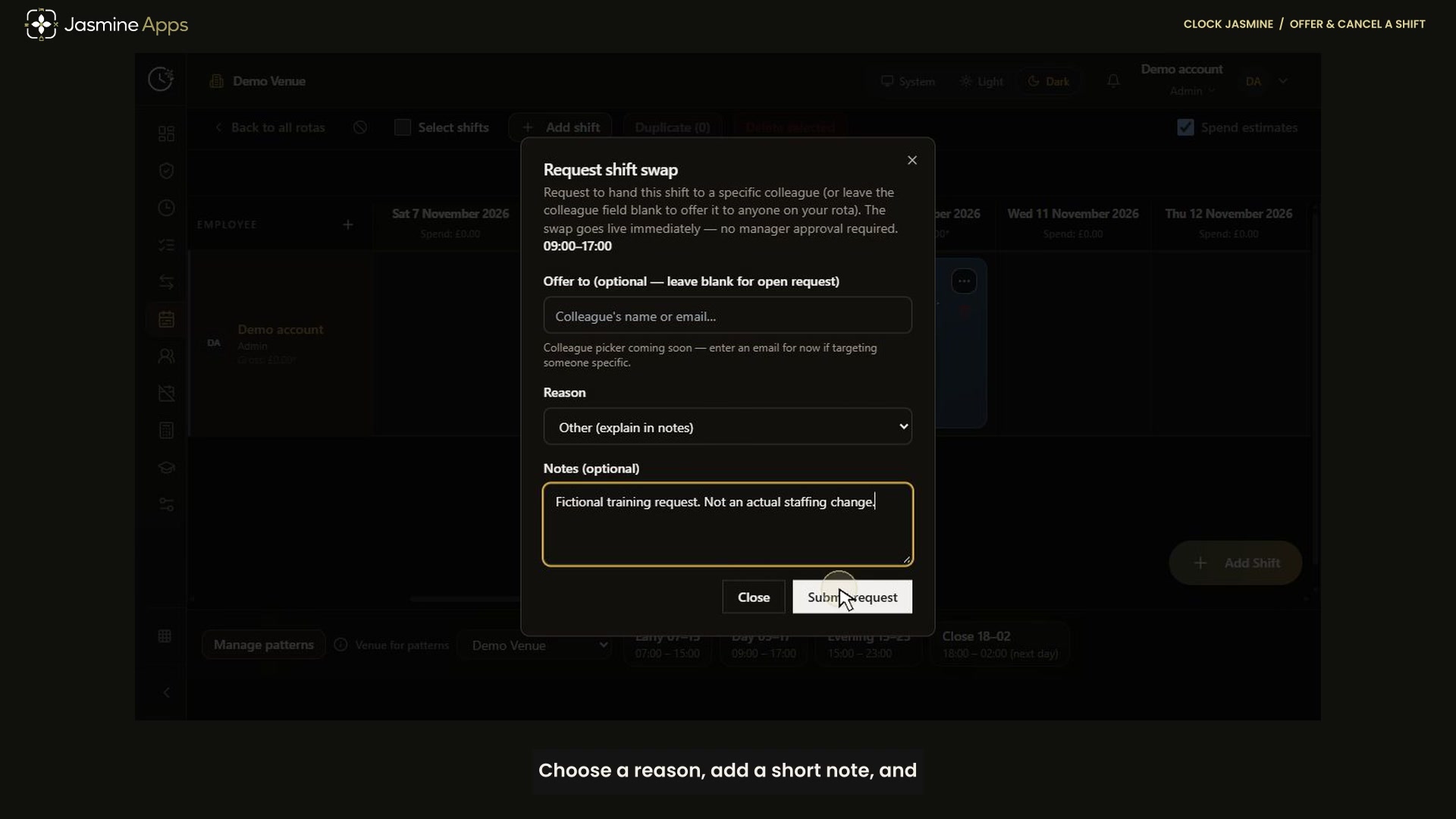
The released Request shift swap form states that this swap goes live immediately and does not require manager approval. This instruction applies to the swap shown here; other shift-request types have their own controls and workflow.
Check the saved request
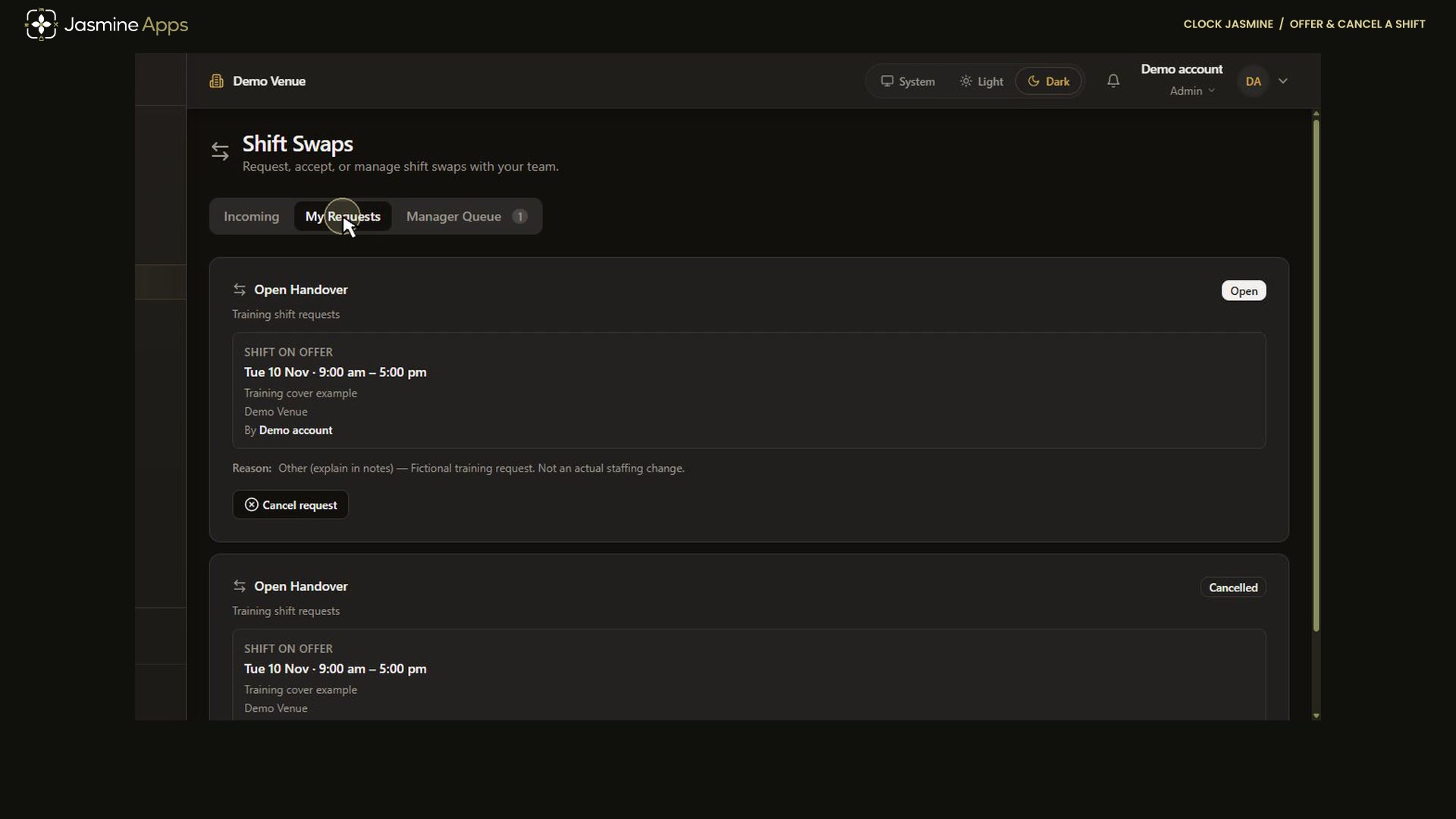
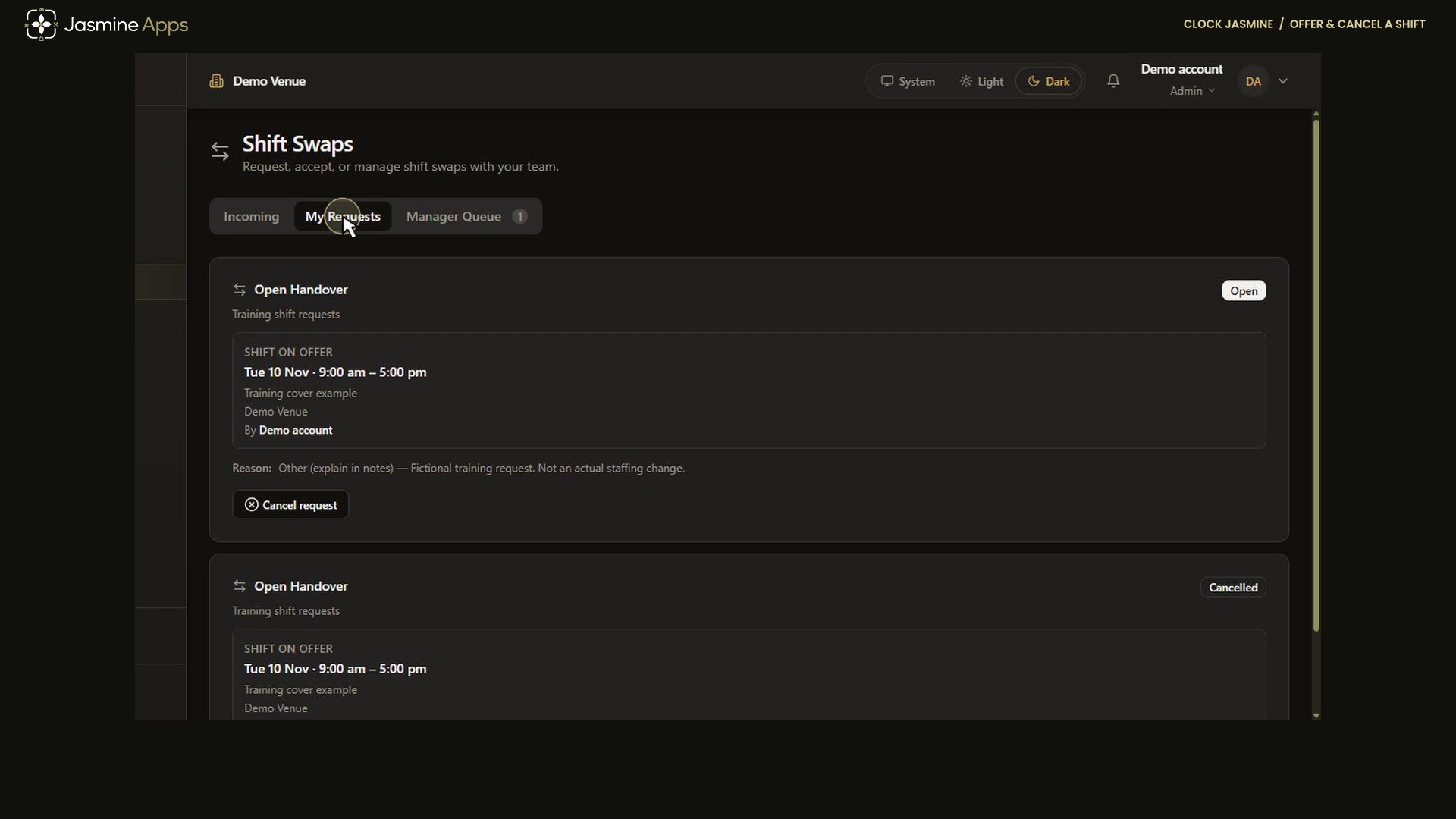
Open Shift Swaps → My Requests. Check the offered shift, venue and status. The recorded request appears as an Open Handover with status Open. A submitted offer is waiting to be taken; the recording does not claim that another colleague has accepted it.
Cancel an offer you no longer need
Choose Cancel request on your own open request. Check that its status changes to Cancelled and the cancellation button disappears. In the Demo test, the cancelled status was also verified after reload.
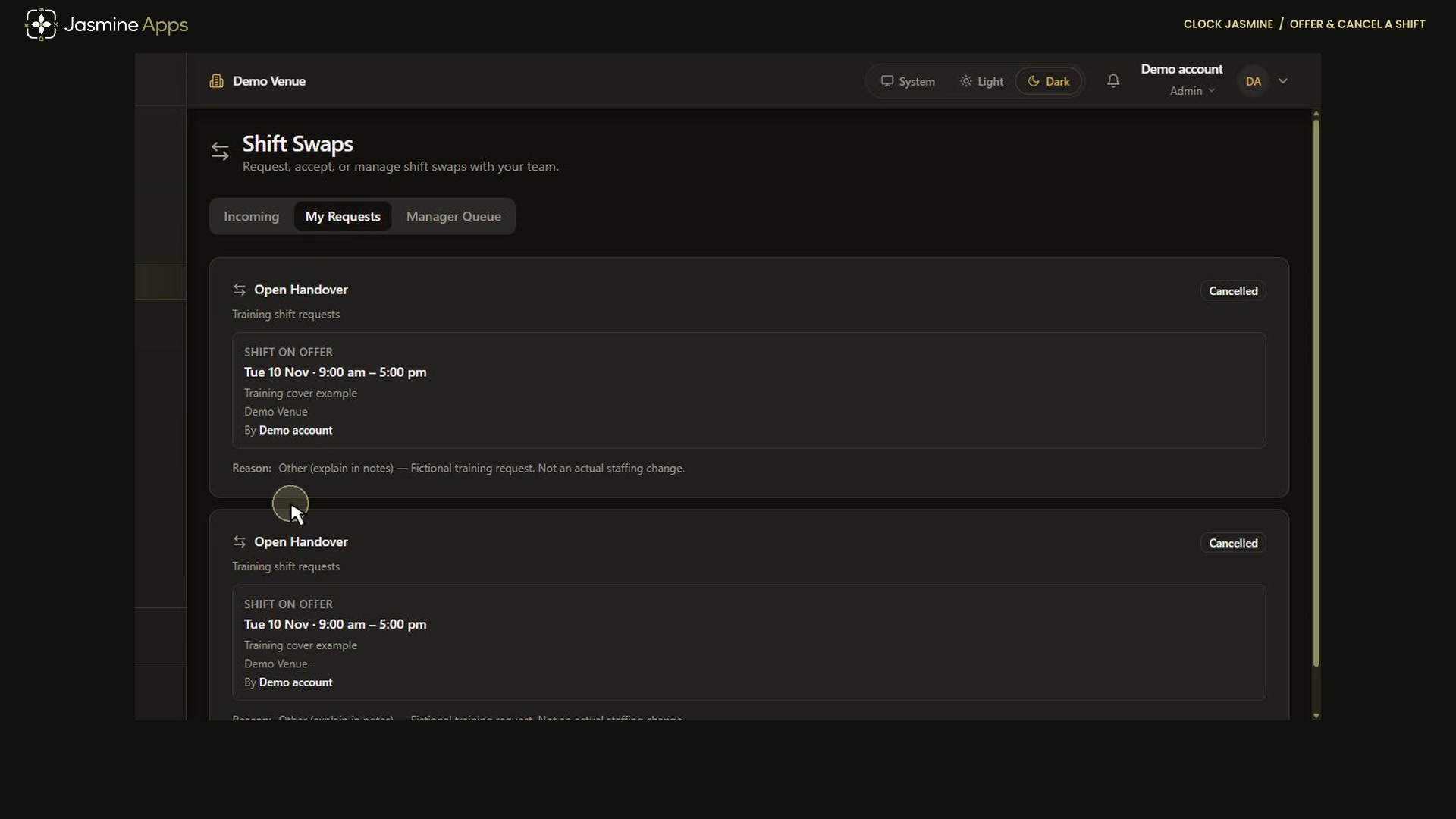
All examples use Demo Venue, its Demo account and a clearly labelled fictional shift. Both training requests created while recording were cancelled. No real colleague, employee profile, address or identity information was used.