

TutorialIn-app guide
Till Jasmine: bought-in recipients and immediate handover
· Jasmine Apps
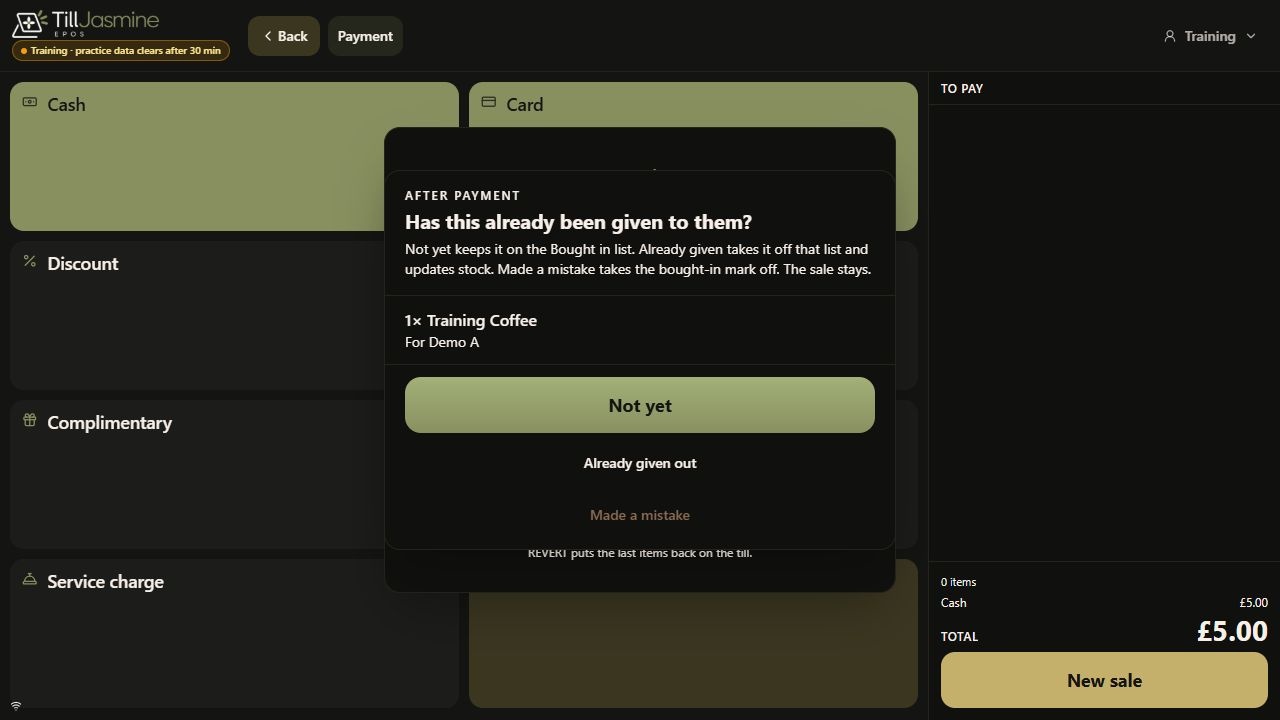
Mark an order line as bought in, choose its recipient, take payment and record whether the item has been handed over. This walkthrough completes a fictional staff-recipient example in the till's explicitly labelled Training mode.
Watch the walkthrough
Before you start
Open Till Jasmine in the correct venue with an authorised operator. Use the actual product, recipient and payment method for a real sale.
The recording uses Training Coffee, a fictional £5.00 item, and the built-in Demo A recipient. The visible Training banner means the receipts are temporary practice data, not real orders or saved reporting evidence. No actual funds are moved in this walkthrough.
Choose the recipient
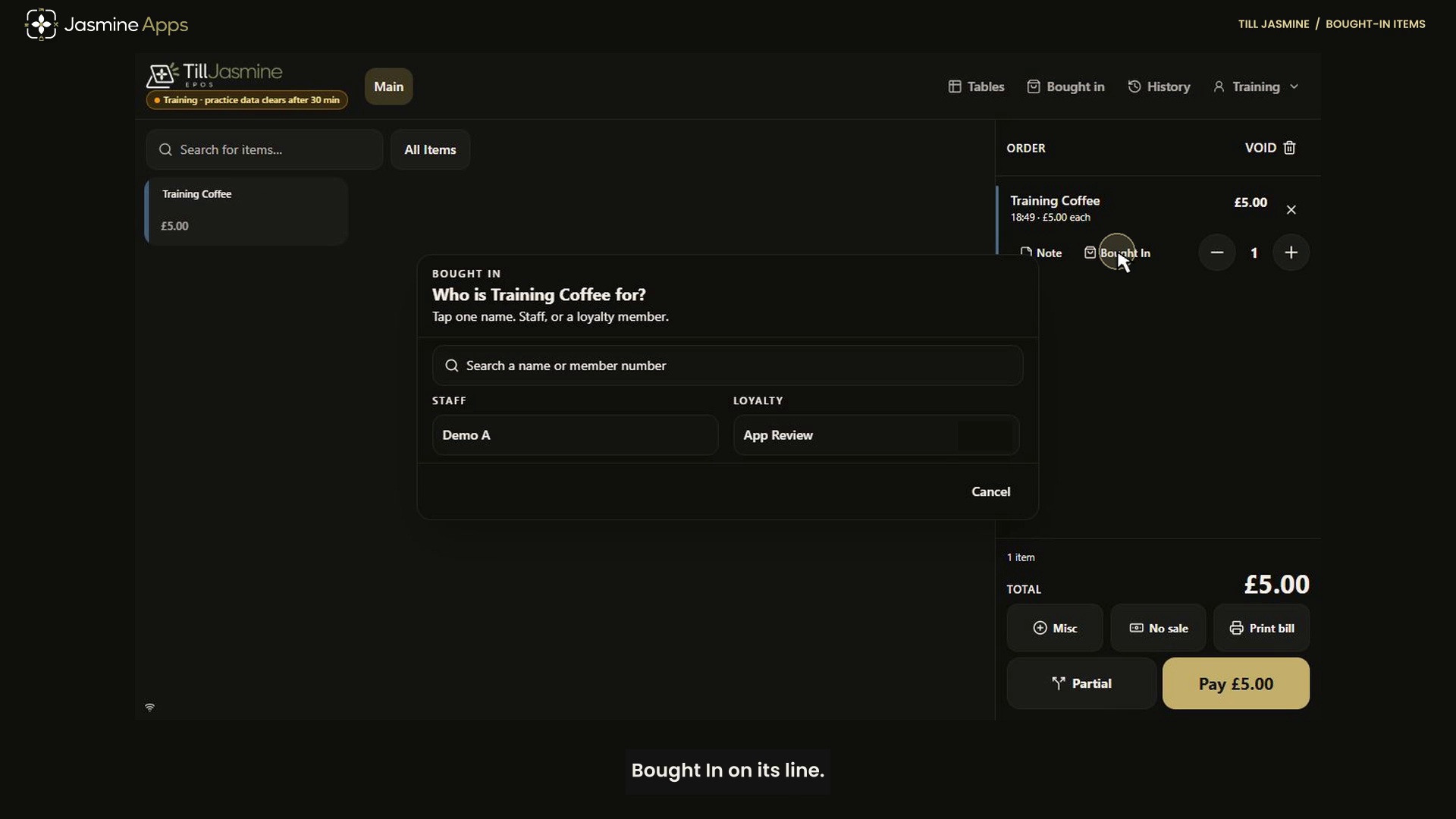
Add the product to the order. On its line, select Bought In to open Who is this for? The exact heading includes the product name.
Choose the intended staff recipient. The dialog also offers Search a name or member number for the staff or loyalty-member lookup. The video demonstrates the visible fictional staff choice; it does not demonstrate finding or validating a live loyalty member.
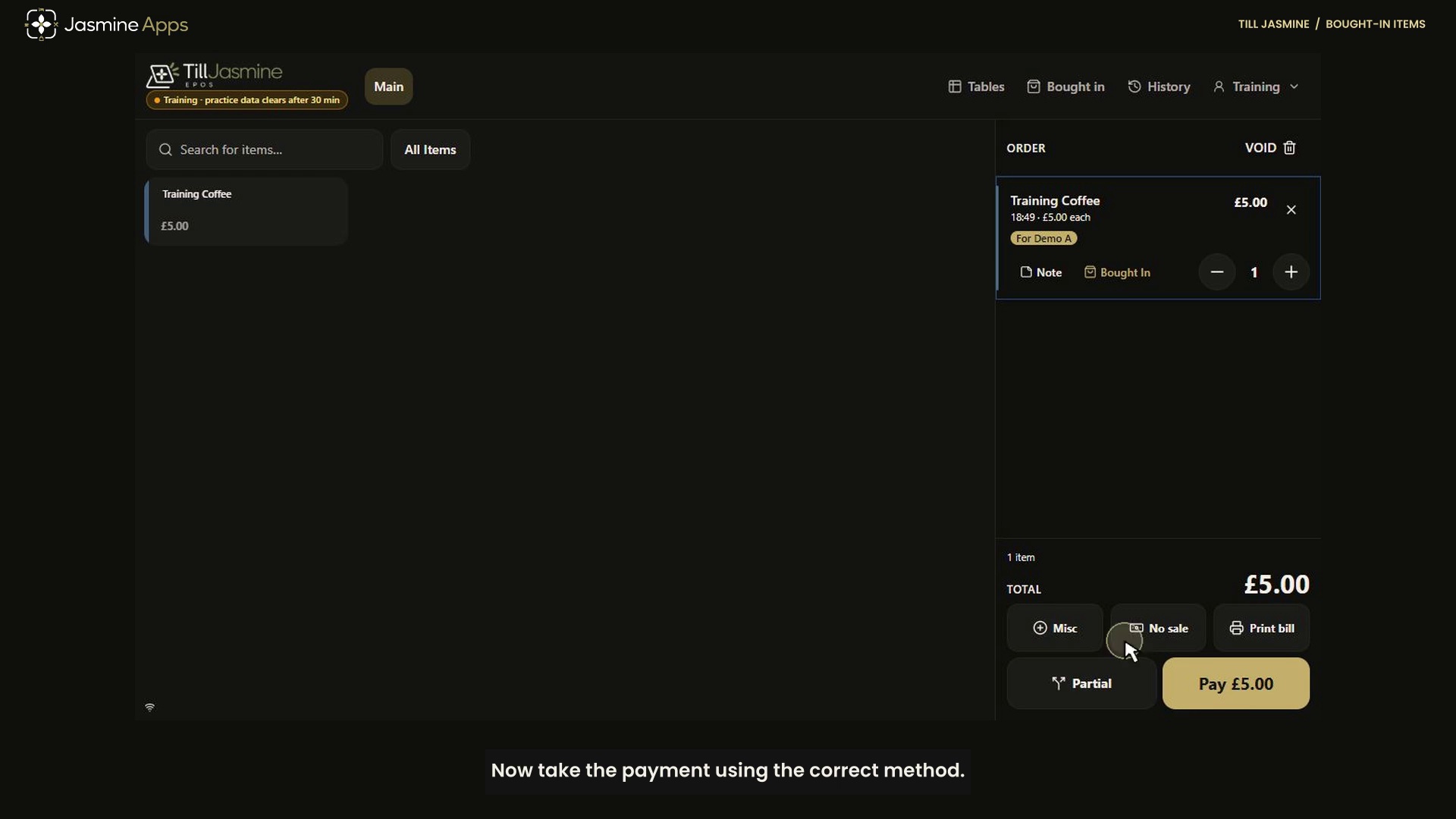
Check that For and the selected recipient appear beside the correct order line before taking payment. The recipient applies to that line, so review other items separately.
Take payment
Select Pay, then the payment method actually used. This practice example chooses Cash and Take cash £5.00, matching the exact amount due. Enter the real amount tendered during an actual cash sale; an overpayment changes the amount of change due.
Card, discounts and other payment options are outside this recording. Do not record a cash payment for a customer who paid using another method.
Record the handover
After payment, the till asks Has this already been given to them? Review the item and recipient before choosing:
- Not yet keeps the item on the Bought in list for later serving.
- Already given out removes it from that list and updates stock, according to the dialog. This is the action completed in the recording.
- Made a mistake removes the bought-in mark. The sale stays; this does not undo the payment.
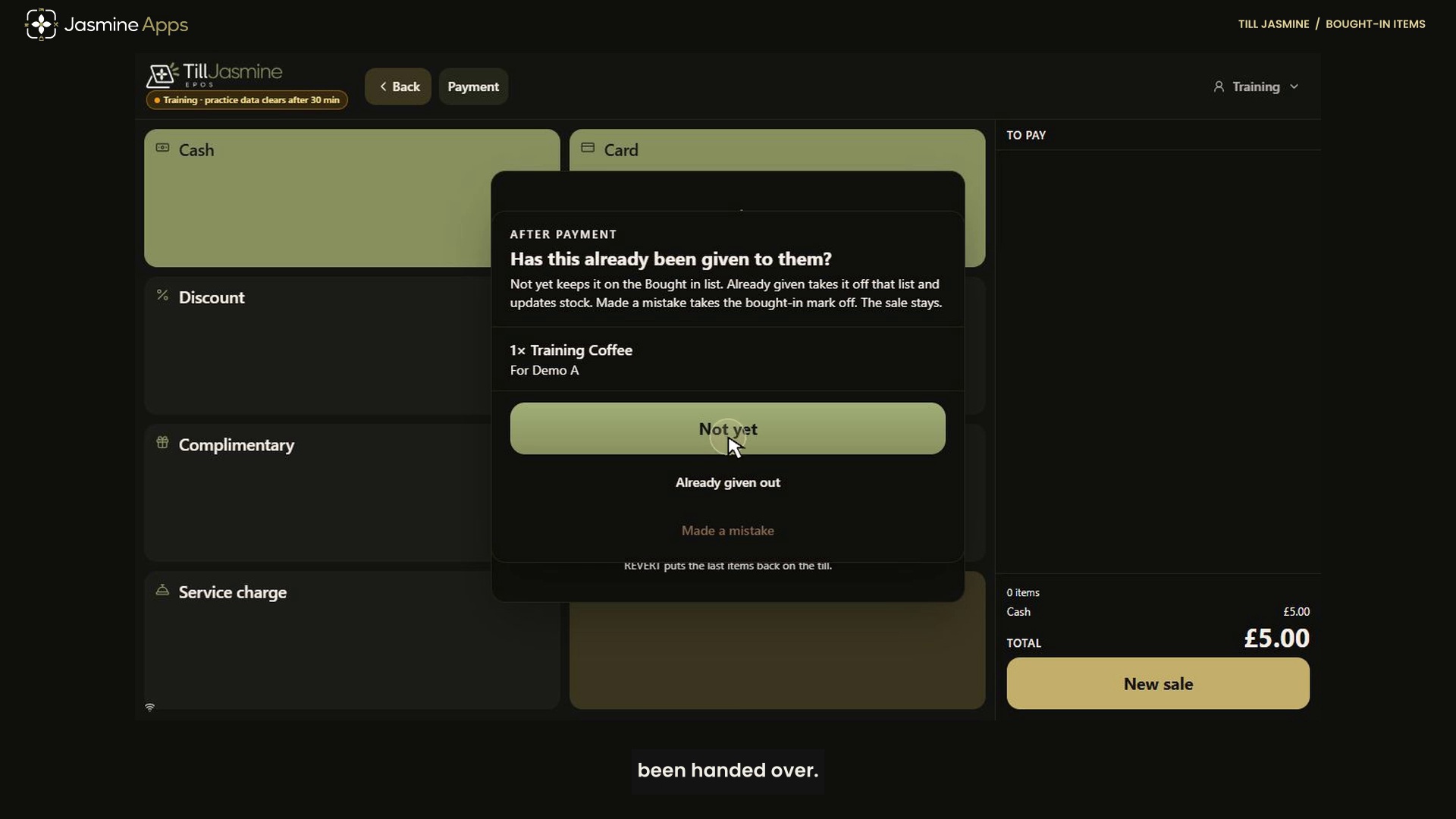
Choose the option that matches what happened. Do not mark an item as handed over merely to clear the list.
Check the result
In the recording, Already given out closes the handover dialog and the practice Sale recorded confirmation remains visible. This verifies the completed practice handover action. It does not demonstrate a guest collecting an unserved item later, a saved loyalty-card entitlement, persistent stock reconciliation or a live report entry.
For a real item left pending, use Bought in to find the correct outstanding item and recipient before completing your venue's serving procedure. Later collection is a separate workflow from the immediate handover shown here.
Common checks
- Wrong recipient before payment: reopen Bought In on the correct line and review the selection.
- Item already served: use Already given out rather than leaving an outstanding entitlement.
- Bought-in mark was accidental: read Made a mistake carefully; it keeps the sale.
- Payment itself was wrong: follow the appropriate correction or reversal procedure; removing the bought-in mark is not a payment reversal.
- Training activity is absent elsewhere: the temporary practice receipt is not a live saved order.