

TutorialIn-app guide
Till Jasmine: count and close the till
· Jasmine Apps
Use Till Jasmine cash-up to enter the money counted at the end of a shift, compare cash and card separately, save a handover note and close the till. This walkthrough completes those steps in the app's explicitly labelled training session.
Watch the walkthrough
Before you start
Open the correct Till Jasmine till with permission to cash it up. Have your counted drawer amount and terminal totals ready, and check which trading period you are reconciling.
The video uses Demo Venue and the visible Training banner. The training session has a £100 opening float and no completed cash or card sales. Its figures illustrate this practice session only. Enter your actual counted amounts when carrying out a real cash-up.
Training activity stays local to the practice session and clears after about 30 minutes. The video verifies the local close result; it does not claim to show a live financial reconciliation record or a printed receipt.
Open Cash up
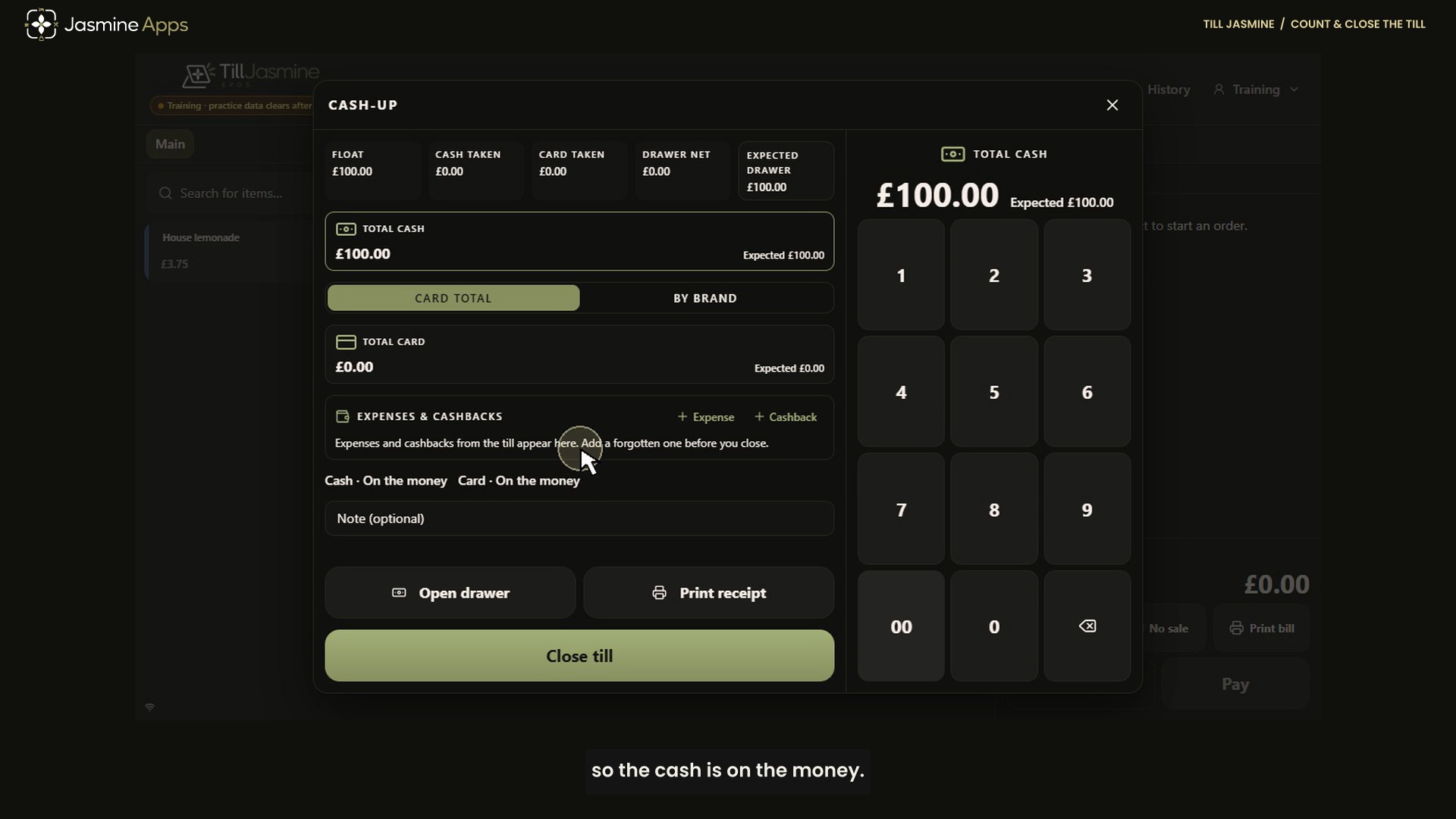
Select your operator name at the top of the till. Under Money, choose Cash up. Read Float, Cash taken, Card taken, Drawer net and Expected drawer before entering a count.
The expected drawer in this example is the original float because no cash sales, expenses or cashback have changed it. Check the figures displayed in your own session rather than assuming the expected drawer always equals the float.
Enter counted cash
With Total cash selected, enter the amount you counted using the keypad. The recording enters £100.00, matching the practice drawer's expected amount.
Read the comparison beneath the totals. Cash · On the money means the entered amount matches the expected cash figure. A short or over amount needs review before closing.
Do not replace a genuine count with the expected figure merely to remove a difference. Recount, review the opening float and check genuine recorded transactions. Use Expense or Cashback only when an actual missing entry needs recording under your venue's procedure.
Check card separately
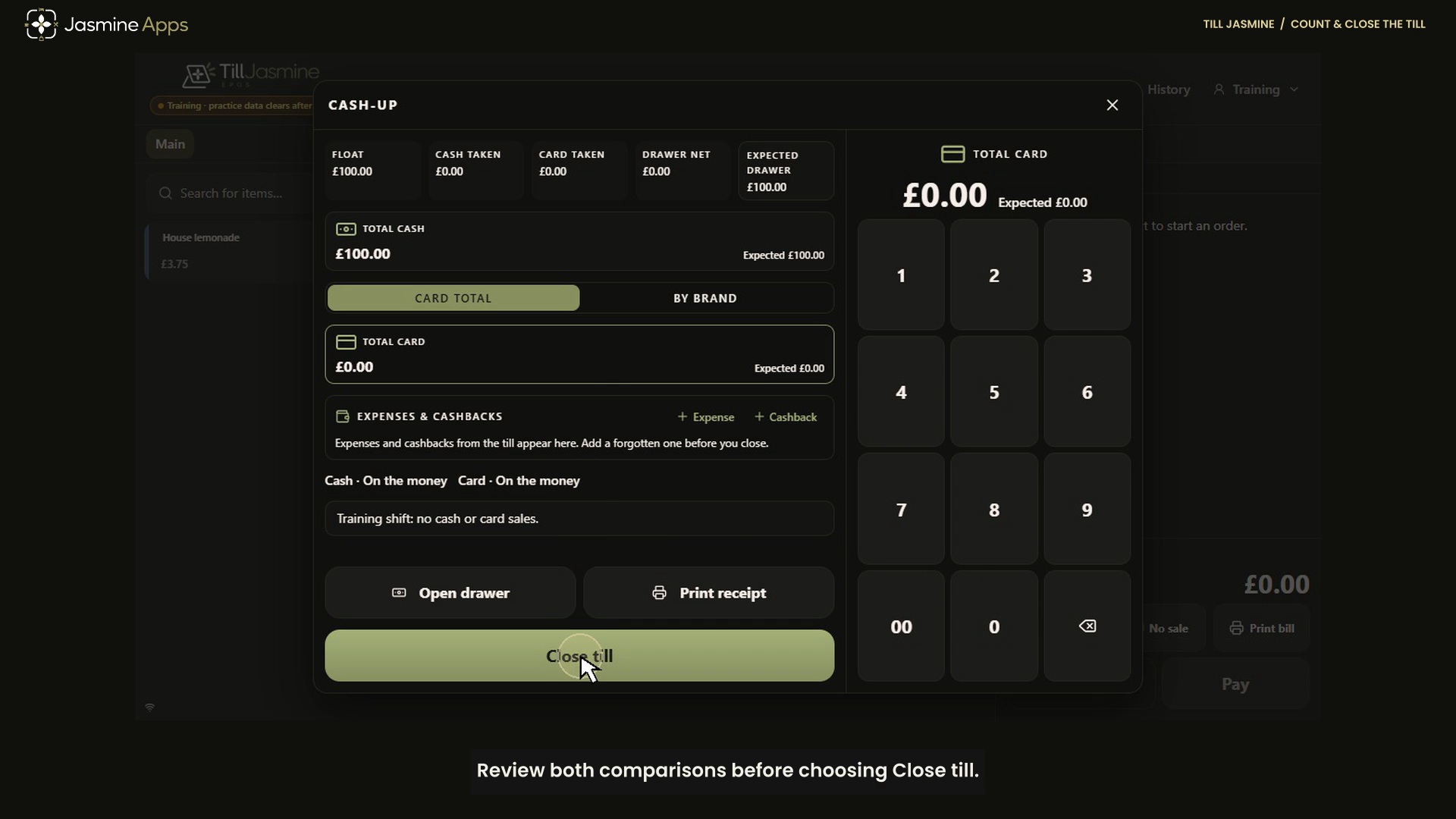
Choose Total card and compare the amount with the terminal figures for the same period. The demonstration selects this control and checks a zero total, which matches the absence of card sales in the practice shift.
Cash matching does not verify card takings. Review both comparisons independently. By brand is available for procedures that need card totals separated by brand; that alternative entry method is not demonstrated here.
Add and save a handover note
Choose Note (optional), enter a concise explanation and select Save note. The example records that the training shift had no cash or card sales.
Check that the note appears back on the cash-up panel. The video then reviews both On the money comparisons with the saved note visible.
For a real discrepancy, write a clear factual explanation of the checks made and follow your venue's handover procedure. A note does not itself resolve a missing transaction or incorrect count.
Close the till and check the result
When you have checked the figures and are authorised to finish the shift, choose Close till. Wait for closing to complete rather than repeatedly submitting it.
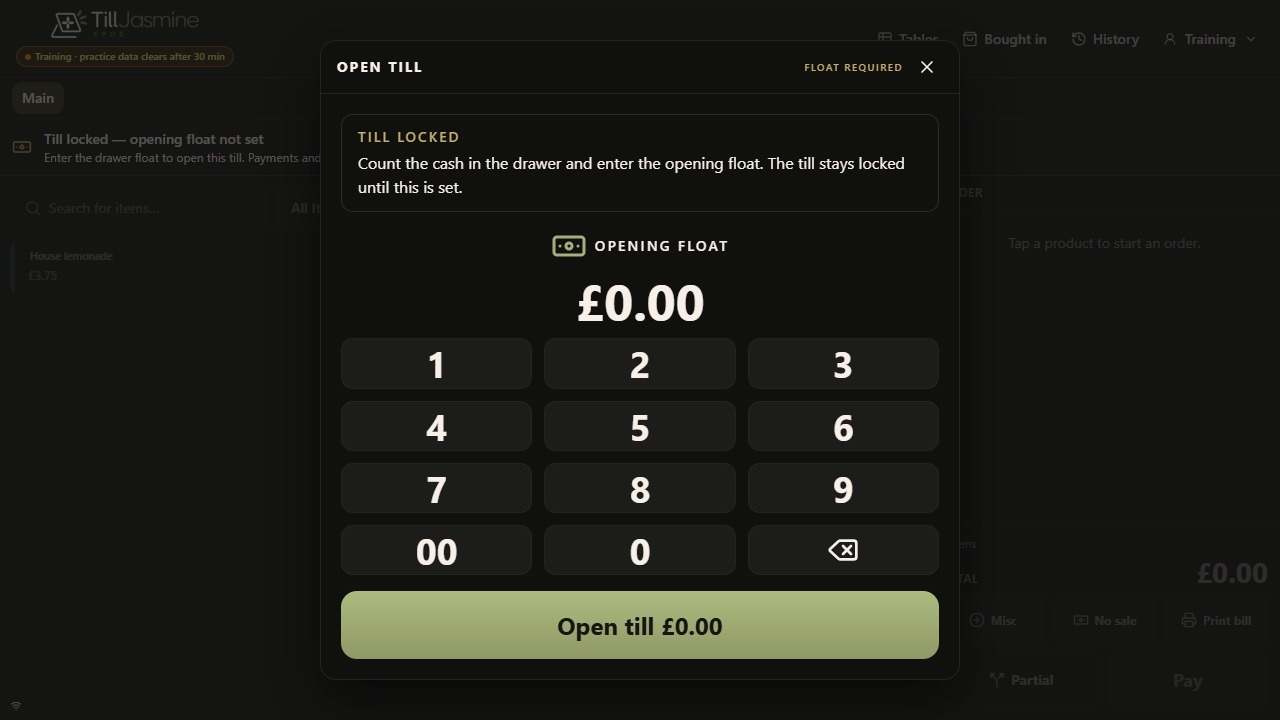
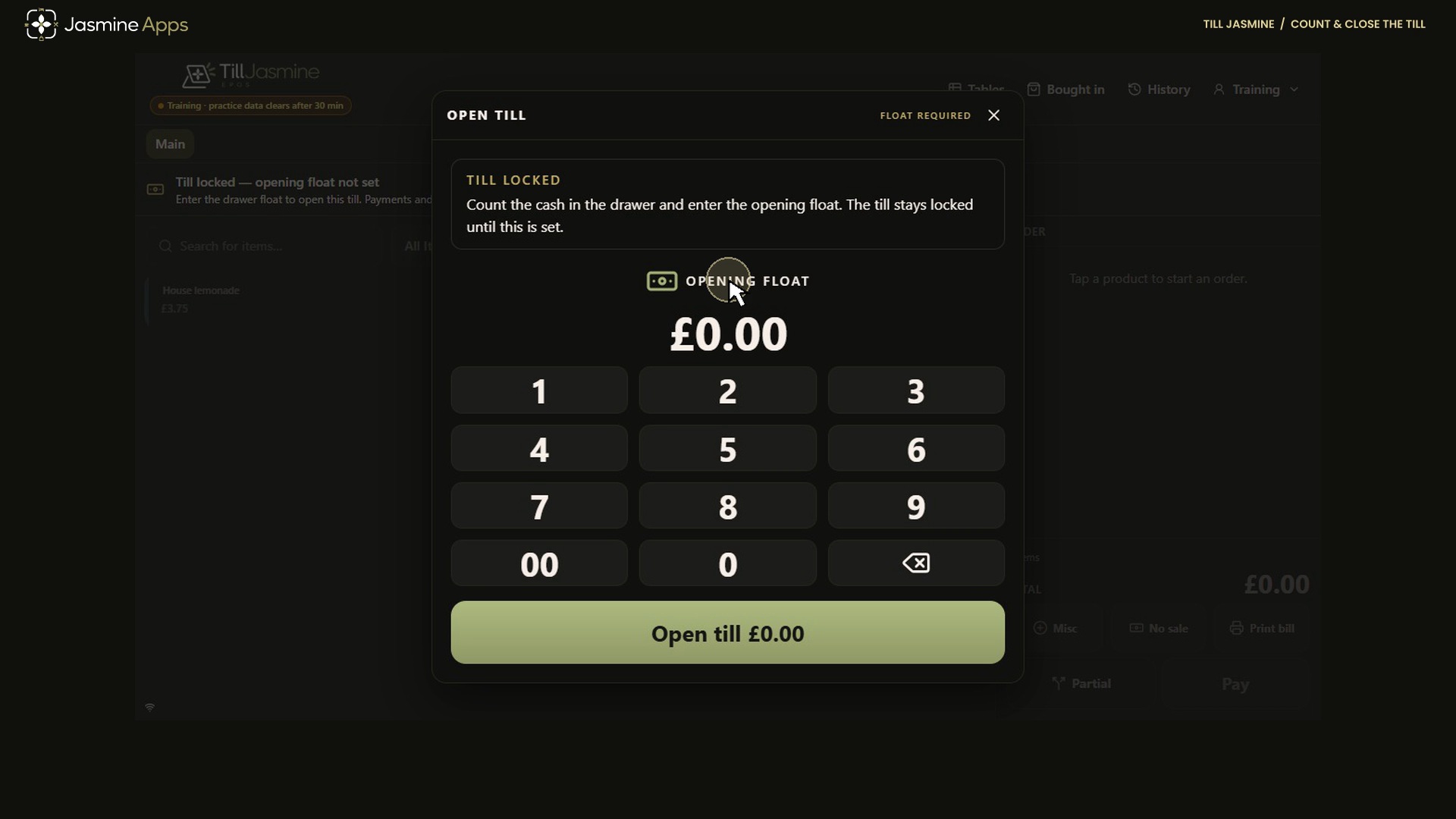
In the training recording, the cash-up panel is replaced by Open till, with Float required and a locked-till message. A new opening float is needed before trading can resume. This is the observed result of the completed practice close.
The cross on the cash-up panel only closes that panel. It is a different control from Close till.
Verify a live reconciliation
For a live shift, also check the matching record in Reporting under Cash-up / reconciliation. Confirm the venue, trading period and till, then compare counted and expected amounts, the difference, operator and note.
That live report check is an additional operational step, outside this training video's demonstrated scope. An empty report range is not proof that a close succeeded. Check the filters and the submitted result before considering another close.
Common checks
- Cash is short or over: recount and review the float and genuine drawer transactions.
- Card differs: check terminal totals and the reporting period separately from cash.
- The note is missing: use Save note and confirm its text returns on the panel.
- Closing is still in progress: wait for its result before another action.
- A live record is missing: check venue, trading-day boundaries and till filters; do not treat a practice close as a live record.
Continue learning
Enter and correct an order · Save table and room orders · Pair a Till Jasmine till (guide in preparation).