

Changing a Pub Menu: A Catalogue and Price Review
· Jasmine Apps
A pub menu change affects more than the printed page. The till, serving descriptions and staff explanation need to agree when the first guest orders the new dish. Till Jasmine can read a menu into suggestions, but a person still needs to review what will become a live product.
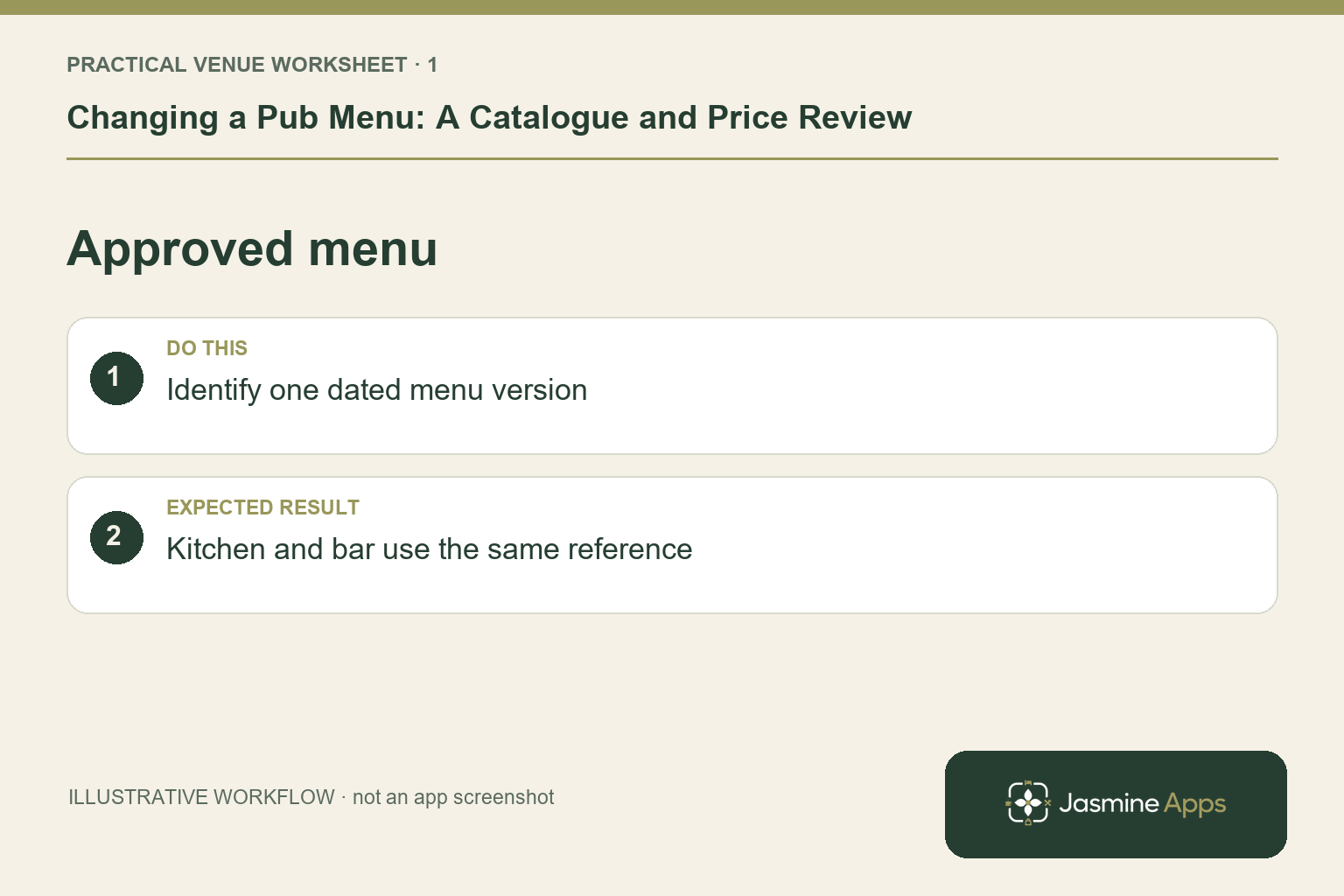
Make one approved menu the reference
Start with the final menu version and identify what is new, changed or discontinued. Have a manager own the customer prices and serving descriptions. Keep the earlier catalogue available for comparison rather than immediately removing everything. An example change from a lunchtime sandwich to a dinner dish may need a different category and a clearer product name. Confirm the underlying recipe and service decision with the kitchen before anyone updates the till from an unfinished design file.
Check the result: Kitchen and bar use the same reference.
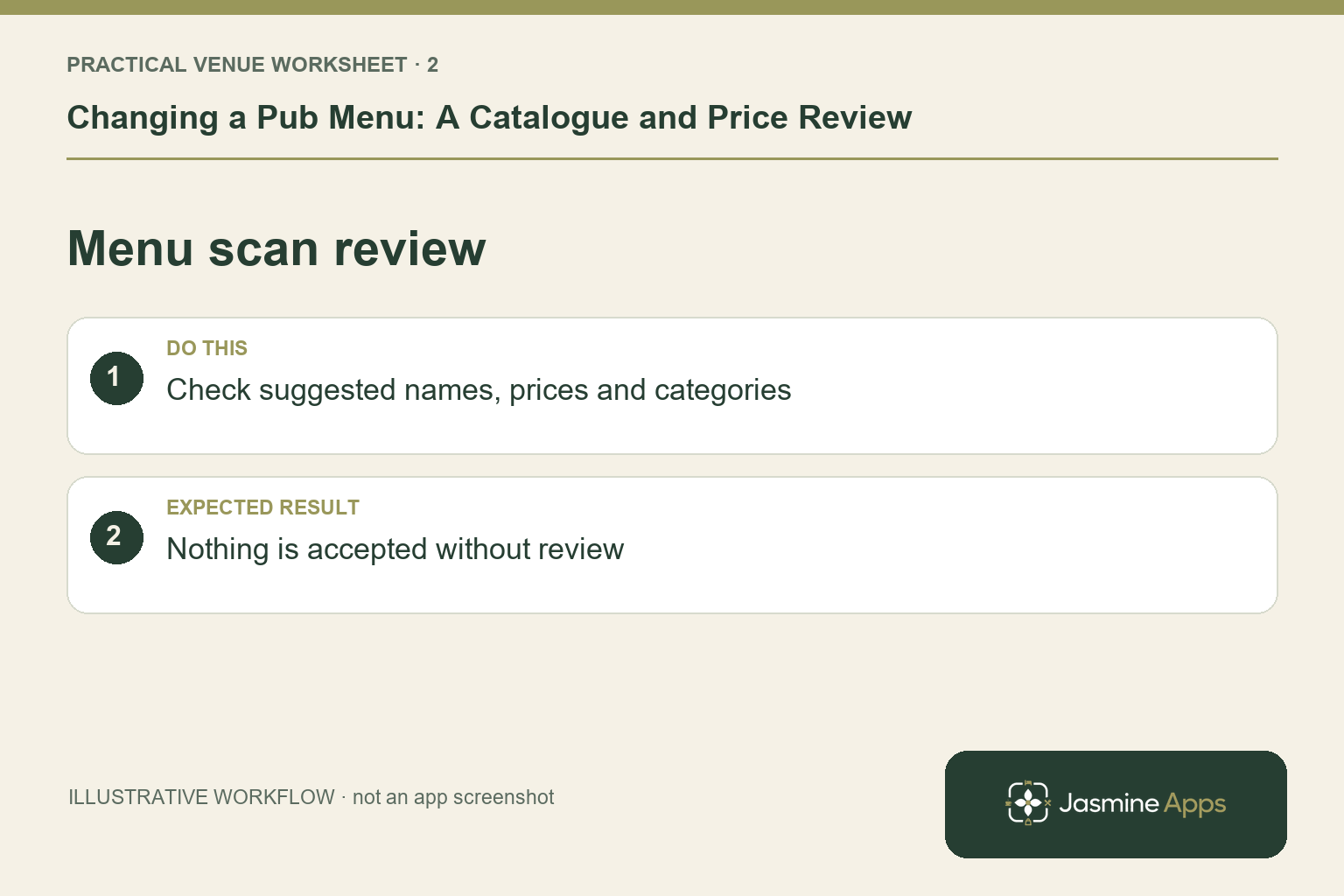
Treat menu scan as a draft-building aid
The current Till Jasmine product page describes uploading PNG, JPG or PDF menus for AI to read dishes, prices and categories, with nothing added until confirmation. Review every proposed name and amount, especially small text, multi-column layouts and items whose price appears separately. Resolve ambiguous entries against the approved menu. A scan saving typing time does not make the source document correct. Keep the manager's approval step before confirming additions.
Check the result: Nothing is accepted without review.
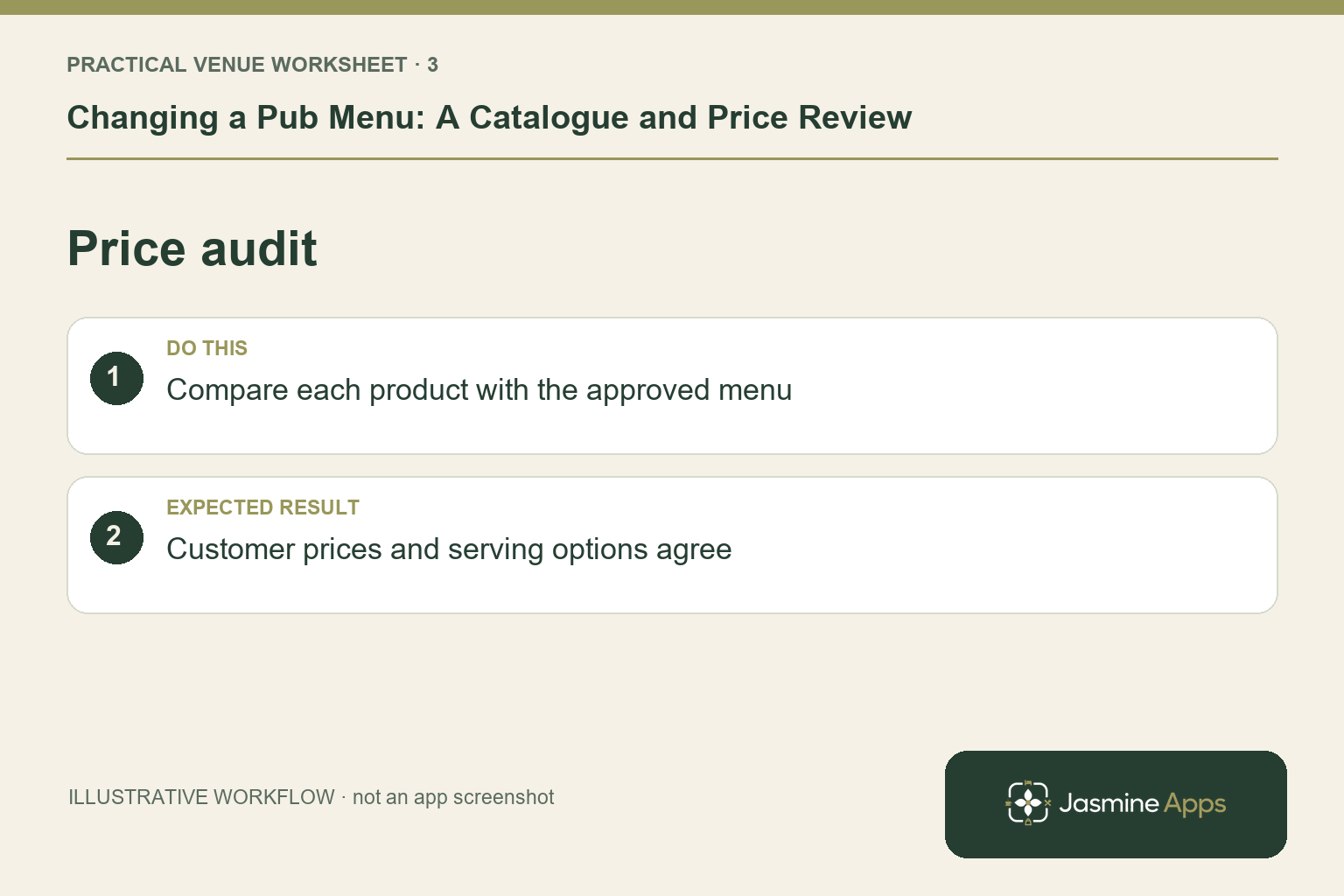
Review prices and categories deliberately
Check the customer price field and the product's configured tax treatment with the responsible finance or catalogue owner. Use your existing approved rates rather than copying a neighbouring product blindly. Keep supplier cost and customer selling price distinct. Category colours become default button colours, so a menu restructure can also alter the visual cues staff use. Choose categories around service needs and avoid a long list of slightly different names for the same group.
Check the result: Customer prices and serving options agree.
Publish, place and test the changed products
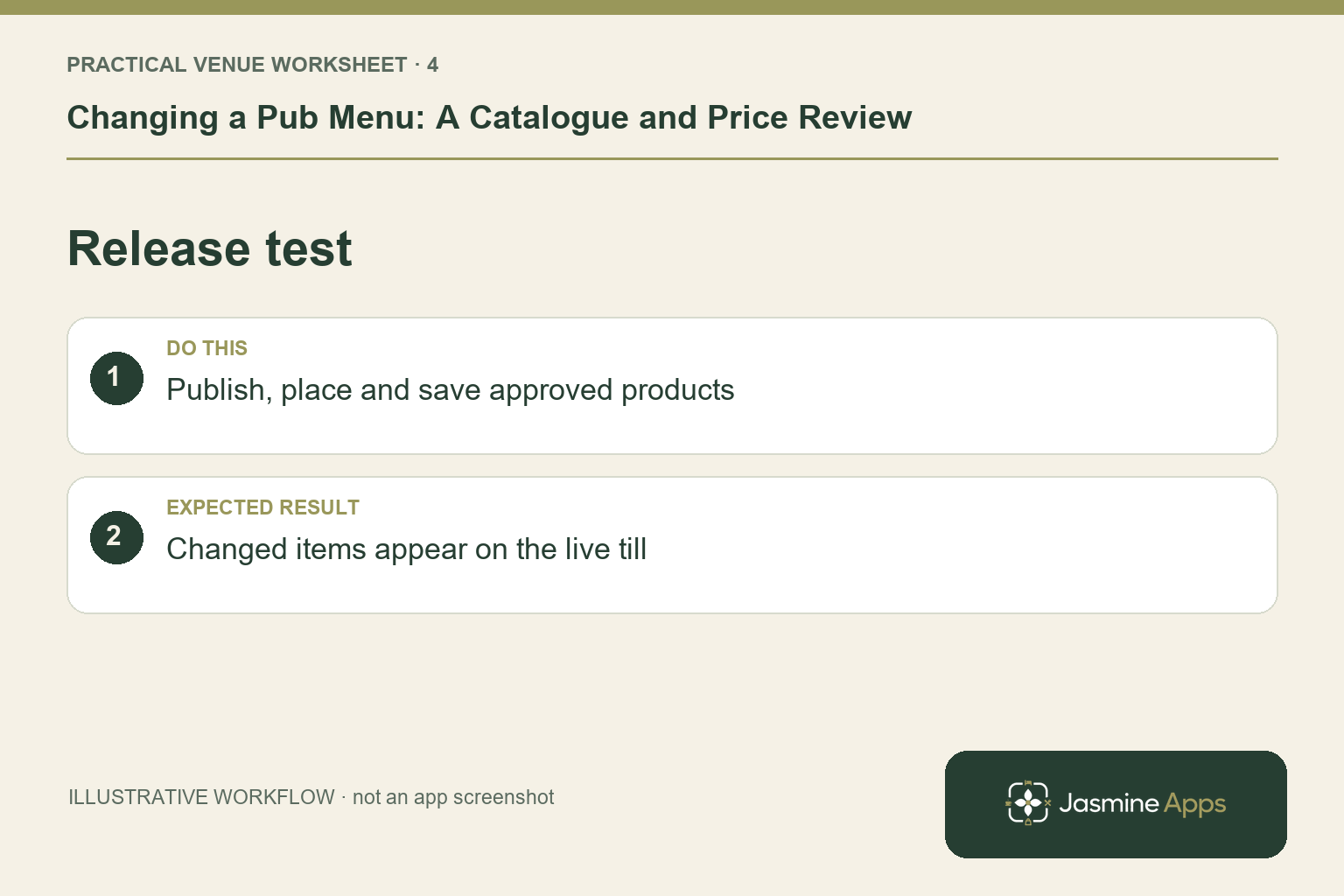
New catalogue entries need publication, and selling items need placement on a saved layout. Check the actual till for the intended menu page and the product's final price. Rehearse a new dish, a changed dish and an order containing both old and new items through the authorised test route. Brief staff on what has stopped selling and how to explain any guest question. A paper menu and designer preview are incomplete checks if the trading terminal still shows another version.
Check the result: Changed items appear on the live till.
Put the plan into practice
Use a change log with the menu version, effective service, catalogue reviewer and person who checked the live till. Keep the first service's exceptions together so a missing button or incorrect name can be resolved with context, rather than several shifts creating their own fixes.
Questions venue teams ask
Can menu scan publish everything automatically? The published workflow requires confirmation before additions. Check the suggestions and the live catalogue and layout separately.
Should we delete old products immediately? Plan catalogue housekeeping with the manager and preserve the records needed for prior sales. Do not remove items casually during service.
Example from the actual app
On the actual catalogue page, Scan menu and Add product sit beside Publish. The product table separates Price (inc. tax), Cost, Tax and On till. Compare the intended customer price in its own column and use the On till check for placement. A supplier cost, category colour or tax label is not the customer selling price.
A working checklist for your venue
| Check | What to do | Result to verify |
|---|---|---|
| Approved menu | Identify one dated menu version. | Kitchen and bar use the same reference. |
| Menu scan review | Check suggested names, prices and categories. | Nothing is accepted without review. |
| Price audit | Compare each product with the approved menu. | Customer prices and serving options agree. |
| Release test | Publish, place and save approved products. | Changed items appear on the live till. |
Use the checklist with a colleague who did not configure the workflow. Ask them to complete the ordinary task without coaching, then compare the result with the expected outcome. Record the point where they hesitate or need information from another shift. That observation gives you a specific improvement to make before extending the setup.
Discuss your own setup
Bring a small menu sample, the number of selling points and one awkward order or payment handover. Contact Us to discuss a Till Jasmine demonstration against those requirements.
Illustrations explain the workflow and are not product screenshots. Any numerical example is labelled illustrative and is not a customer result. Product wording and documented setup checks reviewed on 13 October 2026; confirm the features available in your current installation.