

Clock Jasmine Kiosk PIN or Setup Code Not Working?
· Jasmine Apps
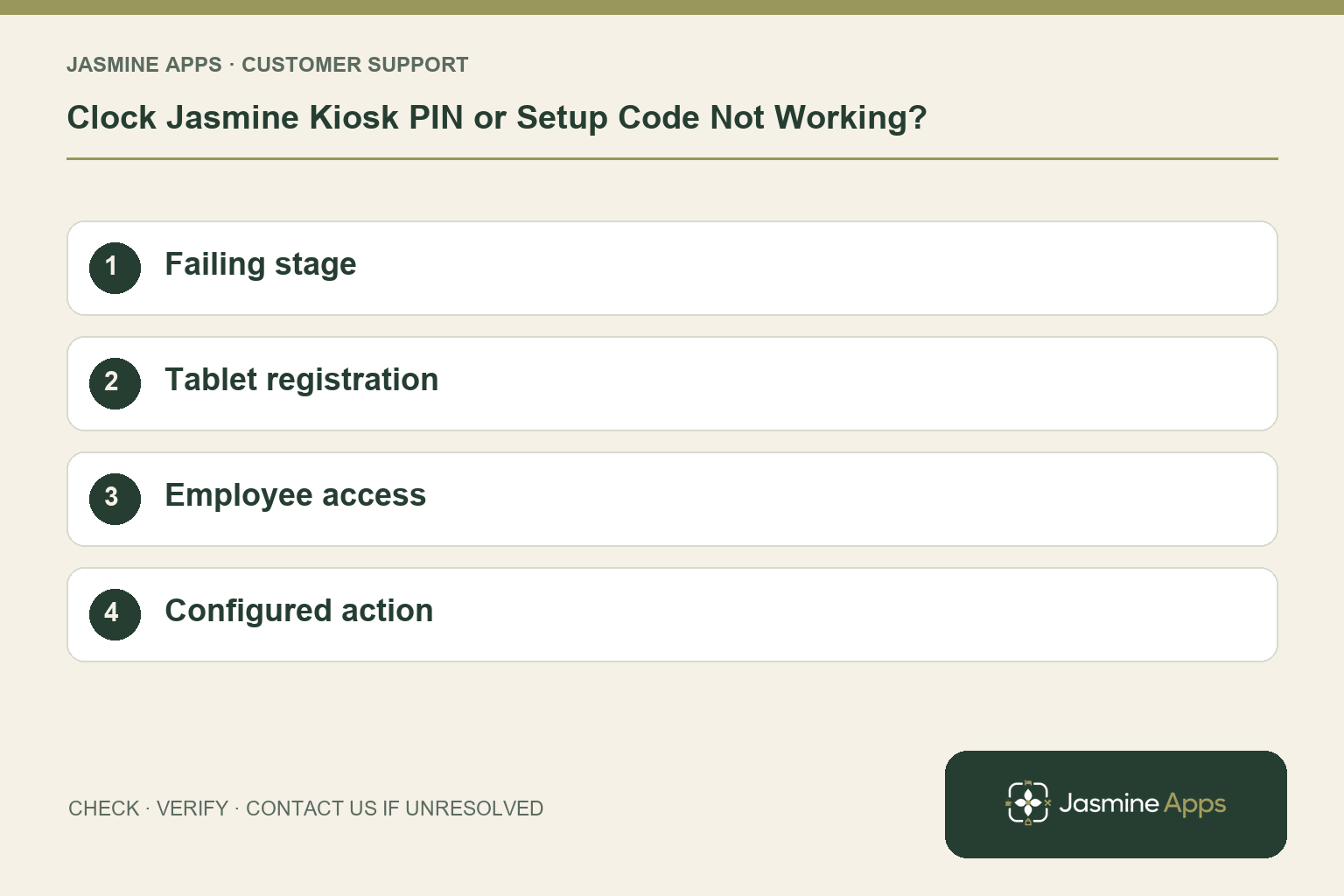
Customer support: Work through these checks in order. After each change, repeat the original action and check the result. If it remains unresolved, use Contact Us.
A kiosk refusal can happen before the tablet is registered or after a staff member enters their PIN. Those are different checks in Clock Jasmine Kiosk. Identify the screen and whether everyone is affected before changing device settings.
Quick answer: Use the setup code only for tablet registration and personal kiosk PINs for attendance. Check expiry, staff access and the intended device actions.
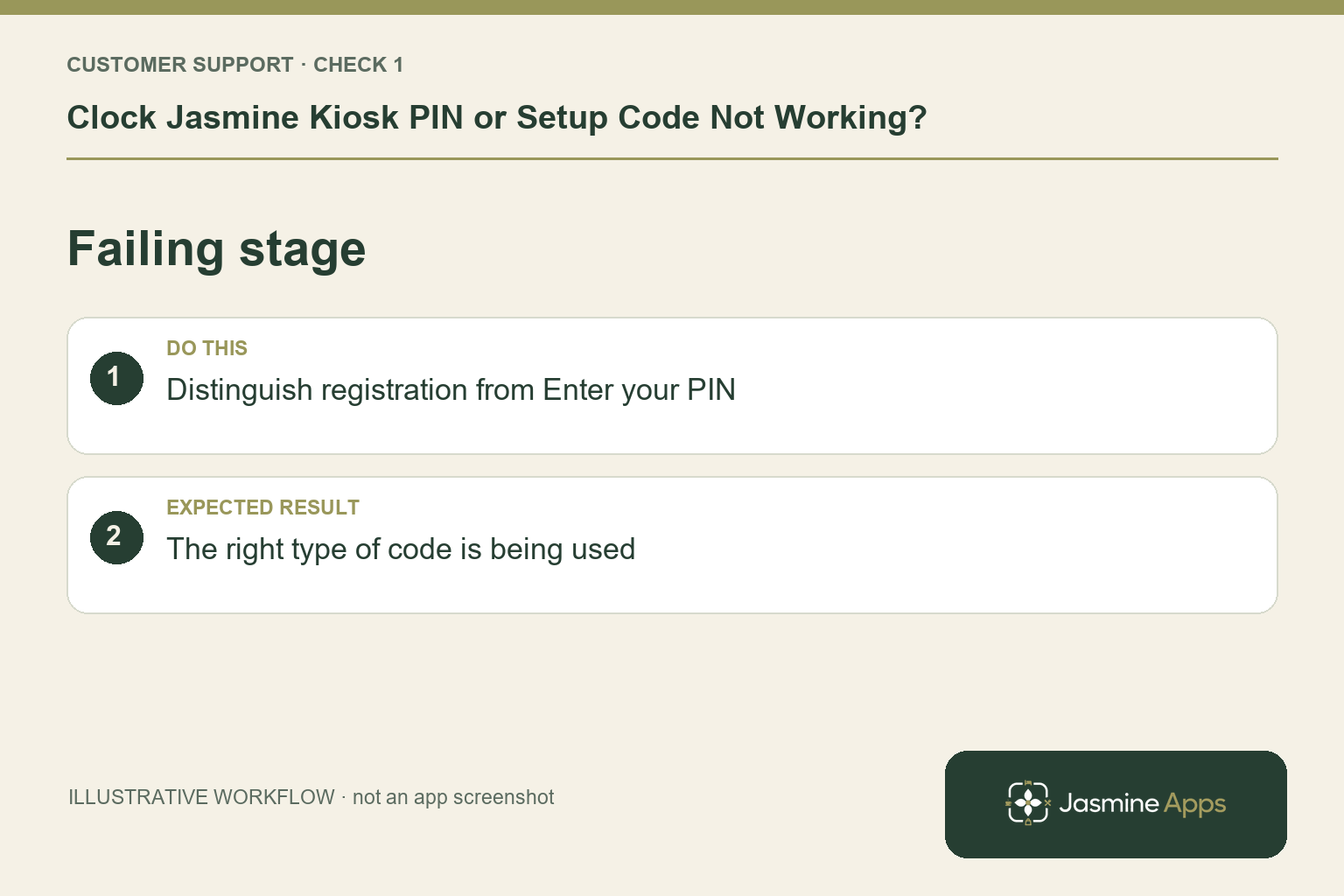
1. Is this a setup-code error or a PIN error?
Kiosk Setup asks for the manager-generated Setup code and Register kiosk. A registered tablet asks staff to Enter your PIN and Confirm PIN. The setup code is not an employee credential, and staff should follow the PIN prompt shown on their supported kiosk. Read the prompt first. Do not try another employee's PIN to see whether the attendance record changes.
Check the result: The right type of code is being used.
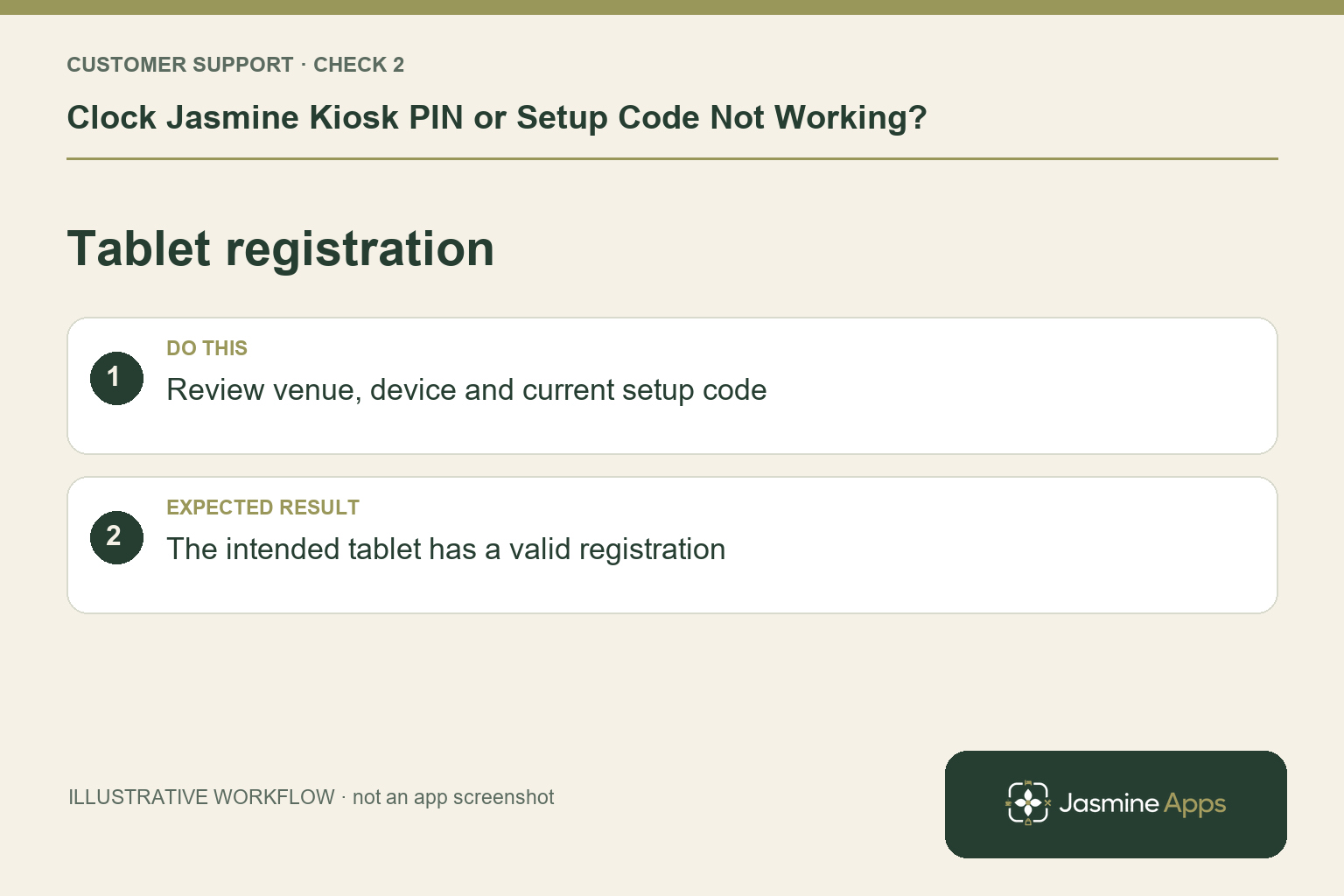
2. What if the tablet rejects registration?
A manager opens Kiosk devices, chooses Generate setup code, then the Venue, Device name and Allowed actions. Generate code supplies the tablet registration value. The guide says it expires; use Regenerate beside a pending code if needed. Confirm the intended tablet and venue before entering it. A previously working device unexpectedly asking for setup deserves investigation before clearing its configuration.
Check the result: The intended tablet has a valid registration.
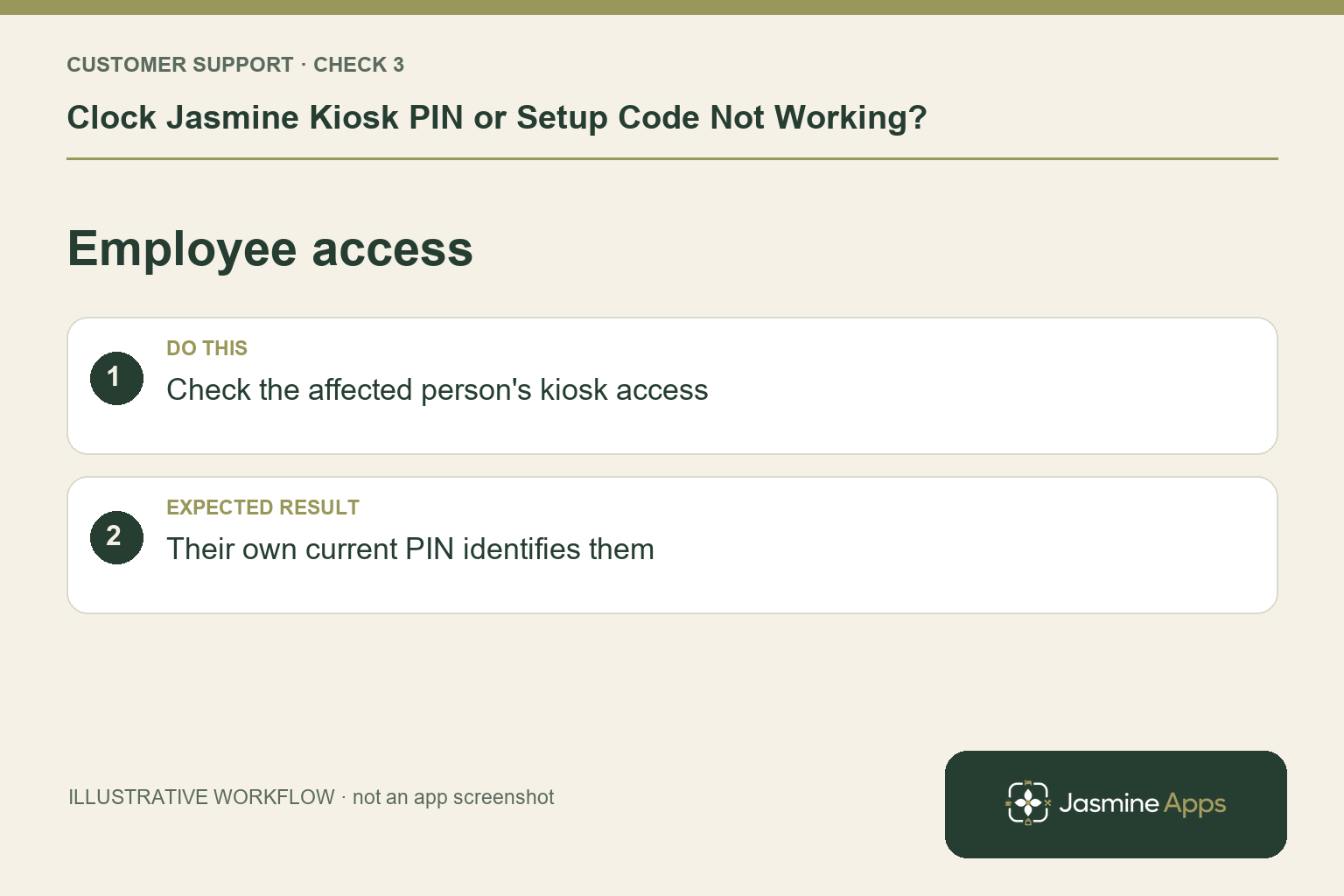
3. What should we check for one employee?
Open the correct employee profile and Kiosk access through an authorised account. The documented options are admin Generate code or employee Set PIN and Confirm PIN. Verify the employee has been invited and is using their own current kiosk PIN. Keep that PIN private. If many people fail, inspect device registration and connectivity before assuming every employee's access has changed.
Check the result: Their own current PIN identifies them.
4. Why is the action or selfie step missing?
Allowed actions control whether the device offers Clock in, Clock out, Start break and End break. Current shift state also changes the buttons. If selfies are required, the employee must complete Take a selfie and confirm through the agreed camera setup. A disabled kiosk stops accepting PINs. Do not disable photo or device policies as a casual workaround; the manager should review the intended configuration.
Check the result: The tablet offers the approved attendance routine.
Example from the actual app
The actual Kiosk devices page lists each device’s Venue, Location, Actions, Status and Last seen. It says setup codes are temporary, single-use and expire, and that disabling a kiosk prevents its use. Check device state and the affected attendance action as well as the employee’s PIN. No active setup code or device token belongs in a support screenshot.
Before you contact us
| Check | What to do | Result to verify |
|---|---|---|
| Failing stage | Distinguish registration from Enter your PIN. | The right type of code is being used. |
| Tablet registration | Review venue, device and current setup code. | The intended tablet has a valid registration. |
| Employee access | Check the affected person's kiosk access. | Their own current PIN identifies them. |
| Configured action | Review shift state, allowed actions and selfie policy. | The tablet offers the approved attendance routine. |
Record which check failed, the exact error wording and when it happened. Include the relevant venue and record reference, and say whether one device or several people are affected. If you changed a setting, identify that change and the retest outcome. This helps us investigate the actual failing stage instead of asking you to repeat the whole process.
Contact Us if the expected result still does not appear. Send only the information needed to investigate; keep passwords, active codes, payment details and unrelated customer records out of screenshots.
When to stop and ask for help
Give support the device name, venue, failing stage and exact message, plus whether one or all employees are affected. Do not send active codes, PINs or employee selfies in public. Record a failed punch promptly using the manager's approved attendance exception process.
Illustrations explain the workflow and are not product screenshots. Any numerical example is labelled illustrative and is not a customer result. Product wording and documented setup checks reviewed on 13 October 2026; confirm the features available in your current installation.