

TutorialIn-app guide
Set or reset a Clock Jasmine kiosk PIN
· Jasmine Apps
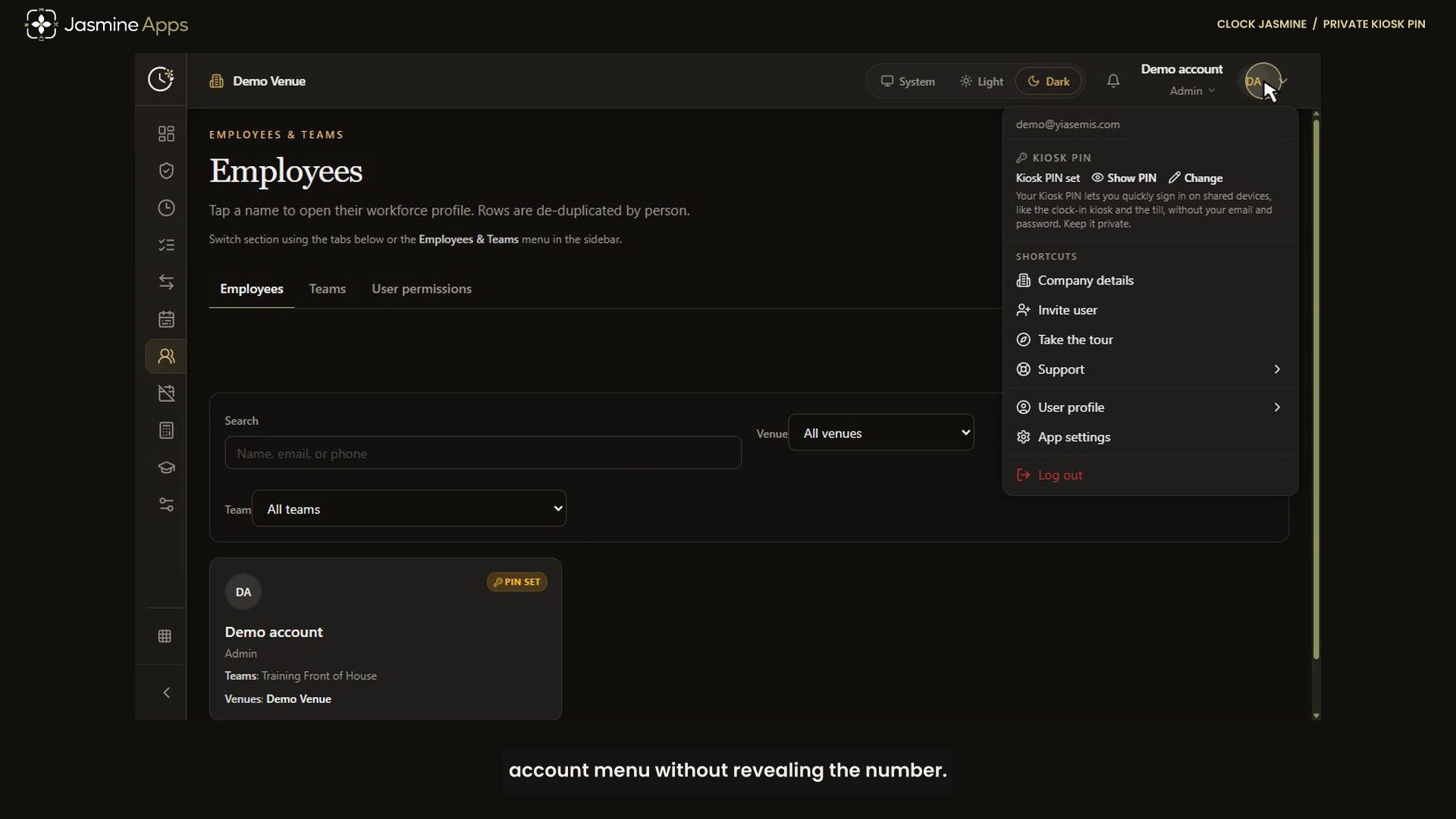
Manage your own Clock Jasmine kiosk PIN from your account menu and check that it remains configured. The walkthrough uses only the Demo account in Demo Venue. The account owner saved the PIN privately before filming; the video opens an empty change form, closes it without changes and verifies the retained status after reload. No PIN digits are entered or revealed in the recording.
Watch the walkthrough
Open the PIN controls
Open your account menu at the top right. Its KIOSK PIN section shows whether a PIN is configured. Choose Set when none exists, or Change when replacing an existing one. The recorded account already shows Kiosk PIN set, so the walkthrough opens Change.
Set or change privately
Enter your new private PIN into PIN and repeat it in Confirm PIN, then choose Save PIN. Follow the form’s current validation. Keep the digits out of screenshots, recordings and messages. The video leaves both fields empty and closes the form without saving because its account owner completed setup privately beforehand.
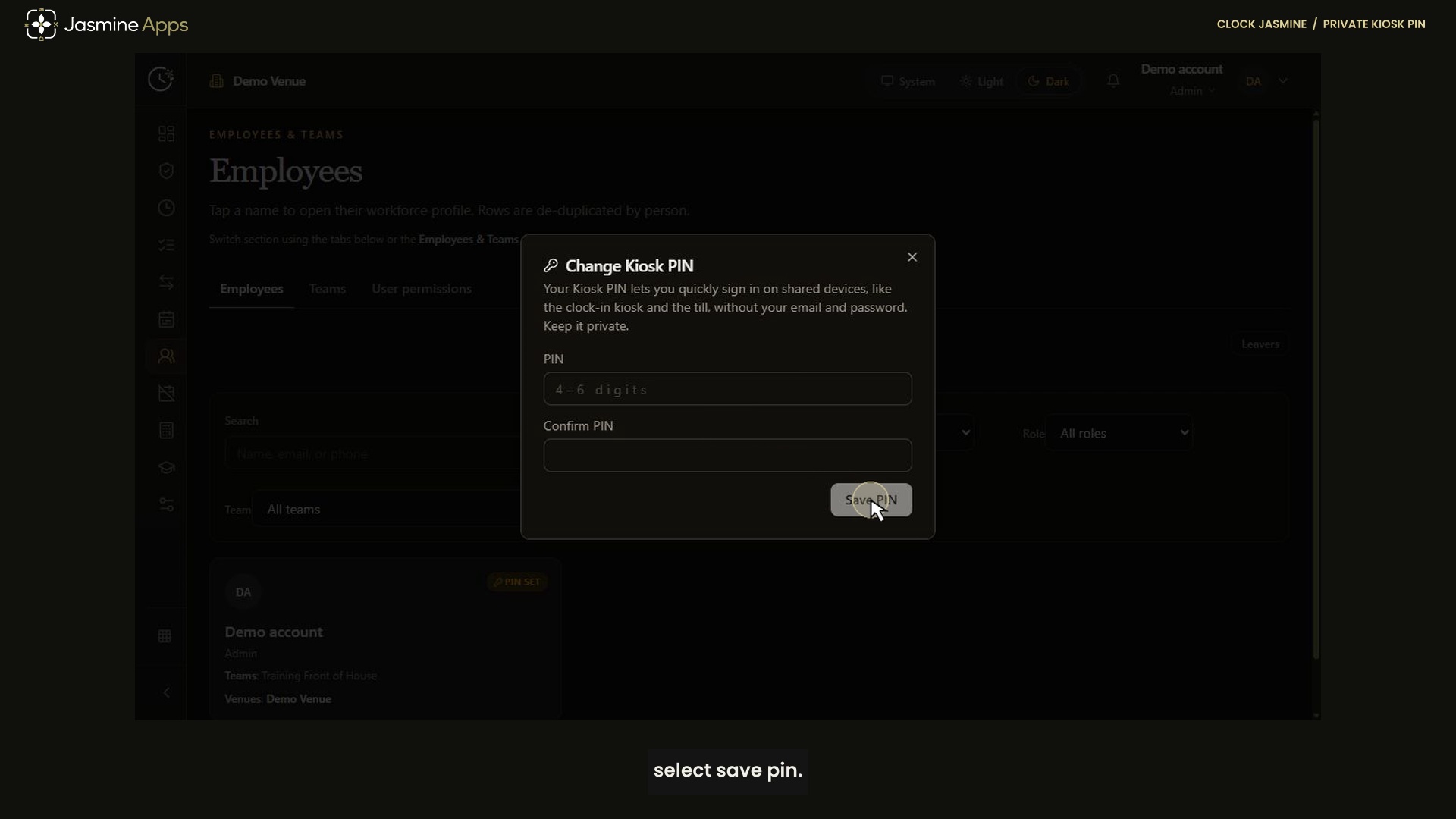
The PIN is used for quick sign-in on shared devices such as the clock-in kiosk and till. Saving a personal PIN does not pair a new kiosk or prove a particular device accepts it; those are separate checks.
Verify saved status
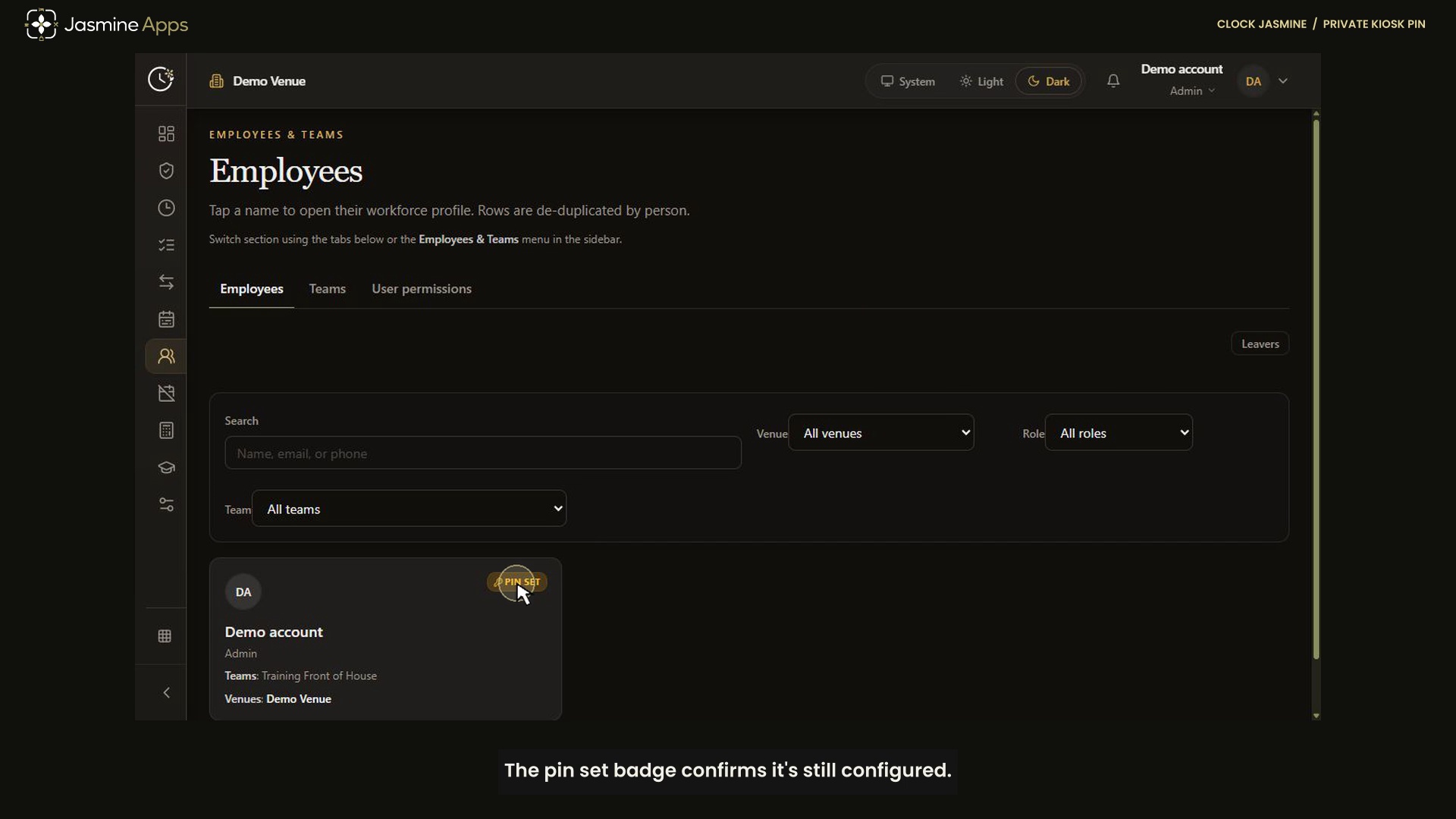
After saving your own PIN, close the form and reload the employee list. The PIN SET badge indicates that the employee has a PIN configured. In this recording the badge persists after reload; the unchanged form did not create a new PIN.
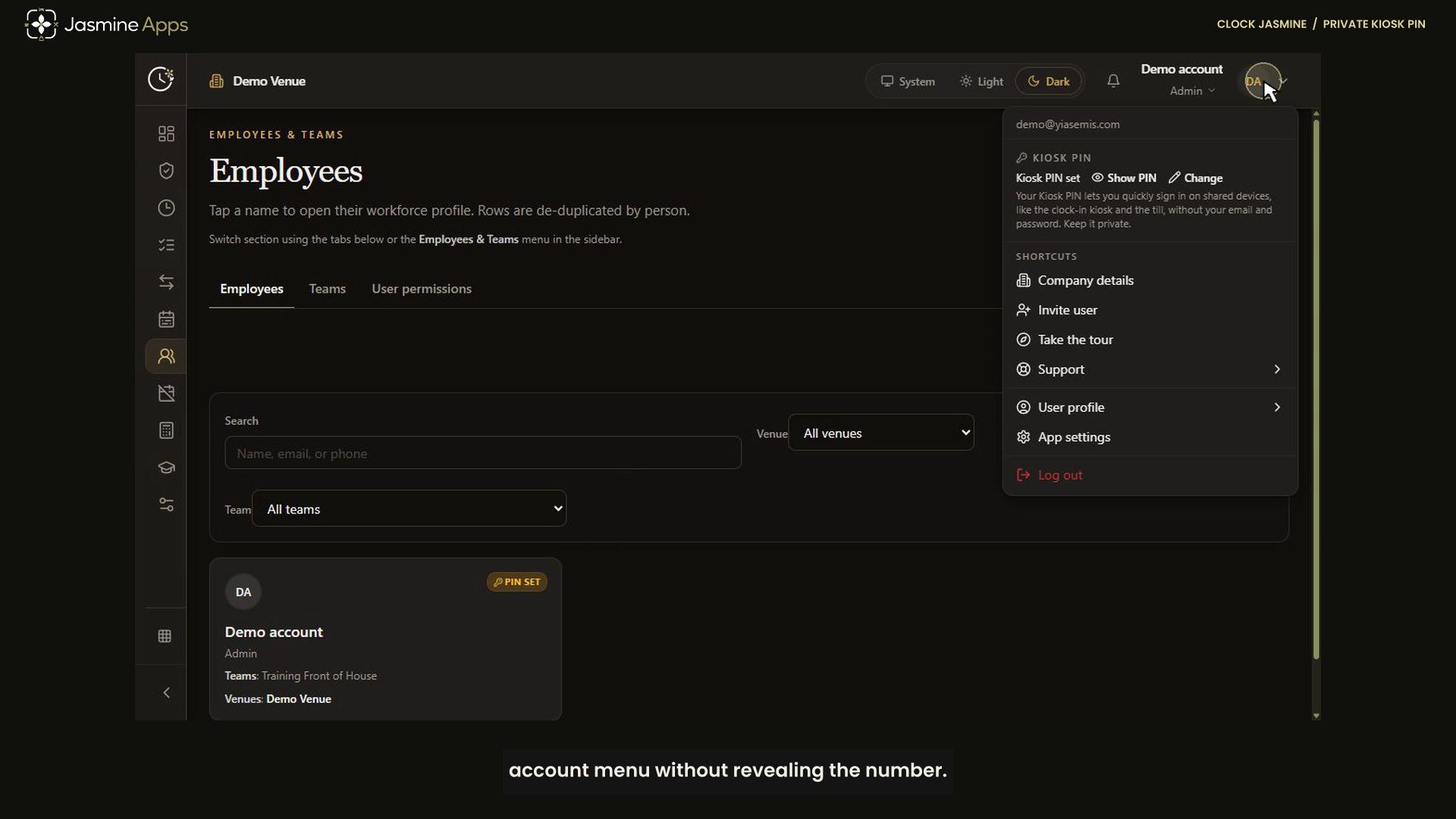
Open the account menu again and check Kiosk PIN set. You can verify configuration without choosing Show PIN. That reveal control is left untouched throughout this tutorial.
Common checks
- Save PIN is disabled: complete both fields and follow any visible validation; the filmed empty form is expected to be disabled.
- The employee still shows NO PIN: finish saving, reload and check again before relying on kiosk sign-in.
- You opened Change only to inspect it: close the form without entering or saving another credential.
- A shared device is not connected: review kiosk setup separately; the personal PIN status alone does not establish device pairing.