

TutorialIn-app guide
PayVigil: review the blank invoice entry form
· Jasmine Apps
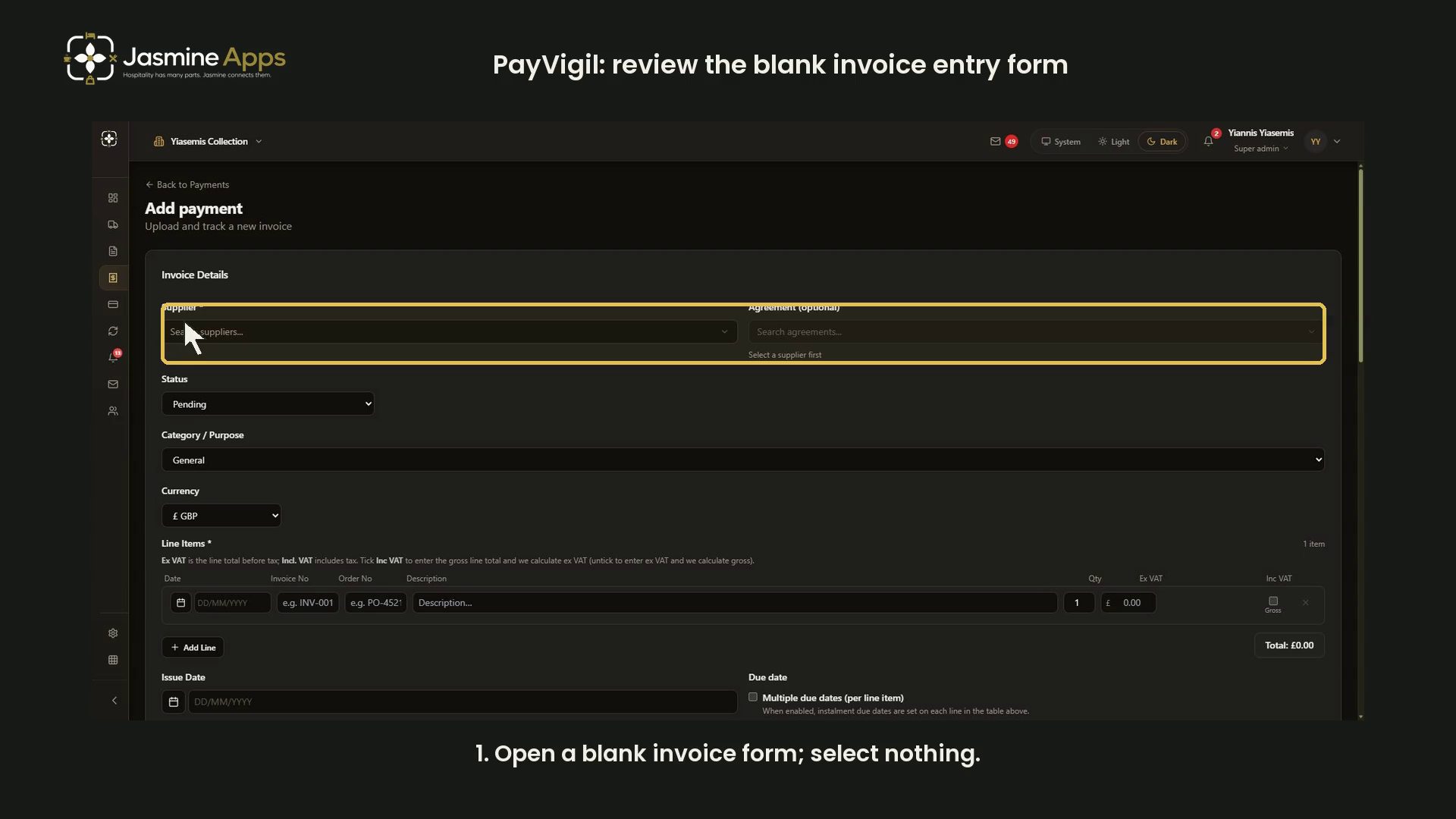
PayVigil's Add payment screen prepares a new invoice record. This dark-mode guide reviews the blank interface without displaying the live payments list or saving a financial record.
Watch the walkthrough
Open the blank invoice form
From Payments, choose Add payment. Supplier is required; Agreement (optional) stays unavailable until a supplier is selected. This example selects neither.
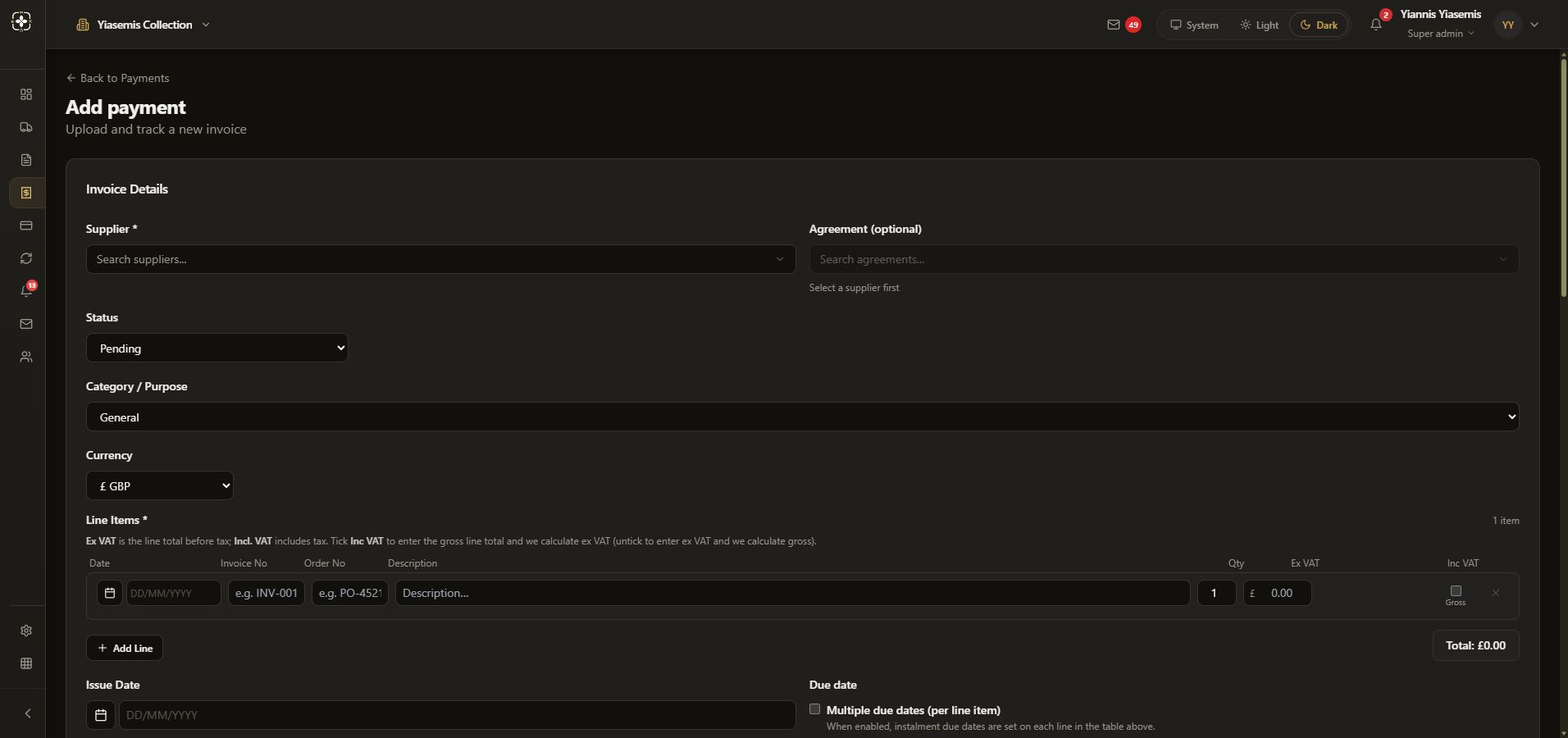
Review classification and line items
Check Status, Category / Purpose and Currency. Line Items includes date, invoice number, order number, description and quantity. Read the form's explanation of its excluding and including VAT inputs. No amount is entered, and this walkthrough does not recommend a tax rate.
Review dates and notes
Issue Date and Due date are separate. Multiple due dates (per line item) allows instalment dates on individual lines. Notes provides internal context. This is a supplier statement suppresses overlap warnings; Ignore overdue suppresses overdue status and red highlights. Both remain off here.
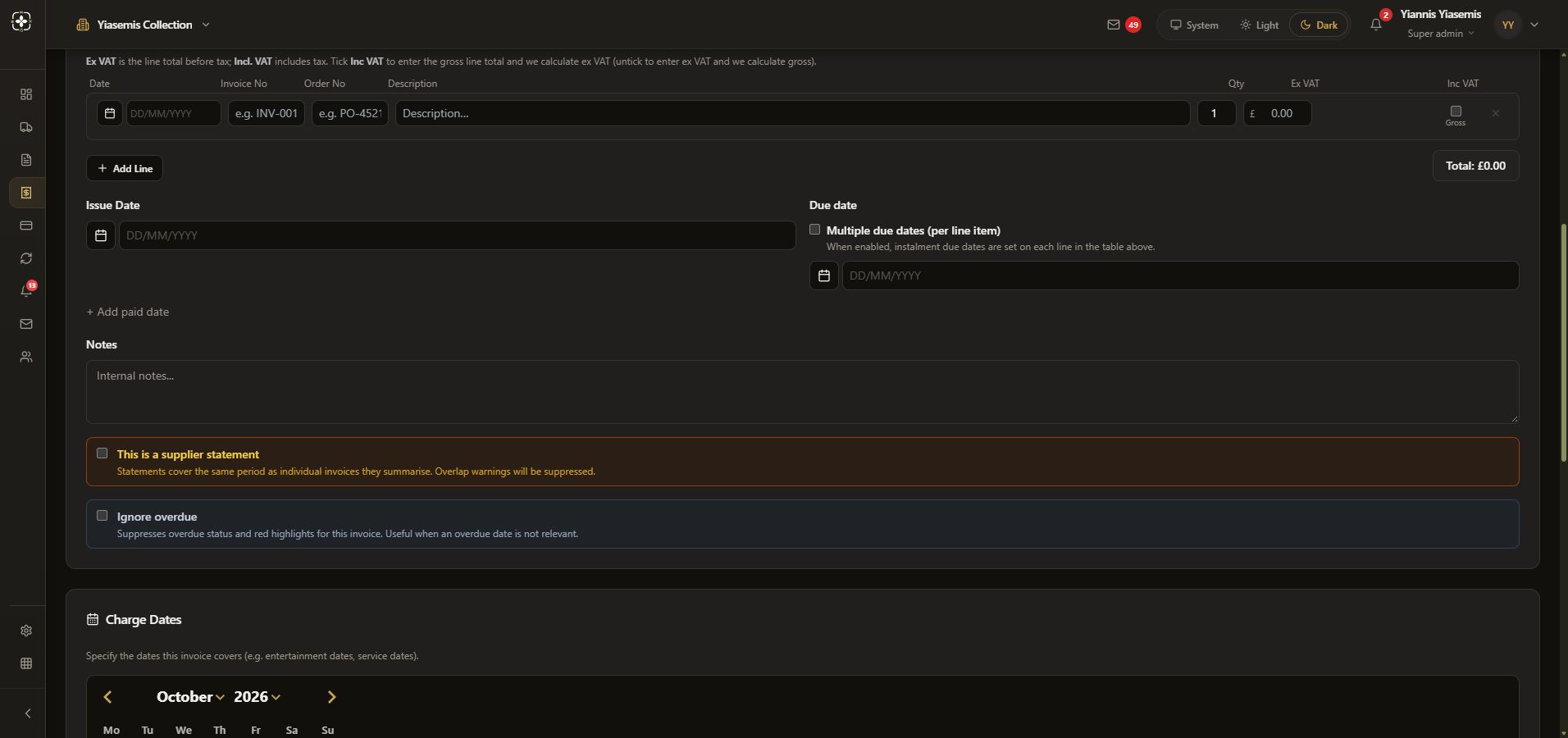
Review charge dates and organisations
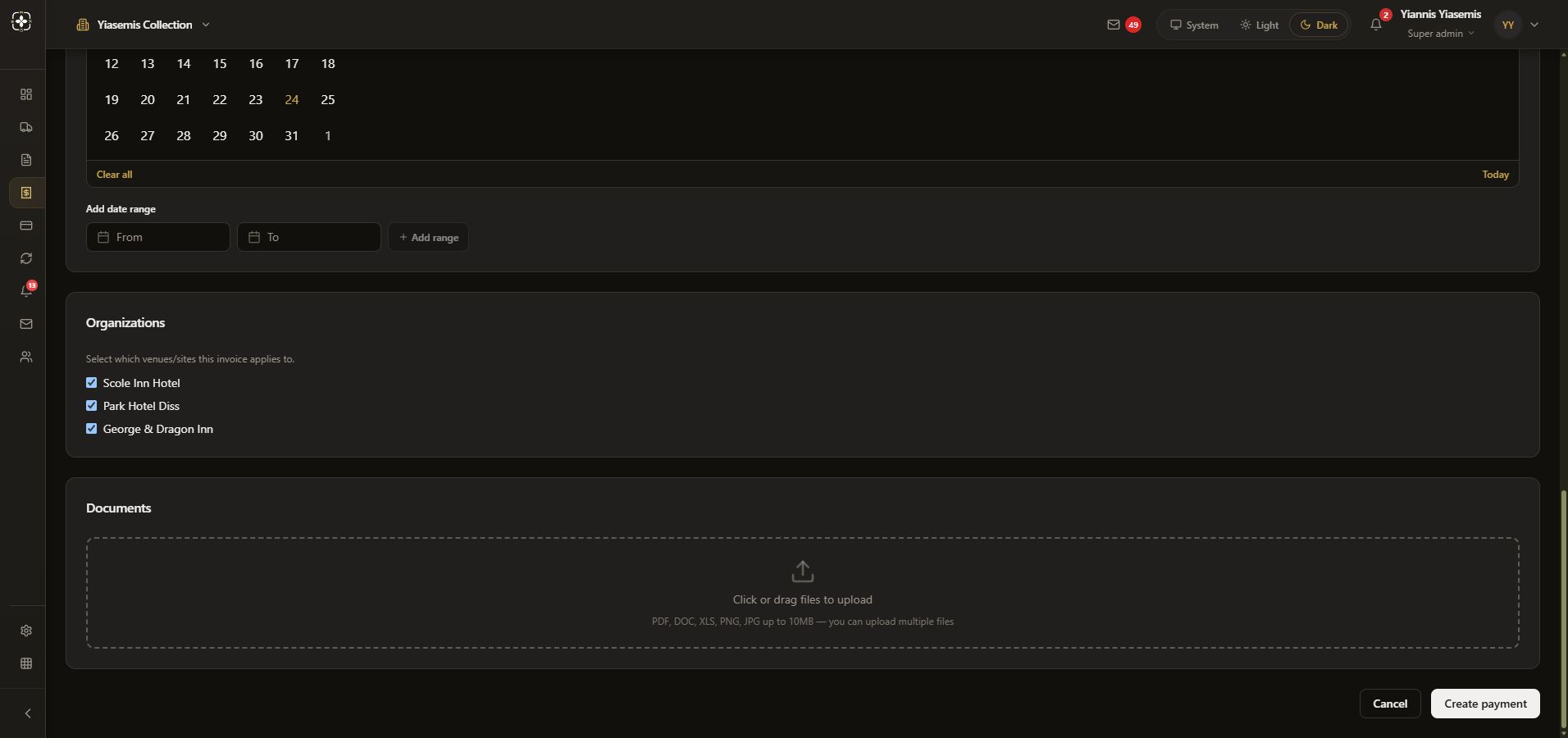
Charge Dates describes the period the invoice covers, using calendar dates or a range. Organisations selects applicable venues. The visible selections are form defaults, not a recommendation to allocate every invoice to every venue.
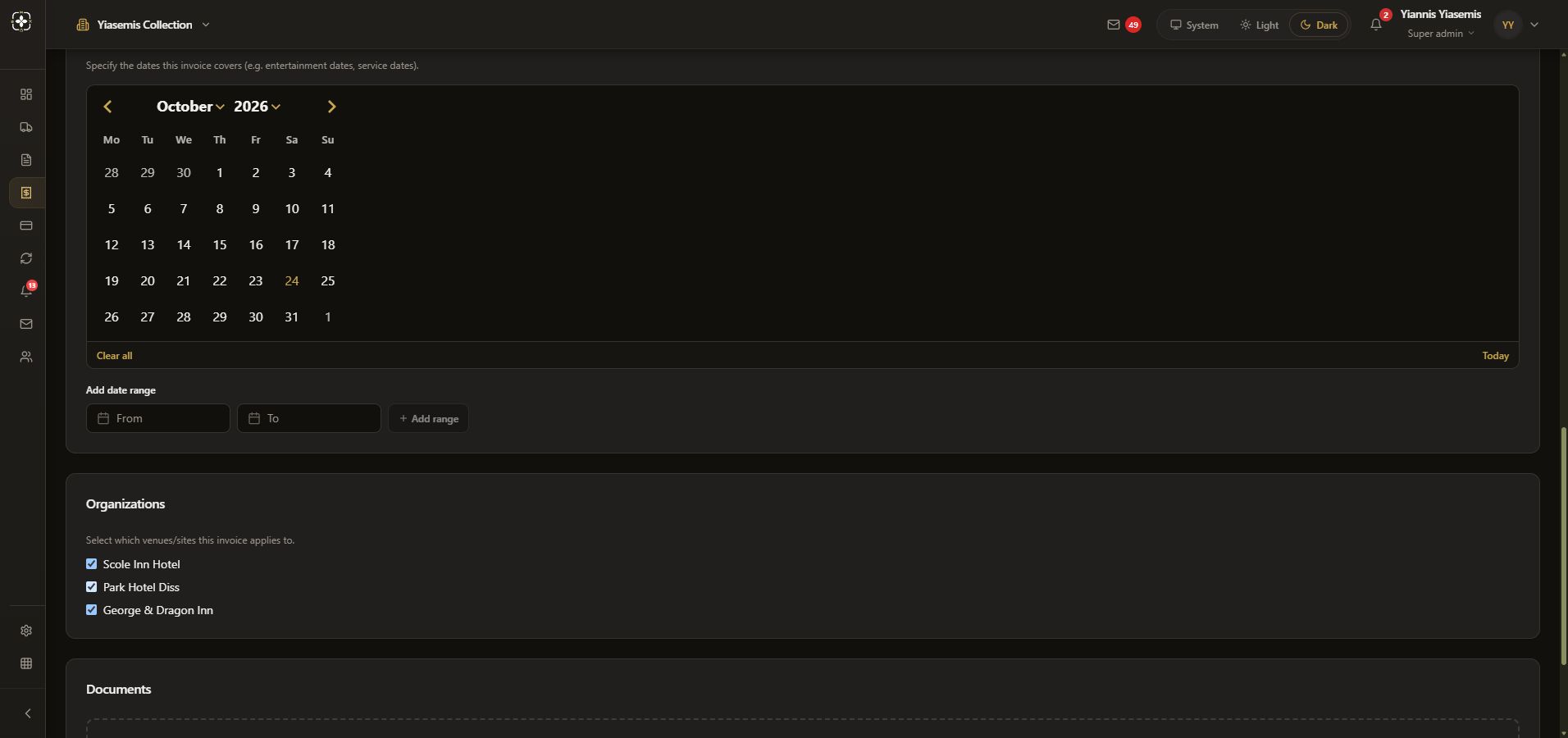
Review documents, then cancel
Documents accepts the listed file formats, up to 10 MB per file. Nothing is uploaded. Choose Cancel to leave without pressing Create payment.
No invoice is created, marked paid, exported or transferred. For supplier fields, see supplier preparation.