

TutorialIn-app guide
PayVigil: prepare a supplier
· Jasmine Apps
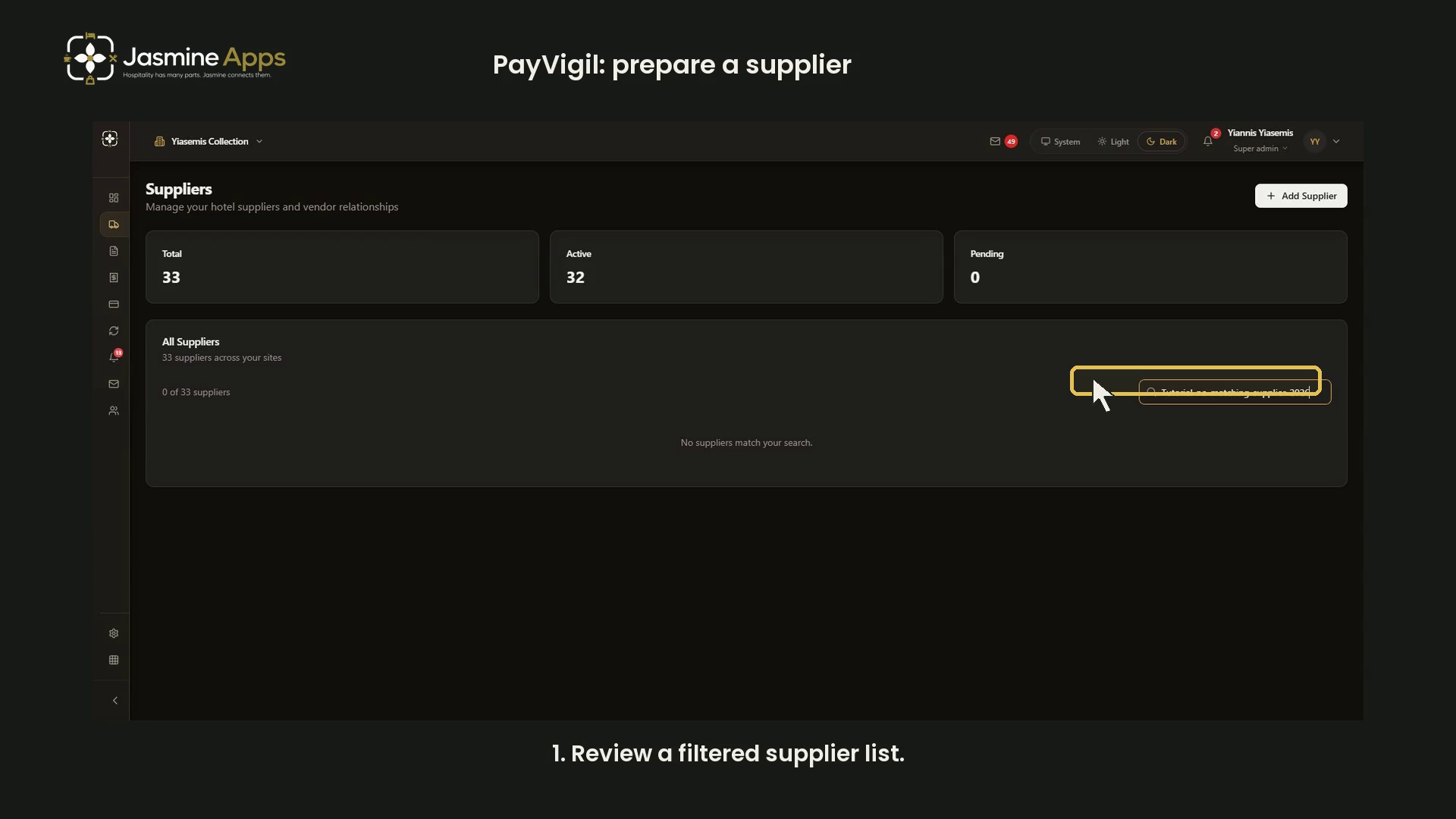
PayVigil supplier setup starts with organisation scope and general information, followed by contact and banking fields. This dark-mode guide reviews an unsaved form and leaves every live supplier unchanged.
Watch the walkthrough
Open supplier preparation
Open Suppliers. The demonstration applies a unique search to keep the list empty and avoid showing live supplier details. Choose Add Supplier to open the form.
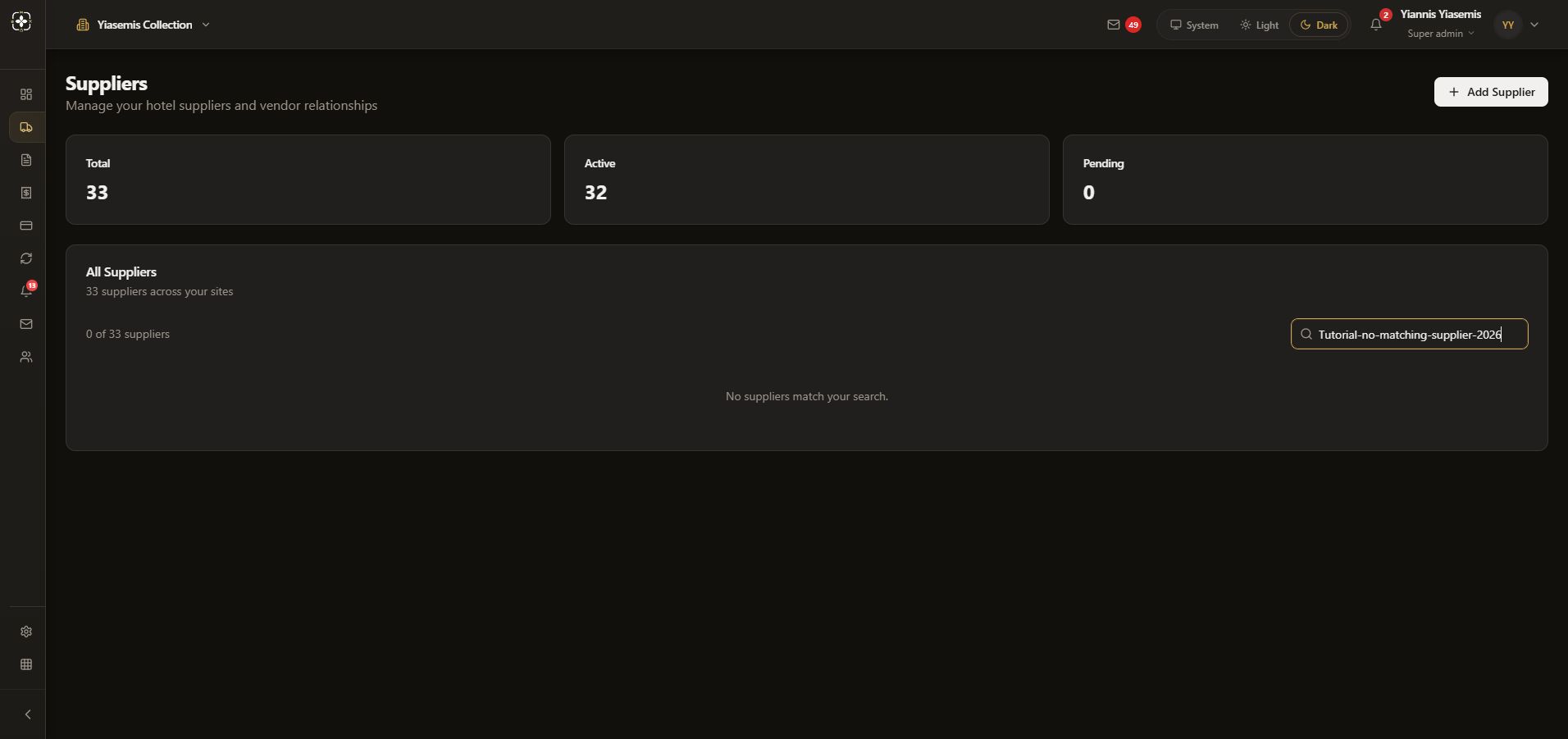
Check organisations and general information
Review the organisation selections, required Name, Category and Status. The displayed selections and defaults belong to the blank form; check the correct scope for an actual supplier before saving.
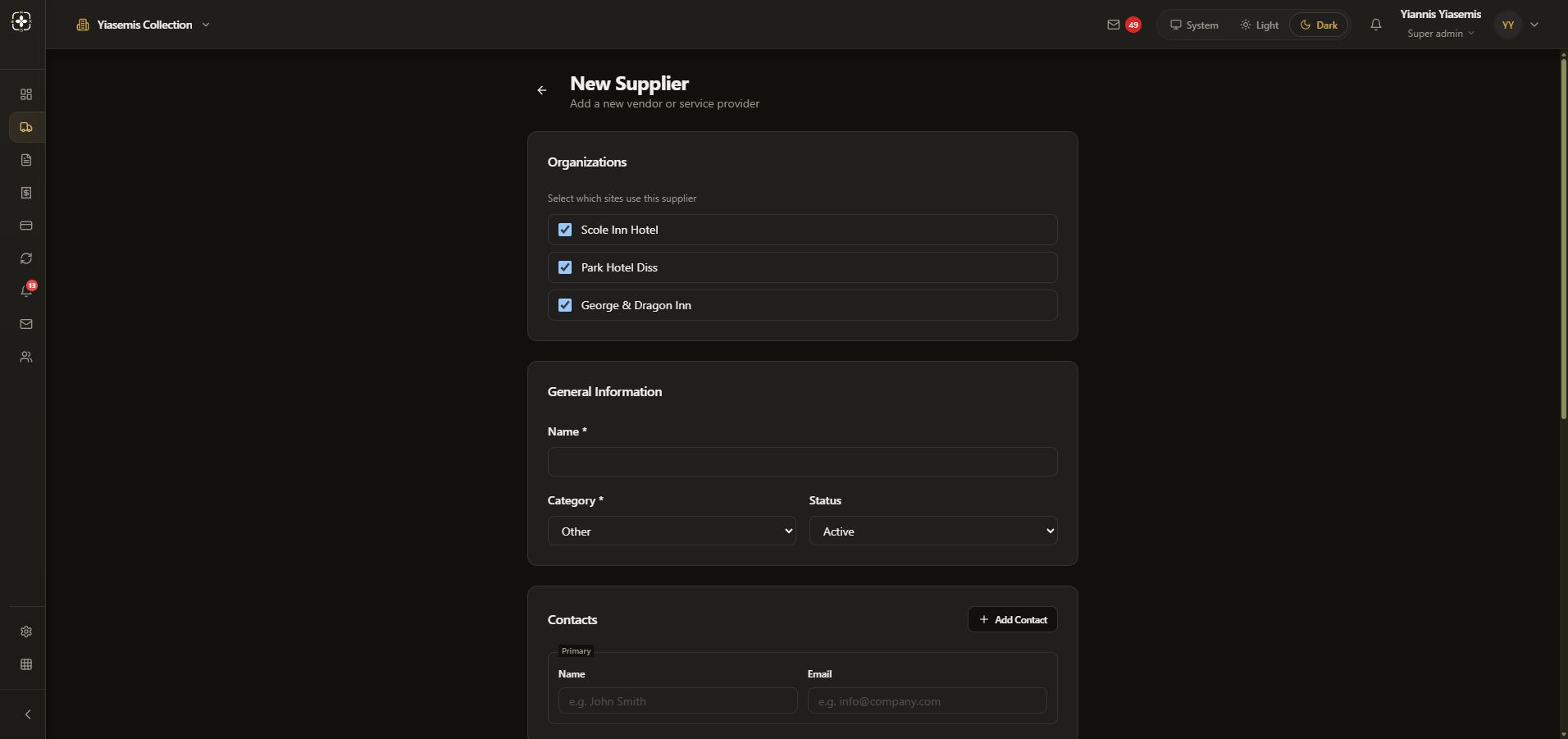
Review contacts
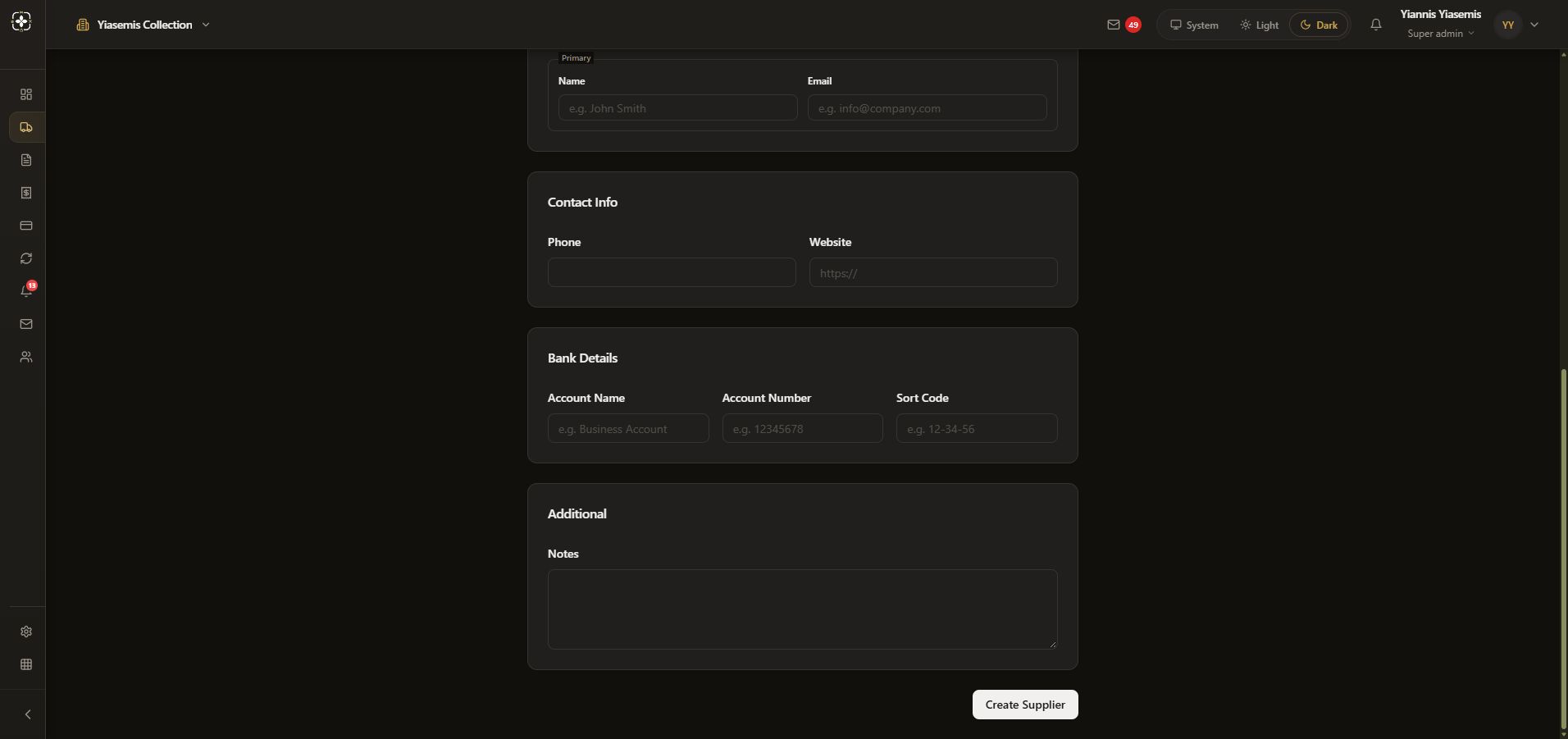
The unsaved example shows Food & Beverage as the category. Contacts provides Primary Name and Primary Email; Contact Info includes Phone and Website. No contact information is entered.
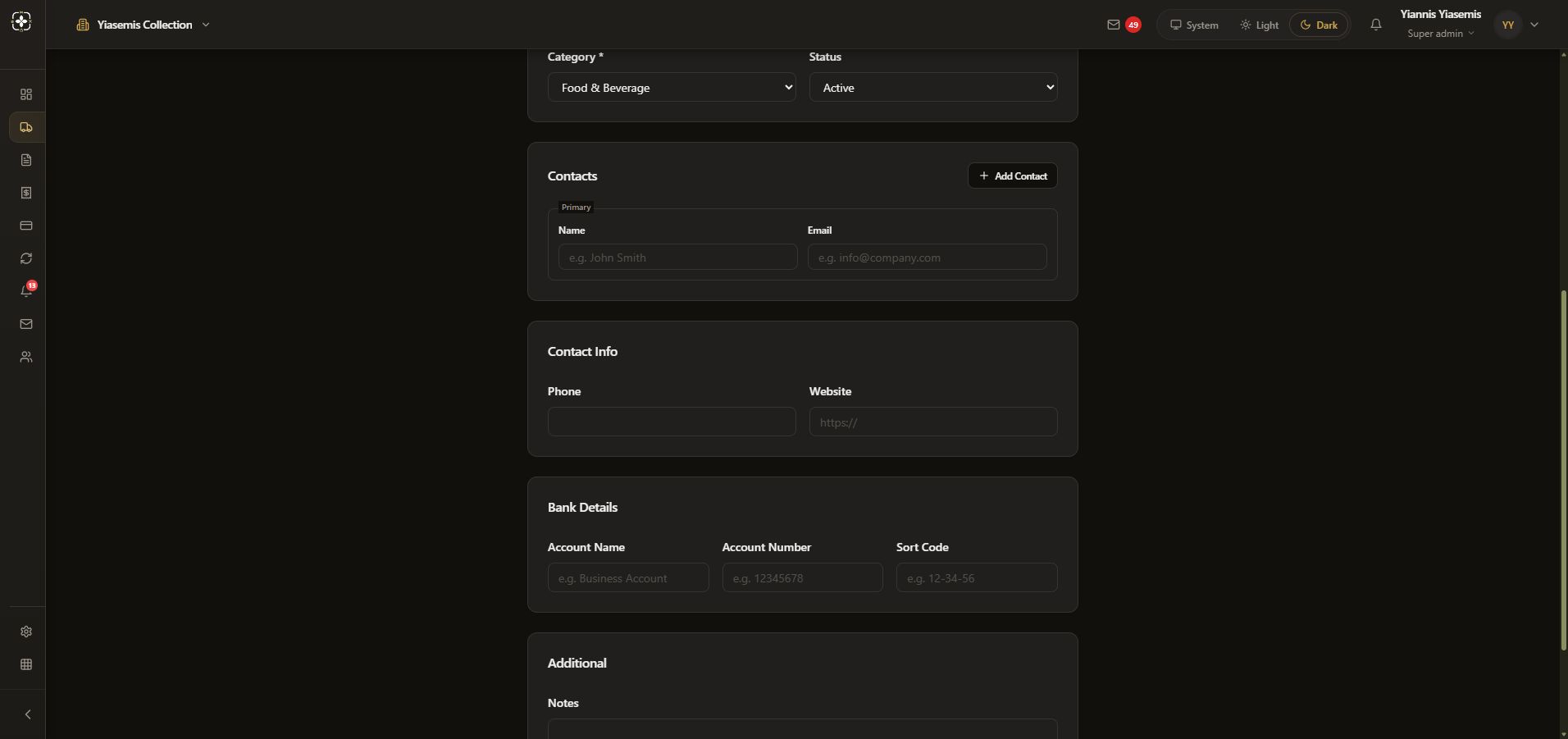
Review bank fields and notes
Bank Details contains Account Name, Account Number and Sort Code. These remain blank. Faint example text is a placeholder, not saved account information. Additional Notes is also blank.
Leave the example unsaved
Create Supplier saves a real record. The demonstration does not press it: the unsaved form is reloaded before leaving. No supplier, contact or bank record is created. For the invoice interface, see blank invoice entry.